ptg
29
The Word PDFMaker in Windows also produces merged documents. This
feature, first introduced in Acrobat 8, can attach the merged PDF files
to e-mail messages. Be sure your source data and the merge document
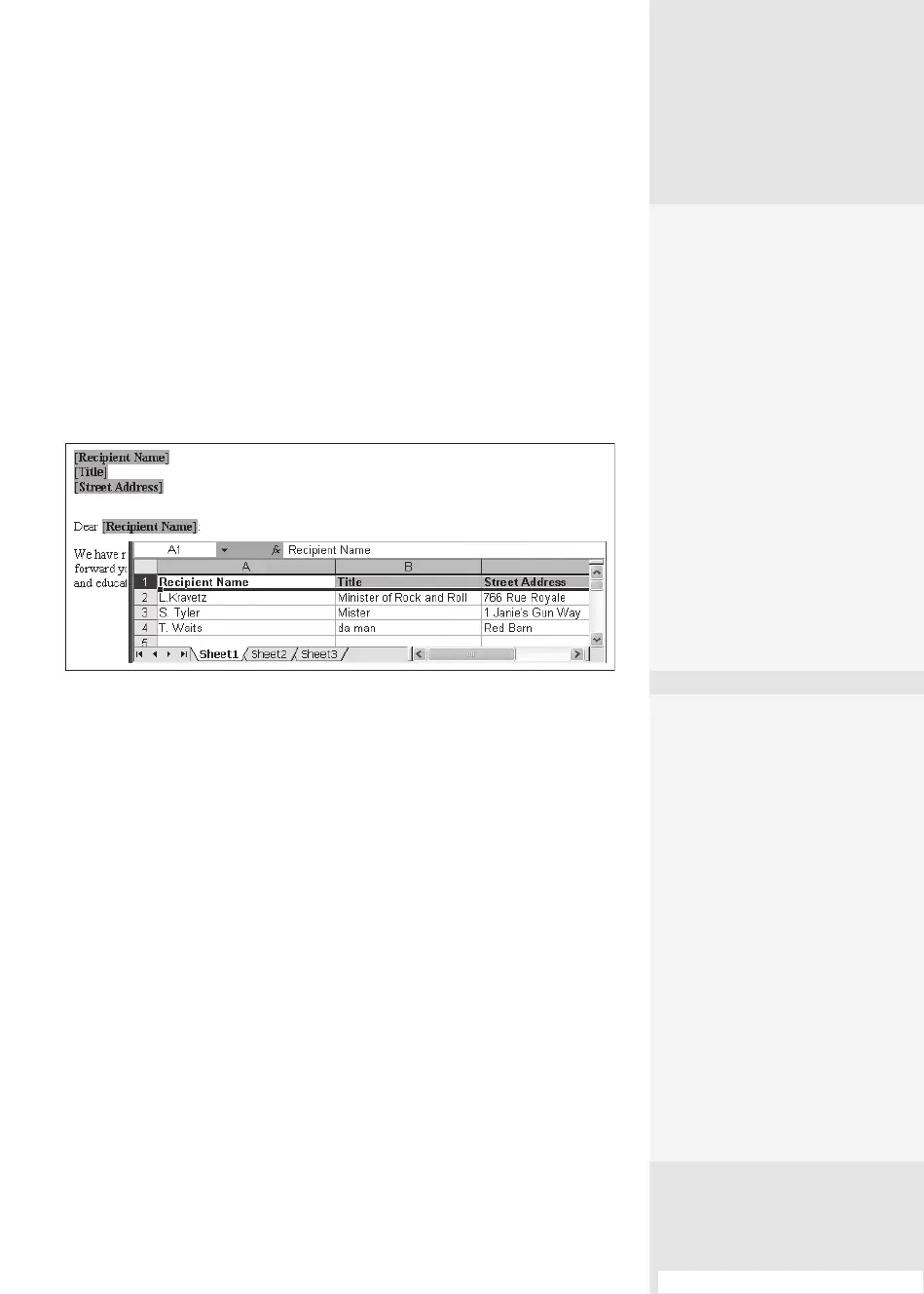
containing the merge fields are ready first (Figure 11a). When you’re
ready, test the merge first before running the PDFMaker process. If you
don’t have the Word source files prepared properly, you’ll see an Acrobat
PDFMaker message outlining the error of your ways, and the merge won’t
proceed.
Figure 11a Be sure to test your merge functions before starting.
Merging Word Files
to PDF
#
11
#11: Merging Word Files to PDF
Take the Time
to Save Time
Be sure to test the appear-
ance of the merge in Word
before starting the PDF-
Maker conversion process.
You don’t want to run a
batch of hundreds of docu-
ments to find out there’s
a space missing between
merge fields. Although
Acrobat PDFMaker shows a
message if your mail merge
components aren’t con-
figured properly, checking
spelling, punctuation, and
the like isn’t part of its
function.
Keeping Names
in Order
When you use the PDFMaker
to produce merged docu-
ments, the PDF file is named
using the text you type in
the “Specify PDF file name”
field (“PDFMailer” is used in
the example). The merged
documents are named using
the text, an underscore, and
a numerical seven-digit suf-
fix in the order in which the
files are converted. In the
example, the files are named
PDFMailer_0000101.pdf,
PDFMailer_0000102.pdf,
and so on.
From the Library of Daniel Dadian



 To Next Page