ptg
CHAPTER TWO Creating PDF Files Outside Acrobat
30
Once the documents are ready and you have tested the merge, follow
these steps:
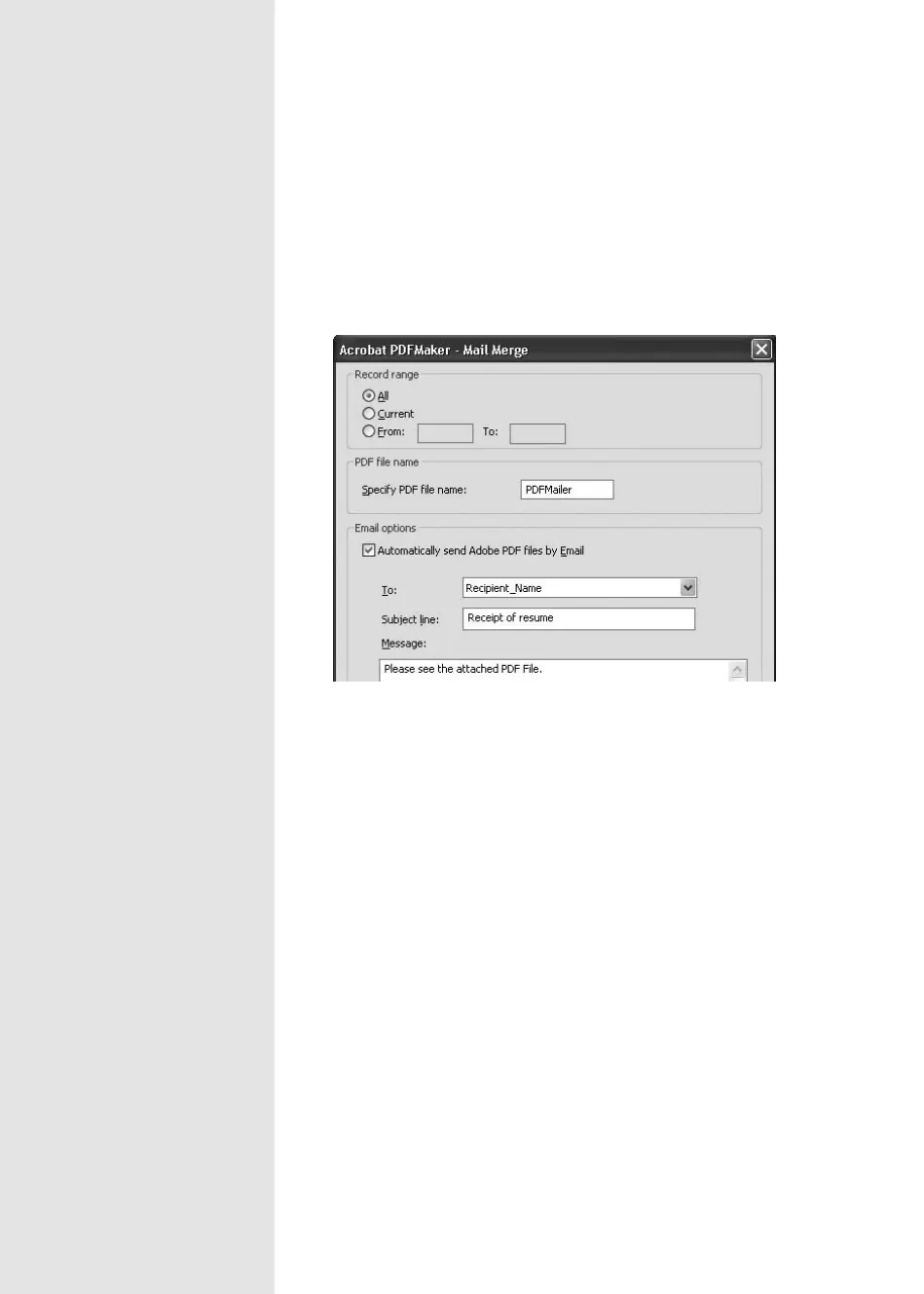
1. Choose Adobe PDF > Mail Merge To Adobe PDF to open the Acrobat
PDFMaker—Mail Merge dialog (Figure 11b).
Figure 11b Choose the settings for the mail merge to PDF process,
and choose e-mail settings if desired.
2. Choose the records to use for the merge, as well as a name in the
“Specify PDF file name” field.
3. To create merged PDF files and attach them to e-mail messages, select
“Automatically send Adobe PDF files by Email” to activate the remain-
ing fields in the dialog and specify the e-mail options.
4. Click OK to close the dialog. The data is processed, and a Browse For
Folder dialog opens. Locate and select the folder where you want to
save the finished files, and click OK to close the dialog.
5. When the files are processed, the Choose Profile dialog opens. Select
your e-mail profile and click OK. The dialog closes, and the e-mail mes-
sages are created and sent. On completion, a message dialog opens,
explaining that the process was successful. Click OK to close the dialog.
The job is done!
From the Library of Daniel Dadian



 To Next Page