ptg
137
#53: Inserting Headers and Footers
Instead of adding pagination to your document for navigational pur-
poses, you can add precise headers and footers to the pages. Here’s how
to add a footer, including custom text, to a sample document:
1. From the main program menu, choose Document > Header & Footer
> Add to open the Add Header and Footer dialog.
2. Choose the font name and size from the pop-up menus at the top of
the dialog.
Tip
Read how to tweak the page layout in the sidebar “Appearance Tidbits.”
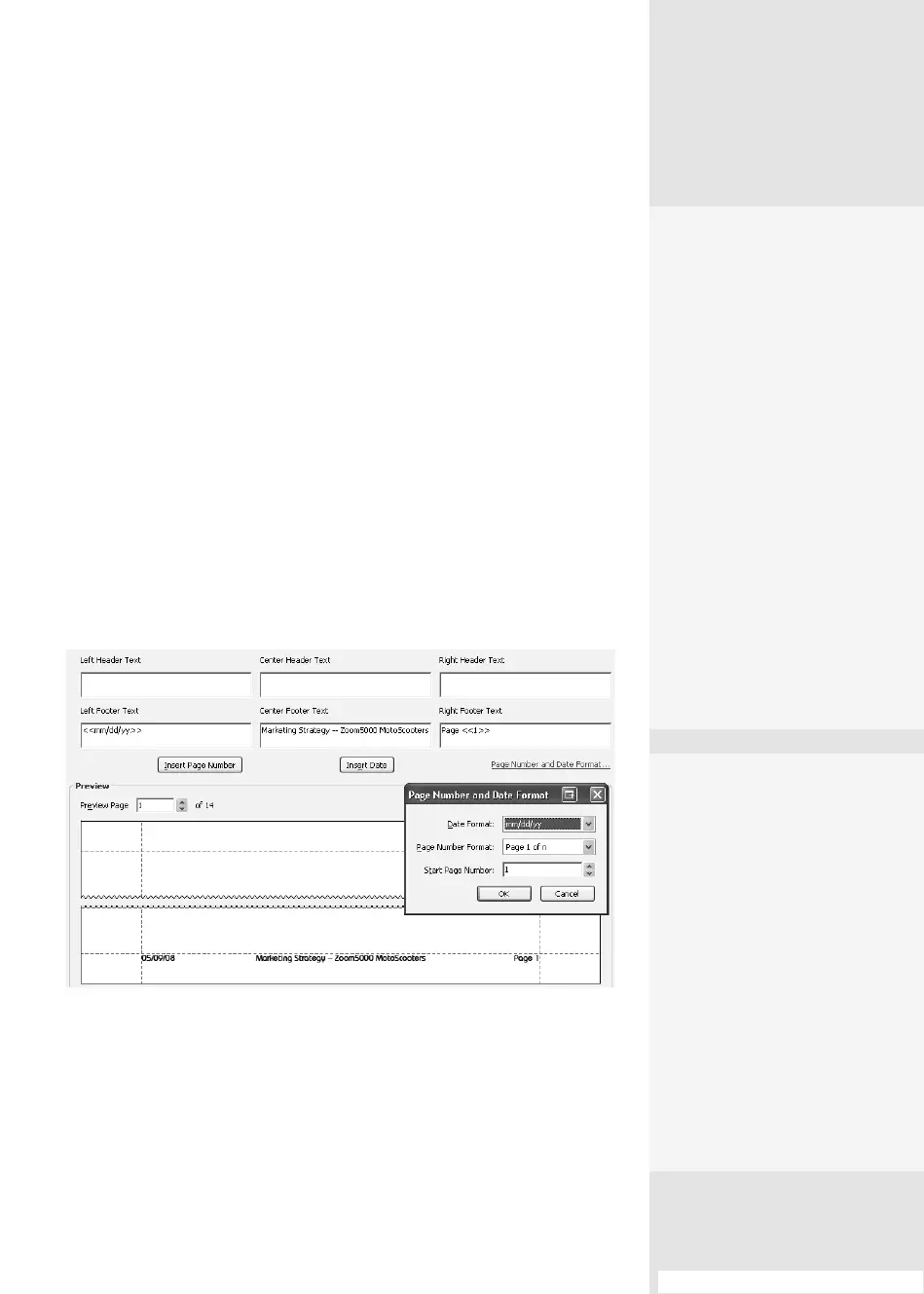
3. Make entries in the elds as desired (Figure 53). There are three text
entry elds each for Header and Footer content—left-justied, cen-
tered, or right-justied on the document page. The example uses a
date (shown as <<mm/dd/yy>>), custom text, and page numbering.
Before adding either an automatic entry or custom text, click the text
entry box where you want to add the content in the dialog:
Figure 53 Specify the content for the header or footer text in the dialog, and check the
preview before adding to the document.
•
To insert the date or page numbers automatically, click the Insert
Page Number or Insert Date button.
Appearance Tidbits
Select the Appearance
Options check box at the
upper left of the dialog to
open a small Appearance
Options dialog. There are
two neat options:
•
Click “Shrink document to
avoid overwriting the doc-
ument’s text and graphics”
to decrease the size of the
content on the page and
allow the header/footer
content to be seen clearly.
•
Click “Keep position and
size of header/footer text
constant when printing
on different page sizes” to
show a uniform location
throughout a document.
Inserting Headers
and Footers
#
53
Saving Settings
Save your custom head-
ers or footers in Acrobat 9
and reuse them at a later
time. Configure your perfect
layout in the Add Header &
Footer dialog and then click
Save Settings at the top of
the dialog. Type a name in
the name dialog that opens,
and click Save to store the
file with the other program
settings. When you want
to reuse them, select your
custom settings in the Saved
Settings pop-up menu.
(continued on next page)
From the Library of Daniel Dadian



 To Next Page