ptg
25
Using PDFMaker
in Microsoft Word
#
10
One of the most common programs used with Acrobat is Microsoft Word.
You can use the PDFMaker that Acrobat automatically installs into Word
on Windows to quickly generate a PDF version of the document. If your
workflow includes merging documents on a regular basis, try out the Mail
Merge to Adobe PDF feature, which not only merges database content
with a Word file but also converts the merged documents to PDF.
The Standard conversion setting, the default used by PDFMaker, pro-
duces a PDF file that is both suitable for printing and small enough for
easy distribution. Once you specify the settings, they remain until you
adjust them again. Converting a Word document to PDF is a one-click
process.
When your document is ready for conversion, save it and then click
Convert to PDF
on the PDFMaker 9.0 toolbar in Windows or choose
Adobe PDF > Convert to Adobe PDF. Using the default PDFMaker settings,
a Save As dialog opens displaying the same name as your Word docu-
ment; change the filename and location if necessary and then click Save
to close the dialog and convert the file.
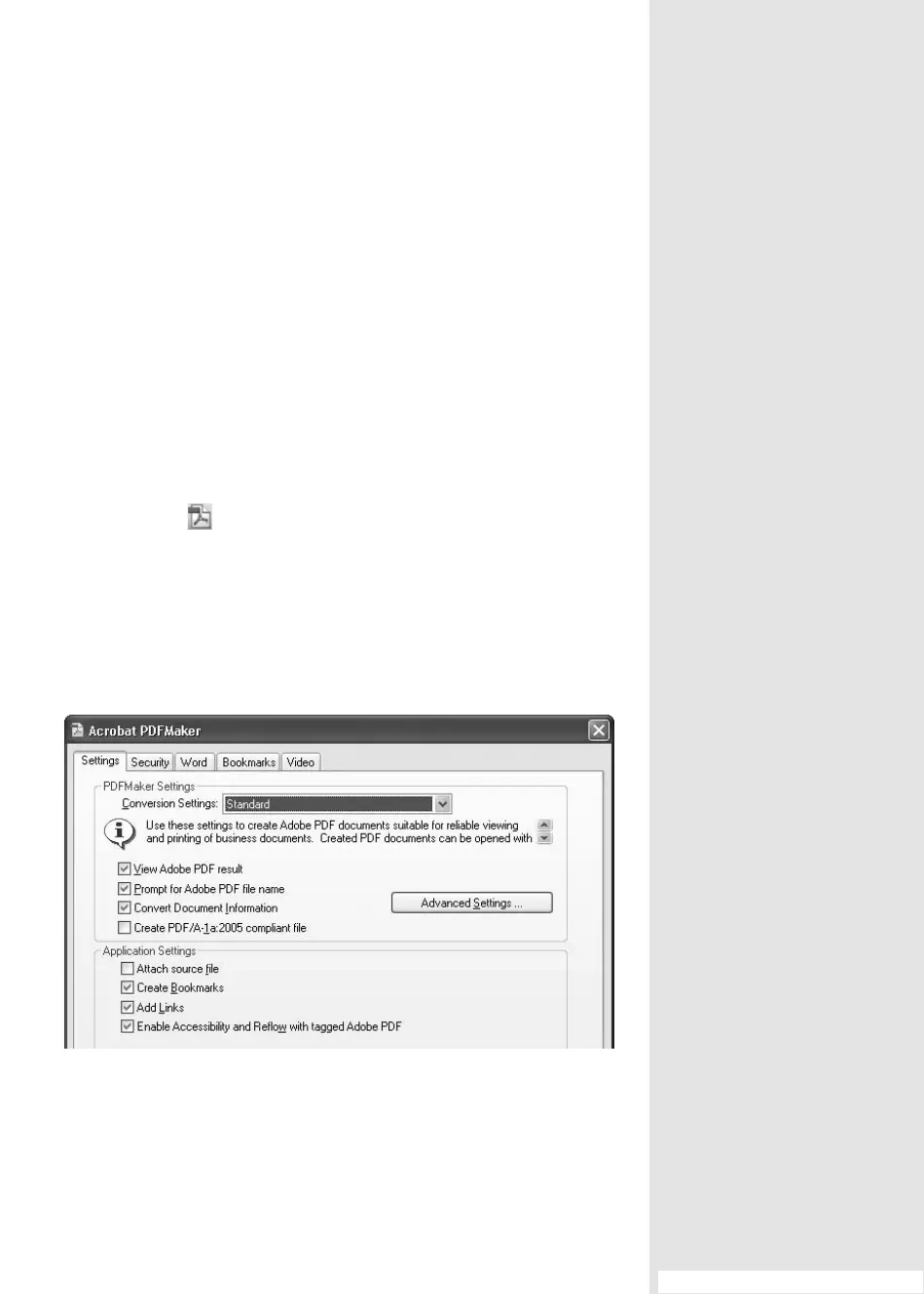
To view the settings, choose Adobe PDF > Change Conversion Settings
to open the dialog (Figure 10a).
Figure 10a The Acrobat PDFMaker dialog contains different numbers of tabs
depending on the program, but always includes the Settings and Security tabs.
#10: Using PDFMaker in Microsoft Word
From the Library of Daniel Dadian



 To Next Page