ptg
C H A P T E R T H I R T E E N Using Flash Video and 3D Media
272
Use the 3D Measurement Tool to measure 3D models. You can create
measurements between combinations of points or edges, by moving
the pointer over the 3D model, or by highlighting specic points and
edges. The 3D Measurement Tool supports four types of measurements:
perpendicular distance between two straight edges, linear distance
between two points, the radius of circular edges, and the angle between
two edges (or three points).
You can associate 3D measurements with specic views. If the default
view is active when a measurement is added, a new measurement view
is created. This view is added to the view hierarchy in the Model Tree. The
measurement is associated with that view only, and displays as a child
of the view.
You can also display comments while taking measurements. These
comments (also called measurement markups) are preserved after the
document is closed.
Follow these steps to measure and annotate an object in your 3D
model:
1. Click the model on the page to activate it and display the 3D toolbar.
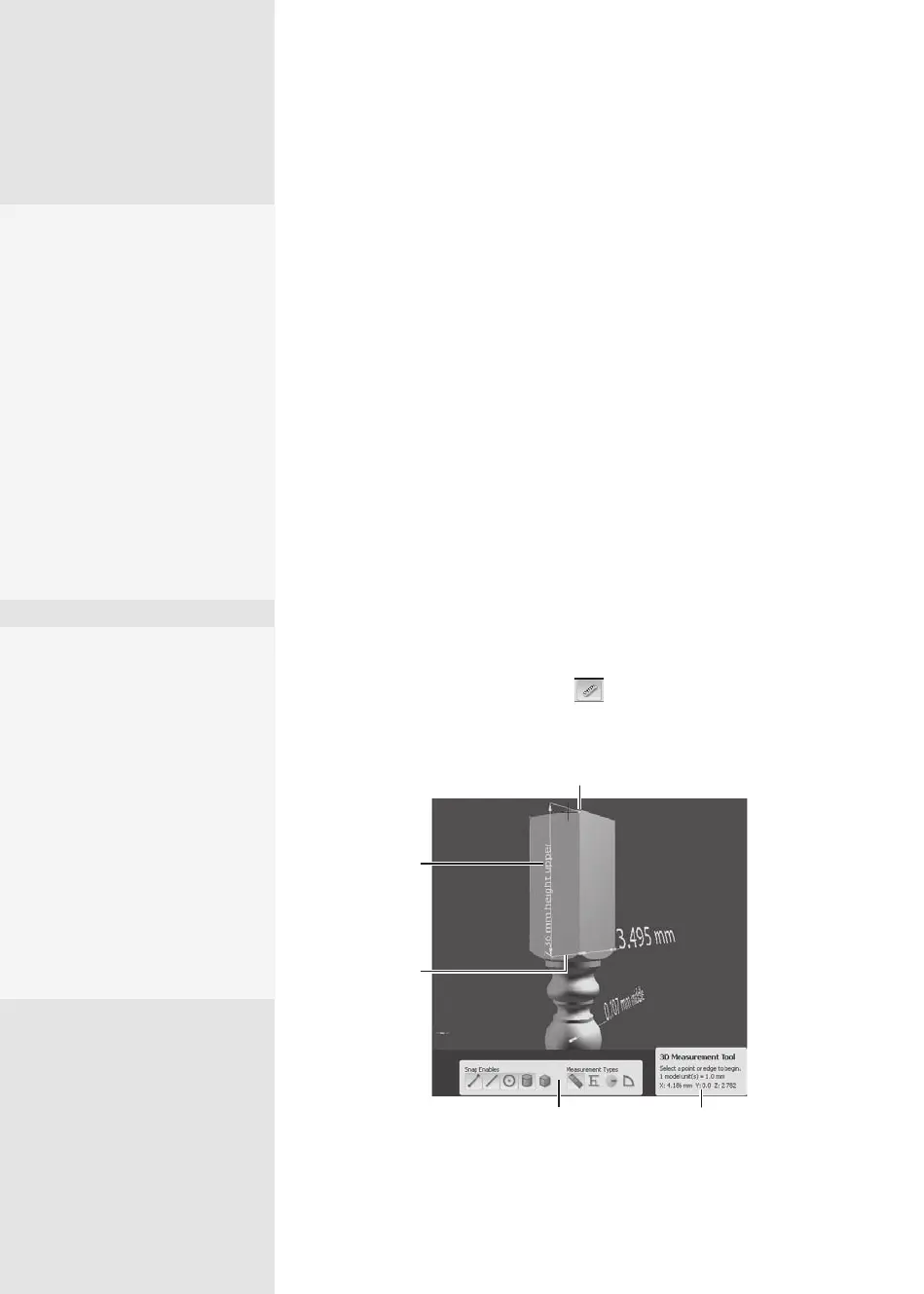
2. Click the 3D Measurement Tool on the toolbar. You’ll see another
palette of tools open in the Document pane that oer a variety of snap
and measurement options (Figure 100).
Click to add endpoints for the measurement
Include custom
labels
Drag to place
the markup
Pick a snap option
and type of measurement
View the location
on the model
Figure 100 Choose from a wide range of measurement options.
Tell Me More
You don’t have to leave the
default measurement as is.
You can add a text label as
well. With the measurement
still selected, right-click
anywhere on the model
background and choose
Change Markup Label. In the
pop-up field that appears,
type the text you want to
display and click OK. The
field closes, and your label
includes the text and the
measurement.
Measuring 3D Objects
#
100
Moving and Measuring
You often need to move
around the model as you
are measuring. Keep these
keyboard shortcuts in mind:
•
Press Alt to rotate the
view.
•
Press Shift to pan the
view.
•
Press Alt+Shift to zoom
the view.
•
Press Ctrl to disable the
snap feature.
From the Library of Daniel Dadian



 To Next Page