ptg
C H A P T E R T H R E E Creating PDF Files in Distiller and Acrobat
44
Acrobat Distiller is installed as a separate program you access from the
desktop, or in Acrobat 9 Professional, by choosing Advanced > Print
Production > Acrobat Distiller.
To distill a le, choose File > Open. In the Open dialog, locate the le
you want to convert, select it, and click Open. The le is opened and pro-
cessed. Information about the processed les, such as numbers of pages,
length of job, and whether it was a successful process, is shown in the log
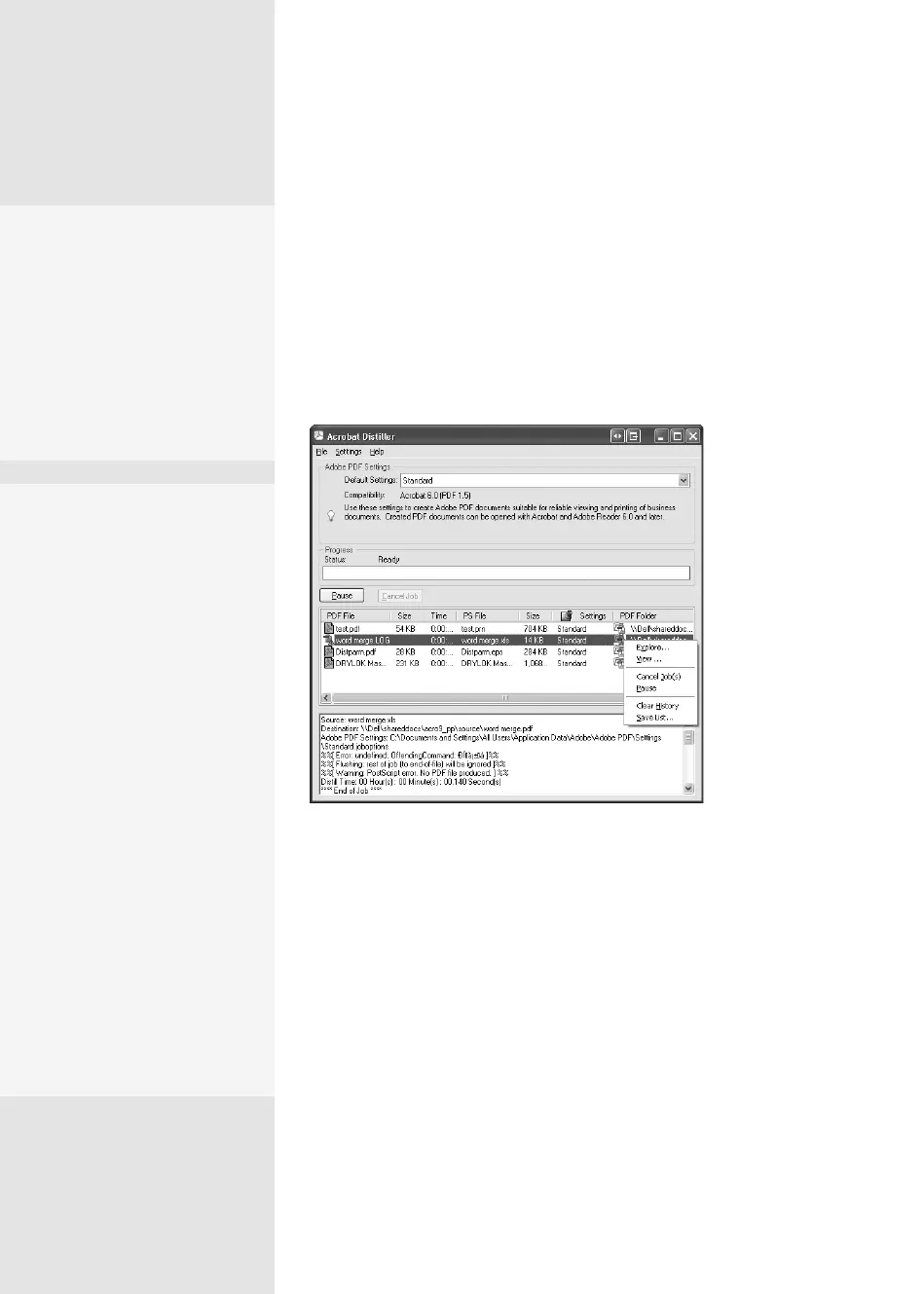
at the bottom of the dialog (Figure 17a).
Figure 17a Acrobat Distiller displays an activity log showing
details about the processed files.
In the example shown in the gure, the second le shows a dierent
icon from the rst two, indicating the le wasn’t processed and the PDF
le wasn’t generated. The second le is an Excel spreadsheet, not one of
Distiller’s processing formats.
You can manage the les in your Distiller session from the program’s
dialog. Right-click (Control-click) a distilled le from the list to display the
shortcut menu (also shown in Figure 17a) and choose from the options
on the list. The History is maintained for each Distiller session; when you
close and reopen the program again, the list is cleared.
When converting les to PDF, Acrobat uses several settings known as
joboptions. You can create custom conversion settings for your own work
by modifying one of the default options, or you can start from scratch.
Working with Acrobat
Distiller and Job Options
#
17
What Do You Prefer?
Choose File > Preferences to
open a small dialog. If you’re
working on a Mac, choose
Distiller > Preferences. You
have several options, such
as viewing generated files
in Acrobat and managing
log files.
Controlling
Joboptions Files
You may create a number of
custom joboptions files over
time. To keep track of their
use or purpose, name them
according to client name,
project name, or anything
else that is meaningful. For
example, highquality(1).
joboptions doesn’t mean
as much as bigdog_tools.
joboptions.
You can share the settings
files with others. E-mail
the joboptions file as you
would any other type of file.
Your recipients add the file
to the storage folder. The
next time they access the
custom settings dialog from
a PDFMaker, Acrobat, or
Distiller, the shared settings
are ready to use.
From the Library of Daniel Dadian



 To Next Page