ptg
45
#17: Working with Acrobat Distiller and Job Options
(continued on next page)
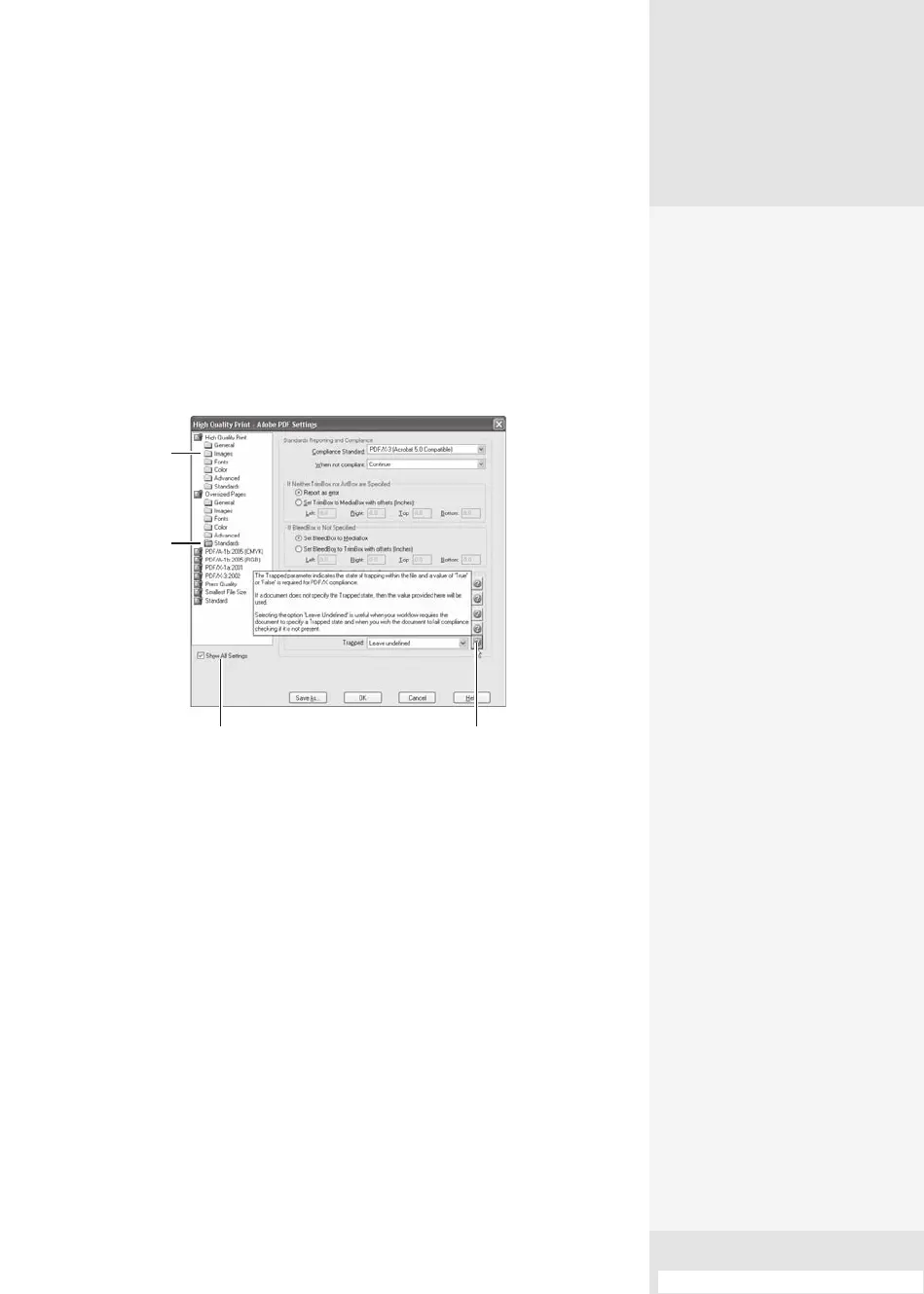
In Distiller, choose Settings > Edit Adobe PDF Settings to open the
Adobe PDF Settings dialog (Figure 17b). The dialog shows a list of head-
ings for each joboptions le. Select a conversion option, such as Standard,
to display a list of six categories (each joboptions le contains the same
six categories). Click a heading, such as Standard, to open its set of cat-
egories, and then click a category to display the settings in the right pane
of the dialog. By default, the settings shown in the dialog are the same as
those available from any joboptions le’s General category.
Click to show
information/instruction.
Click to list all joboptions.
Settings pane
shown.
Folders correspond
to settings.
Figure 17b Each folder listed for a setting in the left column displays as a
collection of options at the right side of the dialog.
In the default dialog, shown when the settings open (and shown
when you click the joboption’s General heading in the left column), are
several settings you may want to modify (see sidebars in this technique
for descriptions of additional settings):
•
Compatibility. The default is Acrobat 6.0 (PDF 1.5). Depending on
your users’ needs, you can choose an option as far back as Acrobat 4.
Older versions of the program have fewer options for features such as
transparency or font embedding.
•
Object Level Compression. Choose either O or Tags. Compression of
objects combines small objects such as bookmarks into compressible
Consider a Few
Advanced Settings
Unless you are familiar with
Document Structuring
Conventions and the like, you
won’t have to change many
options in the Advanced dia-
log. The settings in this dialog
describe how the conversion
from PostScript to PDF is per-
formed. Let’s look at three
default options:
•
The “Convert gradients to
smooth shades” option
converts gradients from
a range of programs,
including
Adobe
FreeHand, QuarkXPress,
Adobe Illustrator, and
Microsoft PowerPoint. This
option produces a smaller
PDF file size and often
results in improved output.
•
The “Save Adobe PDF
settings inside PDF file”
option embeds a copy of
the joboptions file as an
attachment. Including
the file is handy if you’re
working on a project
remotely and want to
send the PDF and settings
files to your colleague.
•
The other option of
note, “Save original JPEG
images in PDF if possible,”
processes JPEG images
(which are compressed)
without compressing
them again, resulting in
faster file processing.
From the Library of Daniel Dadian



 To Next Page