ptg
315
#118: Editing Actions
Using buttons and other interactive objects like links or bookmarks is a
rather pointless exercise unless something happens when the user clicks
the object. In the Button Properties dialog, click Actions to display the
options you can choose and customize.
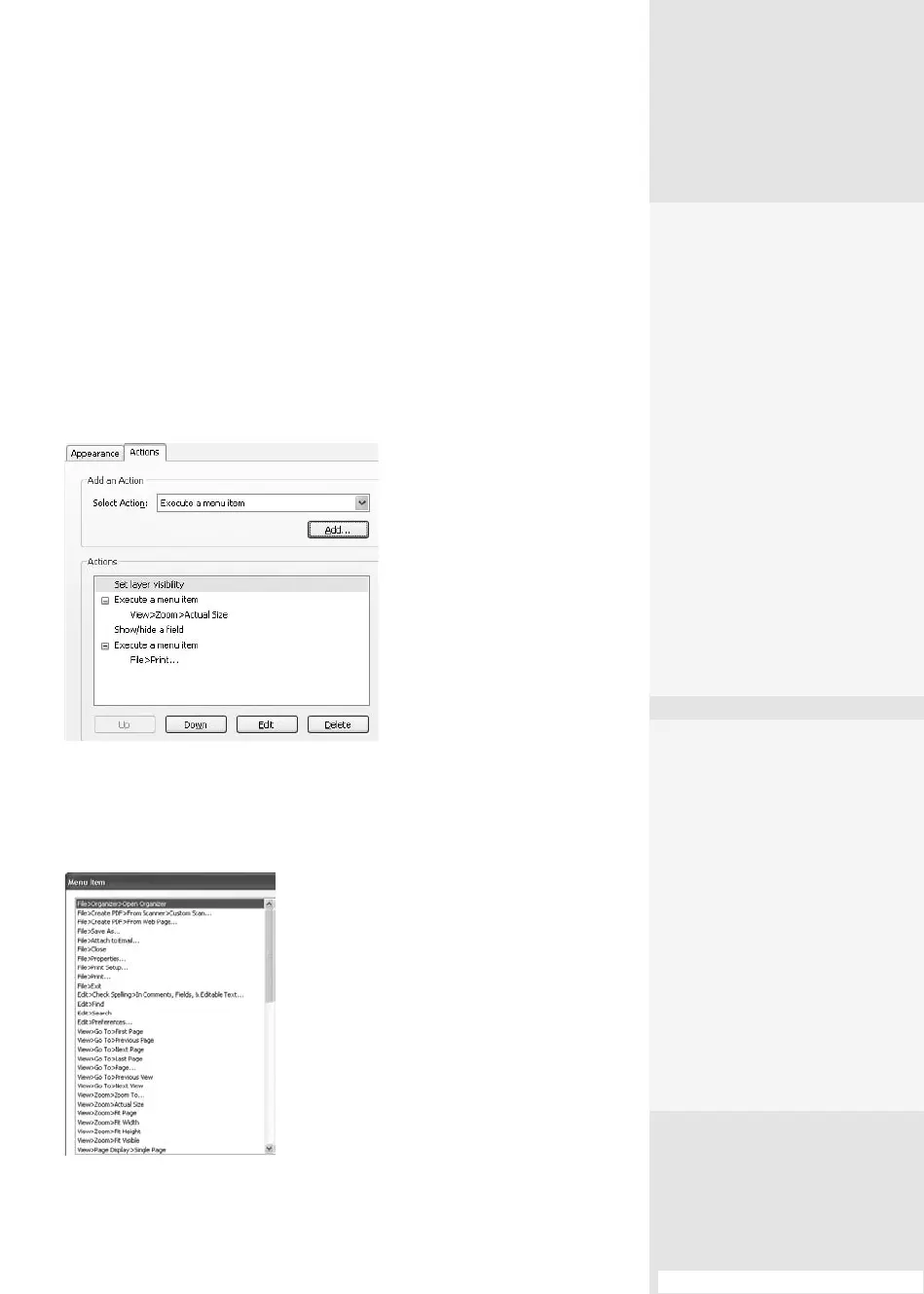
You can add any number of actions you like to a link, button, or
bookmark (
Figure 118a). But be careful that the sequence is correct—
you probably don’t want an action that opens a pop-up explaining that
another document is going to open after the le is already displayed, for
example.
Figure 118a Add several
actions to the same bookmark
or other interactive object
such as a link or button.
One large category of actions lets you apply menu items to your inter-
active button, link, or bookmark from the Properties dialog. In the Actions
tab, notice that “Execute a menu item” is the default action shown in the
Select Action list. Click Add to open the options available (Figure 118b).
Figure 118b You can use many menu items as
actions attached to buttons.
Editing Actions
#
118
Jump into Action
Experiment with the options
available in the “Execute a
menu item” action. You may
be surprised how interesting
and functional your docu-
ments become. Here are a
few of the things you can do:
•
Send a document by
e-mail.
•
Save copies of the
document.
•
Open other documents
or digital media.
•
Zoom to various magnifi-
cations.
•
Show different toolbars
and Navigation panels.
Making Your
Document Responsive
Apply actions to individual
elements of a document or
to the entire document. You
can use actions applied to
your document for a variety
of purposes—for example, to
display instructions or thank
visitors for completing a form.
To set document actions
using Acrobat JavaScript,
follow these steps:
(continued on next page)
From the Library of Daniel Dadian



 To Next Page