ptg
153
Take a Shortcut
For those who prefer to work with mouse and shortcut keys, click the first object
with the TouchUp Object tool, and then press Ctrl+A (Command+A) to select the
page’s or document’s objects.
Reuse and Recycle
Once you have an image or image segment copied, you can reuse it. You can
also save the image as a file. Select the image in the document, and then right-
click (Control-click) to open the shortcut menu. Choose Save Image As, name
the image, and specify the save location.
#59: Reusing Images
You can handle images in a document in three ways—by reusing them,
“snapping” portions of them, or inserting other images.
Unless a document is secured against image use, you can reuse indi-
vidual images in the document.
1. Click the Select tool on the Select & Zoom toolbar. The Select tool
automatically changes to an arrow when the pointer is clicked over an
image; the selected image is indicated by a highlight.
•
If you want only a portion of the image copied, drag a marquee over
the image with the Select tool.
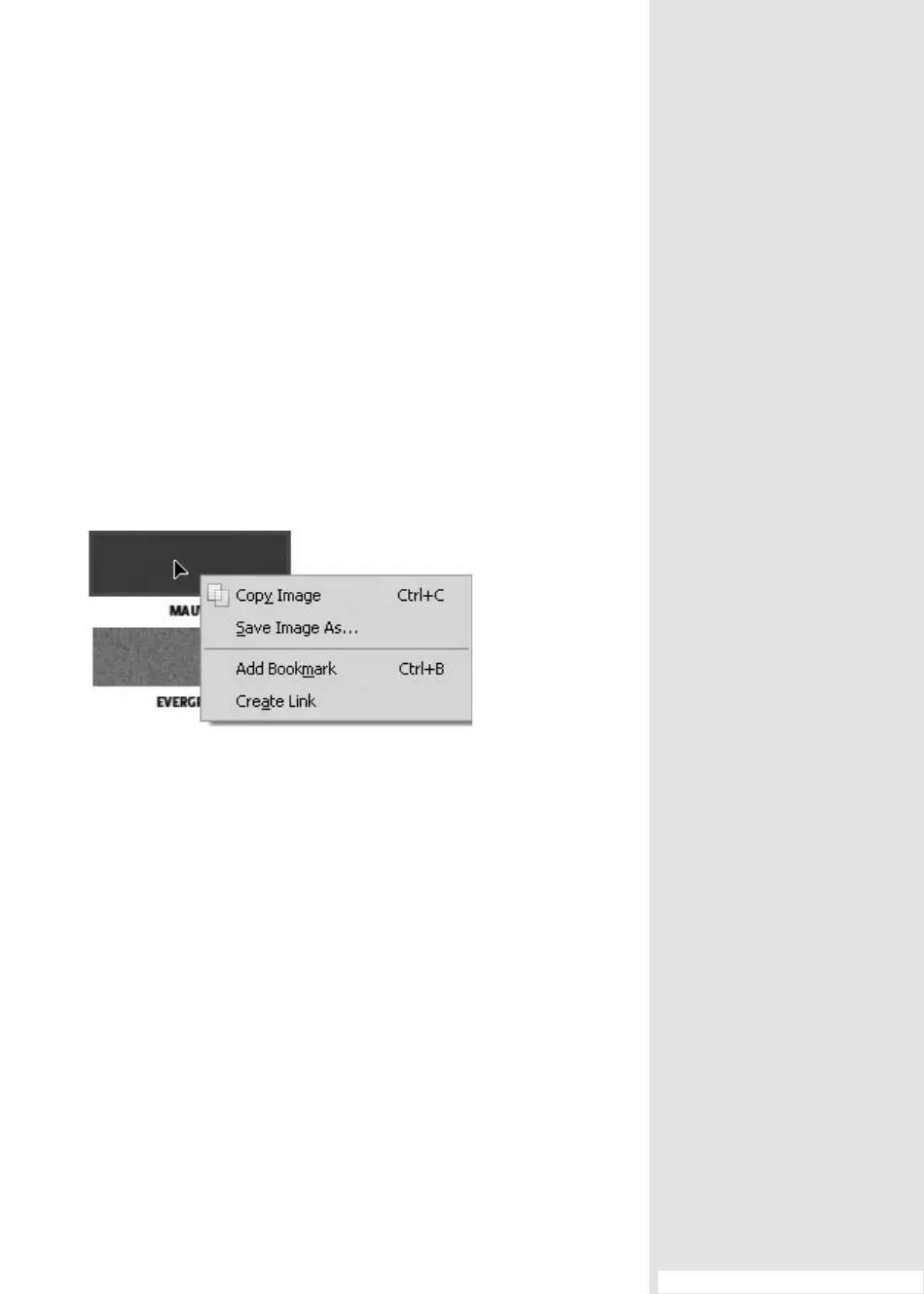
2. Wait a second or two, and the Select Image icon displays on top of the
selected image (Figure 59a).
Figure 59a A selected image shows a different icon when
the pointer hovers over the object.
3. Right-click (Control-click) to open the shortcut menu. You can choose
one of two image commands—copy the image to reuse it in another
application or document, or choose Save Image As to save a copy of
the image as a discrete le.
Note
If you like, you can use the selected image as a navigation element
by bookmarking the image or using it as an image for a link. (Read
about both bookmarks and links in Chapter 15, “Controlling Action
and Interaction.”)
4. Click outside the selected image or click another tool to deselect the
image.
Reusing Images
#
59
From the Library of Daniel Dadian



 To Next Page