ptg
75
Files added to a portfolio aren’t static. That is, you can open a le from
the portfolio, make changes (such as Reader-enabling the le or adding
a digital signature), and save the revised le. Some commands can be
applied directly in the Portfolio window.
Opening les for editing. Although not every le type can be edited
from within your portfolio, a great many le types can. Check out the side-
bar “Update These Files …” for a list of formats.
Follow these steps to edit a PDF le:
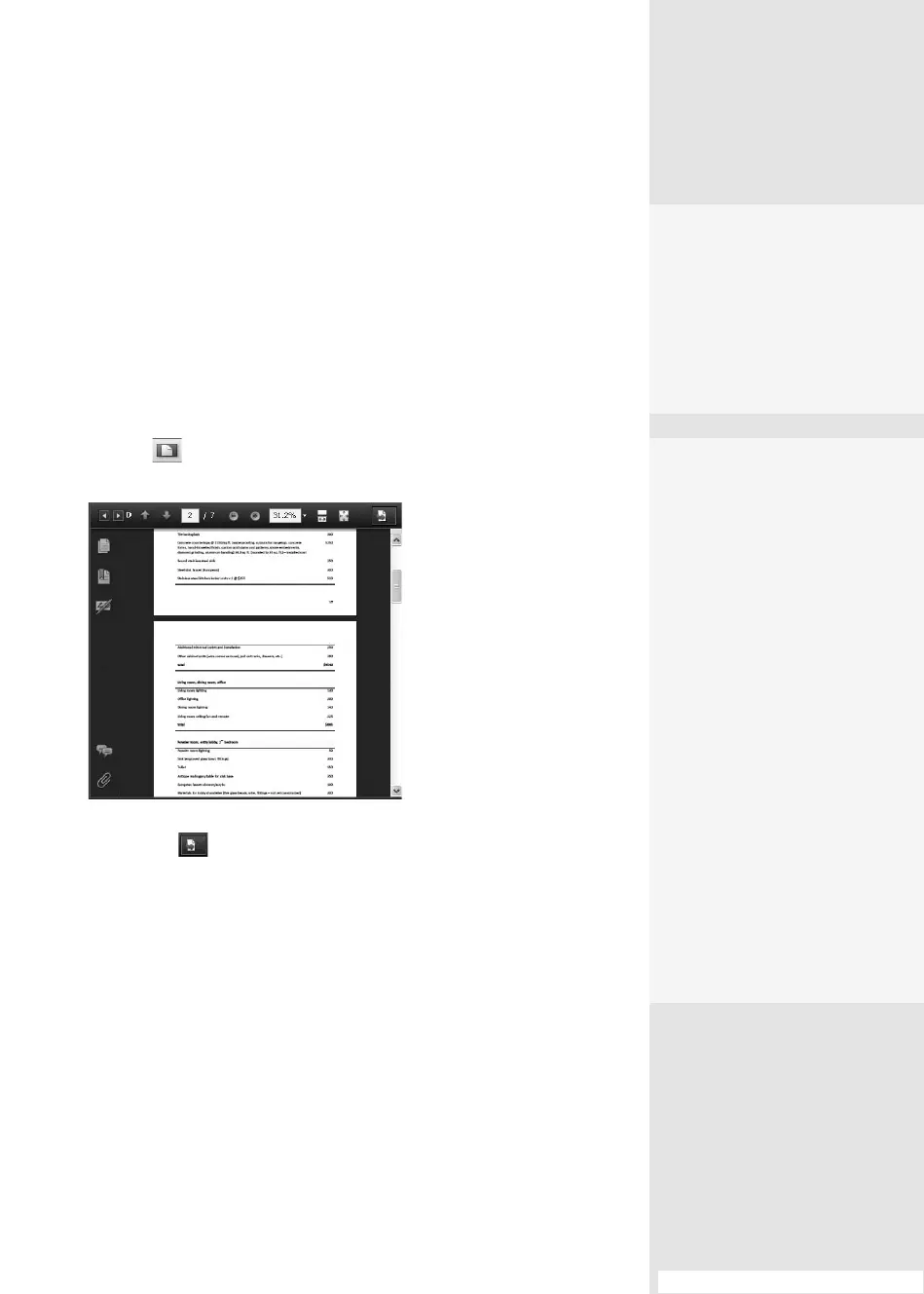
1. Select the le to work with from the Home or List mode, and then click
Preview on the Portfolio toolbar to display the les in the Preview
Portfolio window (Figure 29).
2. Click Open to display the le in Acrobat. You can access all the
Acrobat menus and tools.
3. Make your changes as necessary and save; the portfolio le is auto-
matically updated.
Note
The same process applies to non-PDF les, although the les open in their
native program.
Editing in portfolio. Some commands can be applied directly in the
Portfolio window to a selected le or les, such as Reduce File Size, Run
the PDF Optimizer, and others. Select the le or les in Home or List mode,
and then choose the menu item. A sampling of the commands you can
use in Portfolio are listed in the sidebar “Command Your Portfolio.”
Scanning into
a Portfolio
You can’t append a scanned
PDF to an existing file in
your portfolio. Instead, the
scanned file is added as a
new PDF.
#29: Applying Acrobat Commands
Applying Acrobat
Commands
#
29
Update These Files …
Not all files from every pro-
gram can be updated from
within Portfolio, but the list
of program formats that
allow updating is impressive:
•
Microsoft Office XP, 2003,
2007, 2008
•
Adobe CS2 and CS3
formats
•
Other Adobe formats,
including those gener-
ated by Adobe Flash,
Adobe Premiere, Adobe
Fireworks, and Adobe
FrameMaker
•
AutoCAD 2007 and 2008
•
Files generated by OS
applications such as
WordPad, Notepad, and
so on
Figure 29 Select and review
component files in the
preview.
From the Library of Daniel Dadian



 To Next Page