ptg
C H A P T E R S E V E N Transforming Document Pages
134
Acrobat and Adobe Reader show page numbers on the Page Navigation tool-
bar numbered in logical order—that is, the rst page is page 1, the second is
page 2, and so on. Acrobat oers several ways to number pages. You can num-
ber them manually, use a numbering system called Bates numbering, or insert
page numbers as part of a page footer, described in the next technique.
In a sample document, I have two sections to number separately;
each section will start with text (such as Contents); the second includes a
number with the text, followed by page numbers. Sounds complicated,
doesn’t it? Acrobat can handle it.
Here’s what you do:
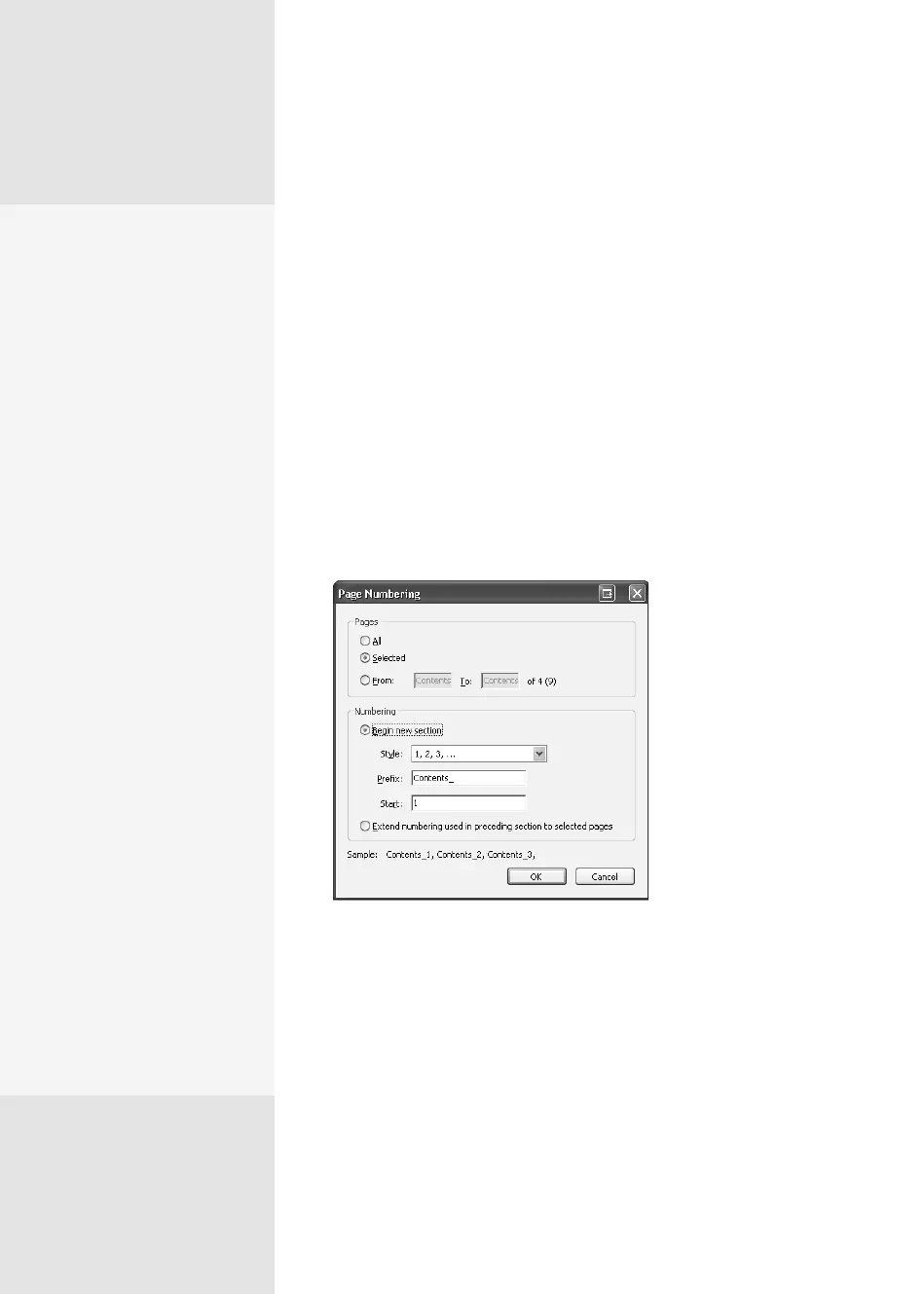
1. In the Pages pane, select the pages for the rst section (I am using
pages 1–5 in my example). Choose Options > Number Pages to open
the Page Numbering dialog. The Selected option is already active
because I selected the pages in the Pages pane (Figure 52a).
Figure 52a You can
use custom numbering
for different sections
in a document.
2. Leave the “Begin new section” option selected in the Numbering sec-
tion of the dialog. Then choose a page format from the Style pop-
up menu. As shown in Figure 52a, our example uses numbers for the
page renumbering.
3. Enter a value in the Prex eld, as well as punctuation if desired, such
as Contents_ in the example. The numbering starts at “1” by default, as
shown in the Start eld. Click OK to close the dialog.
Acrobat modies the page numbers; as Figure 52b shows, we now
have pages Contents_1 through Contents_5. The remaining pages in the
Numbering Nuggets
Keep these things in mind
when numbering your
masterwork:
•
Whenever possible,
remove visible page
numbers from source
material before convert-
ing it to a PDF. Using
Acrobat-based page
numbering is easier
when the pages contain
no numbers to conflict
with the numbers dis-
played on the status bar
or in the Pages pane.
•
Consider the document’s
use. Many documents
need simple page num-
bering. However, if you
are assembling a techni-
cal manual, you will likely
use prefixes identifying
content based on chap-
ters, systems, and so on.
•
If you are building a book
structure, consider how
the book will look when
printed. Books use front
matter such as a table of
contents and other intro-
ductory material that is
numbered differently
from chapter content.
Applying Page and
Bates Numbering
#
52
(continued on next page)
From the Library of Daniel Dadian



 To Next Page