ptg
133
3. The page appears as a thumbnail at the top right of the Crop Pages
dialog, and the Show All Boxes check box is selected by default in the
Crop Margins area of the dialog. Change the measurement used in the
cropping in the Units pop-up menu.
4. Adjust the crop settings using the four margin elds in the Margin
Controls area, described in the sidebar “Specifying Margins.”
5. Change the page size to a larger size. Use a xed size by selecting an
option from the Page Sizes pop-up menu, or click Custom and type
custom values.
•
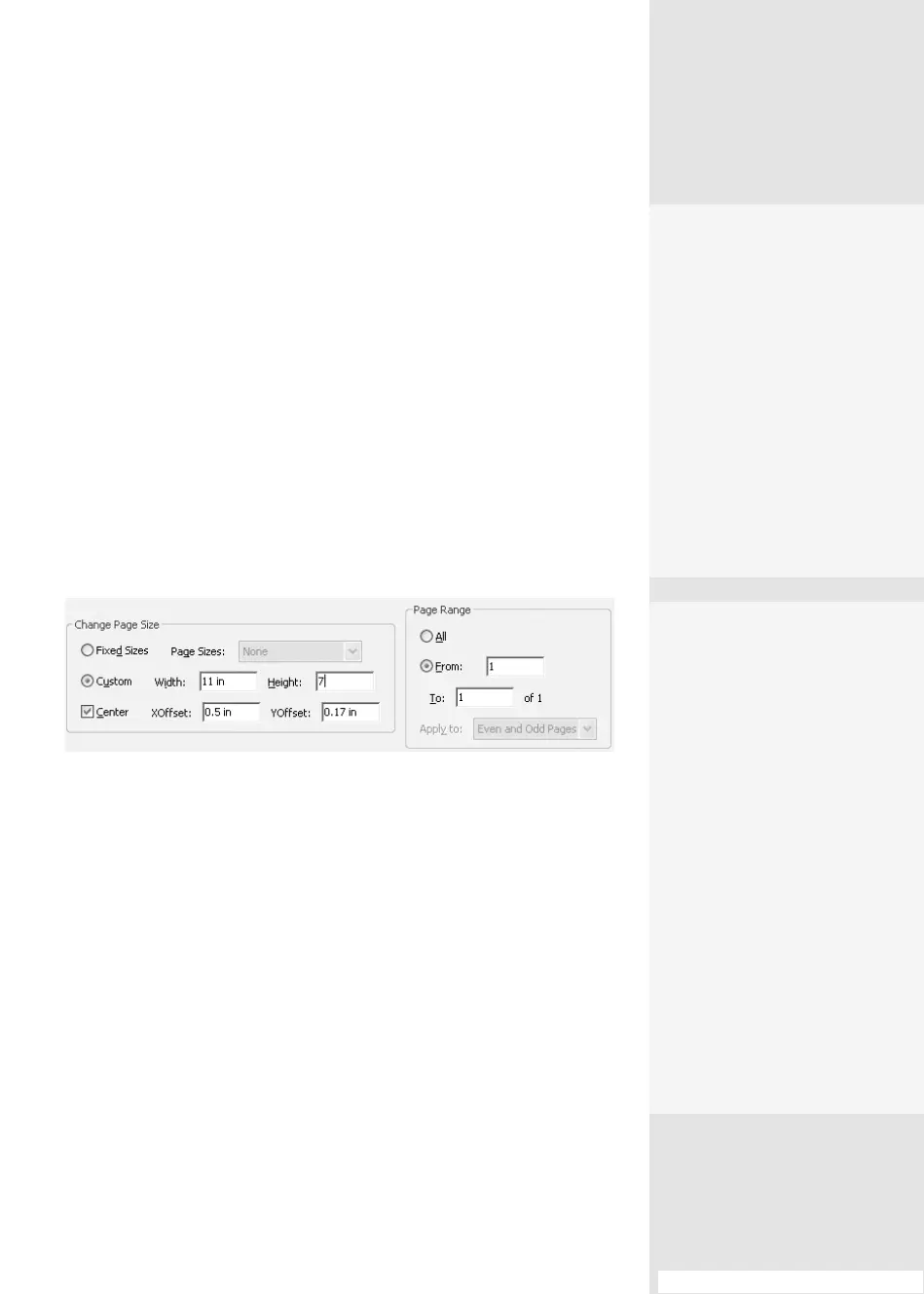
By default, the existing content is centered on the expanded page.
If you resize the page, you can also specify a location for the content
by entering XOset and YOset values (Figure 51b). Click Center to
recenter the content.
Figure 51b Type locations for the X and Y coordinates—either positive or negative
values—to place the content on a page.
6. Finally, specify the page range you wish to crop. If you preselected
pages from the Pages pane, they are identied in the elds. You can
also specify whether to crop all pages, only even pages, or only odd
pages by choosing an option from the Apply to pop-up menu.
7. Click OK to close the dialog, and Acrobat resizes the page. You can see
the eects of the cropping in the Document pane, as well as in the
Pages pane’s thumbnails.
Note
You can’t undo a crop by choosing Edit > Undo or using the shortcut
Ctrl+Z (Command+Z). If you change your mind after cropping, choose
File > Revert to return to the uncropped version of the document.
Specifying Margins
As you change the values,
the cropping outline in the
preview image changes to
reflect the new values.
•
Type values in the fields
or use the arrows to
adjust the settings.
•
Select Constrain Propor-
tions to crop the page
equally on all four sides.
•
Move the marquee in the
Document pane to adjust
the Margin Controls set-
tings automatically.
•
Click Remove White Mar-
gins to have Acrobat
automatically set margins
tight to the page content.
Cropping Multiple
Pages
You can crop several pages
at once. Select the pages’
thumbnails in the Pages
pane (the files can be contig-
uous or spread throughout
the document). Once in the
Crop Pages dialog, you can
see the selected pages listed
at the bottom in the Page
Range section. If you do this,
make sure the content of the
pages is laid out the same.
#51: Cropping and Rotating Pages
133
From the Library of Daniel Dadian



 To Next Page