ptg
241
Everybody uses forms, and Acroforms makes it simpler than ever to cre-
ate, distribute, and manage forms. Aside from the usual information-type
form, such as attendance, surveys, and so on, a large number of the forms
commonly used have some type of calculations. Basic calculations using
form elds aren’t that dicult, once you get the knack.
Before you start, evaluate the names of the elds Acrobat adds auto-
matically and change them as necessary, following the steps described in
#87, “Working in Form Edit Mode.” Review the names as well, and rename
if necessary (check out the sidebar “What’s in a Name?” for some tips).
There are several situations you’ll commonly encounter when build-
ing a form. In all cases, let’s assume the elds are added and named, and
you’re working in the Form Edit mode:
Using a special format. You want your form information to appear
in the correct format, and using the proper range of values, such as a Zip
Code eld. In the Text Field Properties dialog, click Format. Formatting can
range from numbers to currency to dates.
From the “Select format category” pop-up menu, choose Special to
display a list of masks (structured eld inputs having a precongured
arrangement of characters and spacing), and click Zip Code. In the form,
if a user tries to tab out of a eld without adding the correct number of
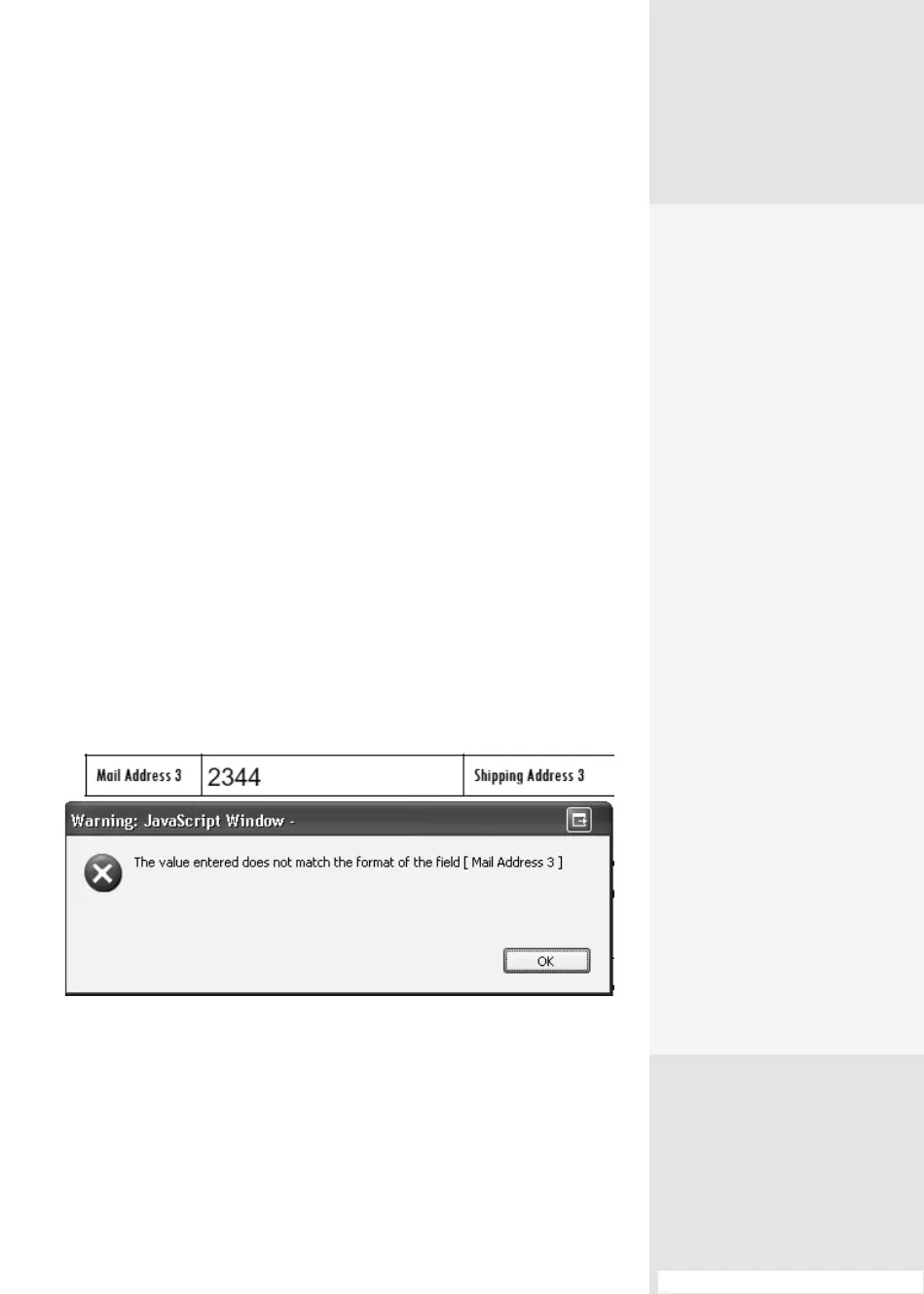
digits, a JavaScript warning displays (Figure 89a).
Figure 89a Use a special format to decrease errors in the form.
Validate the content added. You can restrict what your user enters
in a eld, such as a number or characters added in Text Box elds. In
many elds, you need to make selections in more than one tab in order
to be able to validate the eld’s contents. A Tax ID# on an invoice is a
#89: Adding Calculations and Field Behaviors
Adding Calculations
and Field Behaviors
#
89
What’s in a Name?
When it comes to form fields,
the answer is, “Plenty.” If you
are using a simple form, it’s
no big deal to reference the
fields visually and associ-
ate them with their labels
and purposes. By contrast,
a poorly named set of 200
form fields is a migraine
waiting to happen.
Decide on the naming struc-
ture based on the purpose of
the form. For example, if you
are building an order form,
each row of the form usu-
ally relates to the item being
ordered. So, you might use
item01 in row01 to iden-
tify the product, item02 in
row02 for the second prod-
uct, and so on. The color
for the first item could be
color01, and its size named
size01, and so on.
Similarly, look for totals
that make sense. Using the
same example, if there are
different prices for item01
based on the customizations
offered, the Total column
may contain item01-total
as the price for the first item
and its extras.
From the Library of Daniel Dadian



 To Next Page