ptg
C H A P T E R E L E V E N Live Reviewing and Collaboration
216
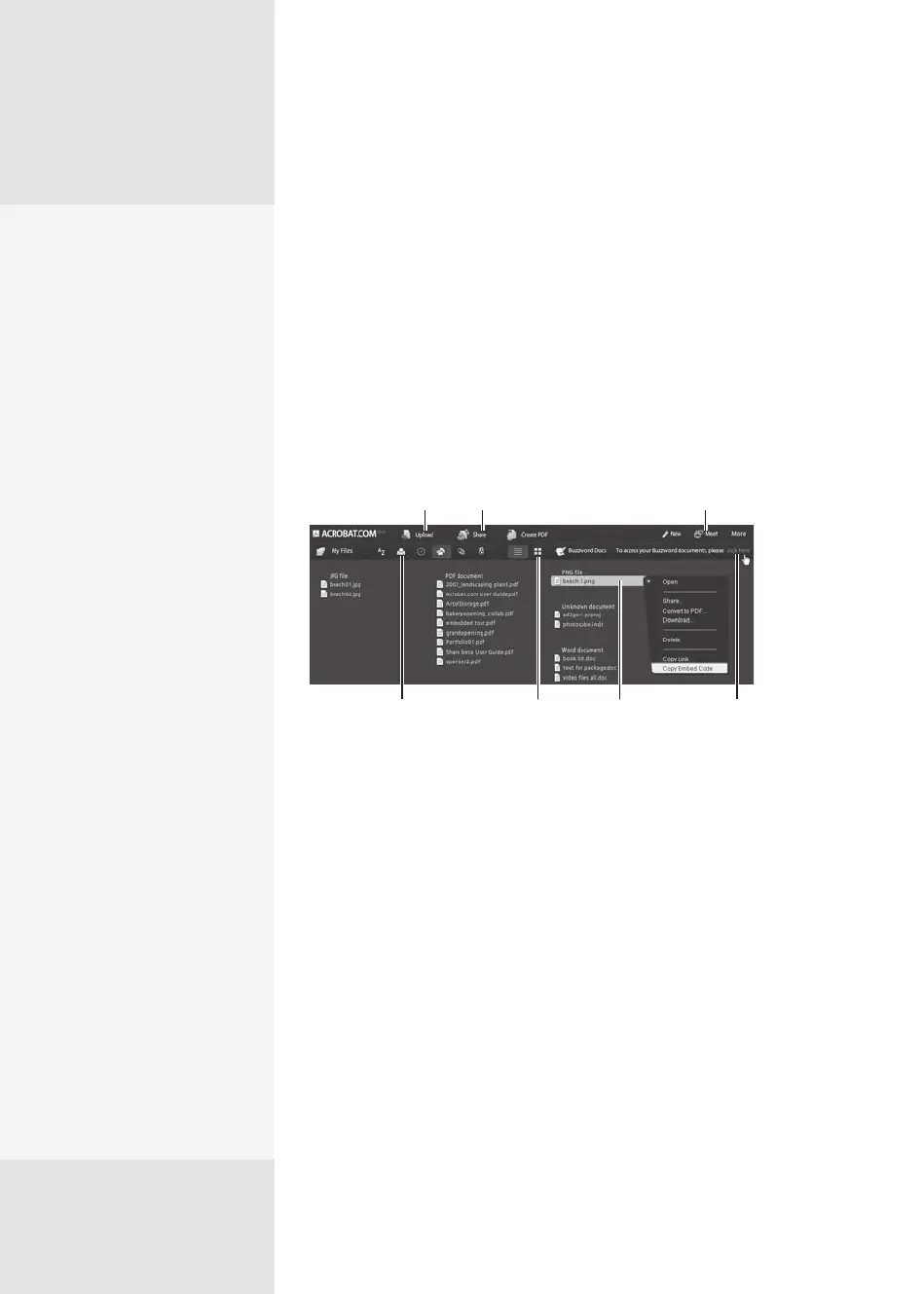
Use the MyFiles feature at Acrobat.com as an online repository to store
your les. Depending on workow, you may want to store les for distrib-
uting to others for review or for collaborating in ConnectNow. Or you may
want to store les so that you can access them from your laptop during
your vacation at the lake.
Open MyFiles online using one of several commands in Acrobat 9,
Adobe Reader 9, or via Acrobat.com—read about your options in the
sidebar “Finding Your Files.” Once the application launches, you see the
les you’ve uploaded arranged in the last sort option used in your previ-
ous Acrobat.com session (Figure 81a).
Open shortcut
menu for selected
image
Choose sort options
Upload more files
Initiate Share
invitation
Move to ConnectNow
meeting
Display as list
(shown) or grid
Toggle MyFiles
and Buzzword files
Figure 81a View, organize, and manage your online document collection.
Start a real-time collaboration on a document from your desktop or
online (read how to work from Acrobat.com in the sidebar “Going Live
Online”). To initiate a session from Acrobat Pro or Acrobat Pro Extended,
follow these steps:
1. Choose Send & Collaborate Live from the Collaborate task button’s
menu—read about working from Acrobat or Adobe Reader in #79,
“Starting a Shared Review.”
2. Follow the prompts to choose a list of recipients, log in to Acrobat.com,
and ll in the e-mail invitation. Your le is enabled for collaboration,
saved with _collab appended to the name, and uploaded to Acrobat.
com. An invitation is sent to your recipient list.
3. Once your colleagues receive their e-mail and download it, when they
open the le in Acrobat or Adobe Reader 9, the document is displayed
Participating Online
#
81
Going Live Online
Instead of starting a review
in Acrobat, share a docu-
ment directly from MyFiles
in Acrobat.com. Although
you don’t have a wizard on
Acrobat.com, the process
is similar, with these
exceptions:
•
To start, click Share on
one of the application
screens to show the
Share fields. By default,
the Share fields are
added to the MyFiles
window, above the file
list.
•
To identify files for
sharing, drag a file from
the MyFiles area on the
window to the “Choose
files to share” list. Click
Browse, locate and select
a file from your compu-
ter, and click Upload to
add additional files for
sharing. The file is added
to the share list and
included in the MyFiles
listing.
•
Click Share With to open
a list of e-mail addresses;
the list includes only
those addresses you’ve
used in Acrobat.com.
Check out #79, “Starting a
Shared Review, ” for more
information.
From the Library of Daniel Dadian



 To Next Page