ptg
C H A P T E R T E N Commenting in a PDF Document
188
Once you’ve been working with comments in Acrobat for a while, you should
evaluate how you use them and how you modify them. Ask yourself:
•
Do I change the name on the comment box, or the font or text size?
•
Am I dragging comments out of the way of other page content and
aligning them along the margins?
•
Do I nd it dicult to keep track of which comment box belongs to
which comment?
If you nd you make the same modications repeatedly, it’s a good
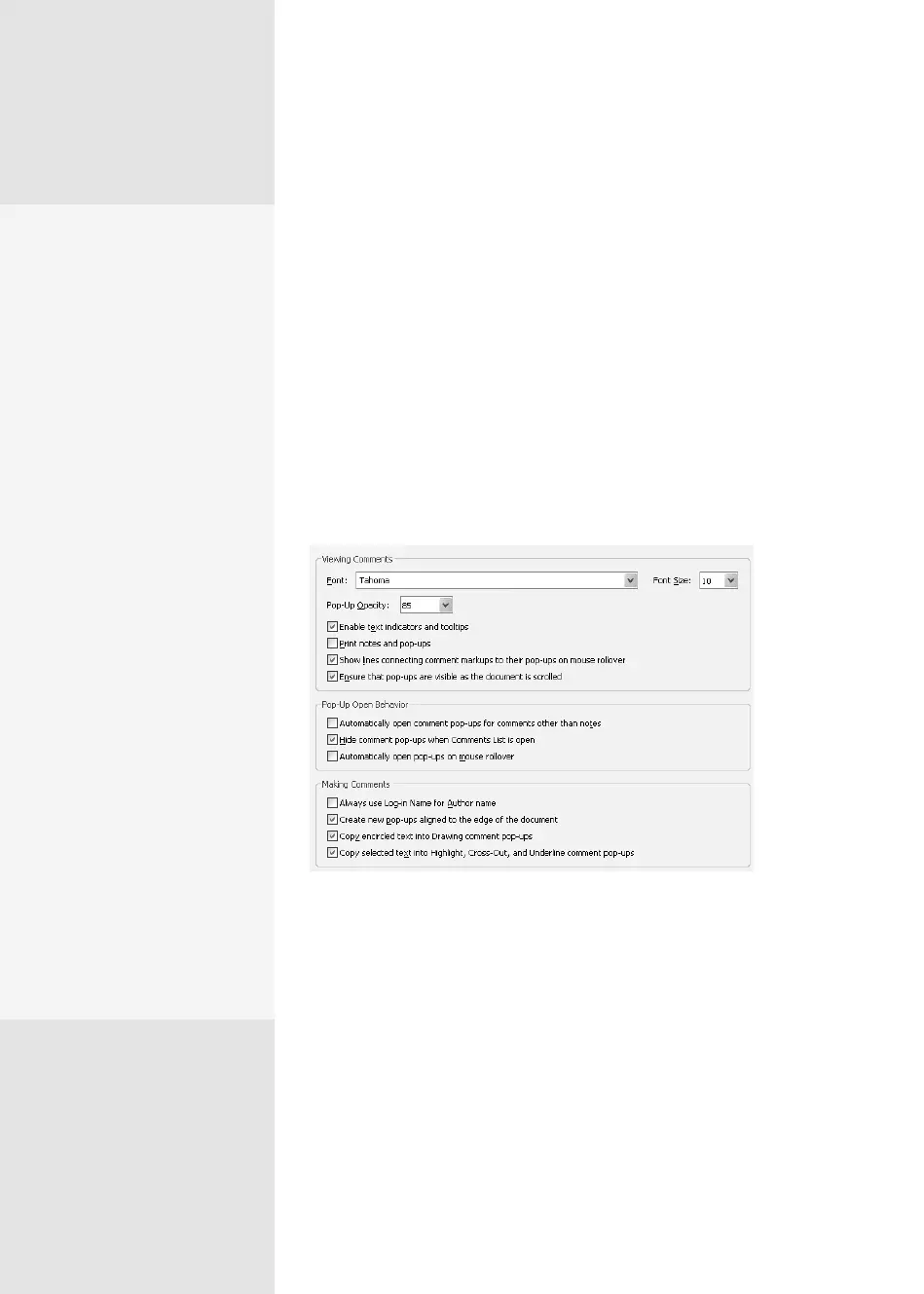
idea to modify the preferences. Begin by choosing Edit > Preferences >
Commenting (Acrobat > Preferences > Commenting) to display the Com-
menting Preferences dialog (Figure 71).
Figure 71 Set commenting preferences according to how you use the tools.
The preferences are set in three categories:
•
Viewing Comments. Choose options in this section to specify how
comments appear in the document. Choose another font in the Font
pop-up menu, type a dierent point size, and choose the opacity
percentage for the comment pop-up box. Also in this section of the
dialog, you can choose to show connecting lines from the comment
box to the comment location, to show text indicators and tooltips, and
whether or not to print notes and pop-ups.
Setting Commenting
Preferences
#
71
Personal Preferences
Sometimes it’s a good idea
to modify Commenting pref-
erences, either your own or
those of a larger group:
•
Color-code members of
a workgroup who use
commenting regularly,
either for each person or
department.
•
Show lines connecting
comment markups to
their pop-ups on mouse
rollover.
•
In a graphics layout
review (a magazine, for
example) decrease the
opacity of the comments.
That way, other members
in the group can read
the comments in place
on the page and still see
the graphics content
underneath.
•
Increase the font size if
you are working with
someone who reads
comments on the page.
That way, the comment’s
contents are easy to
see without having to
open it.
From the Library of Daniel Dadian



 To Next Page