ptg
263
Inserting a SWF le into a PDF document starts in the same way as insert-
ing a Flash movie, but oers dierent conguration options to take
advantage of the programming potential in the SWF le.
Follow these steps to insert and congure a SWF le:
1. Select the Flash tool on the Multimedia toolbar, and double-click the
page to activate the tool and open the Insert Flash dialog.
2. Select Show Advanced Options to display three additional tabs in the
dialog.
3. In the Launch Settings tab, choose from the same features as for con-
guring movies—that is, Activation Settings, Appearance, and Poster
Image options.
4. Click the Flash tab to display settings for using content from the SWF
le:
•
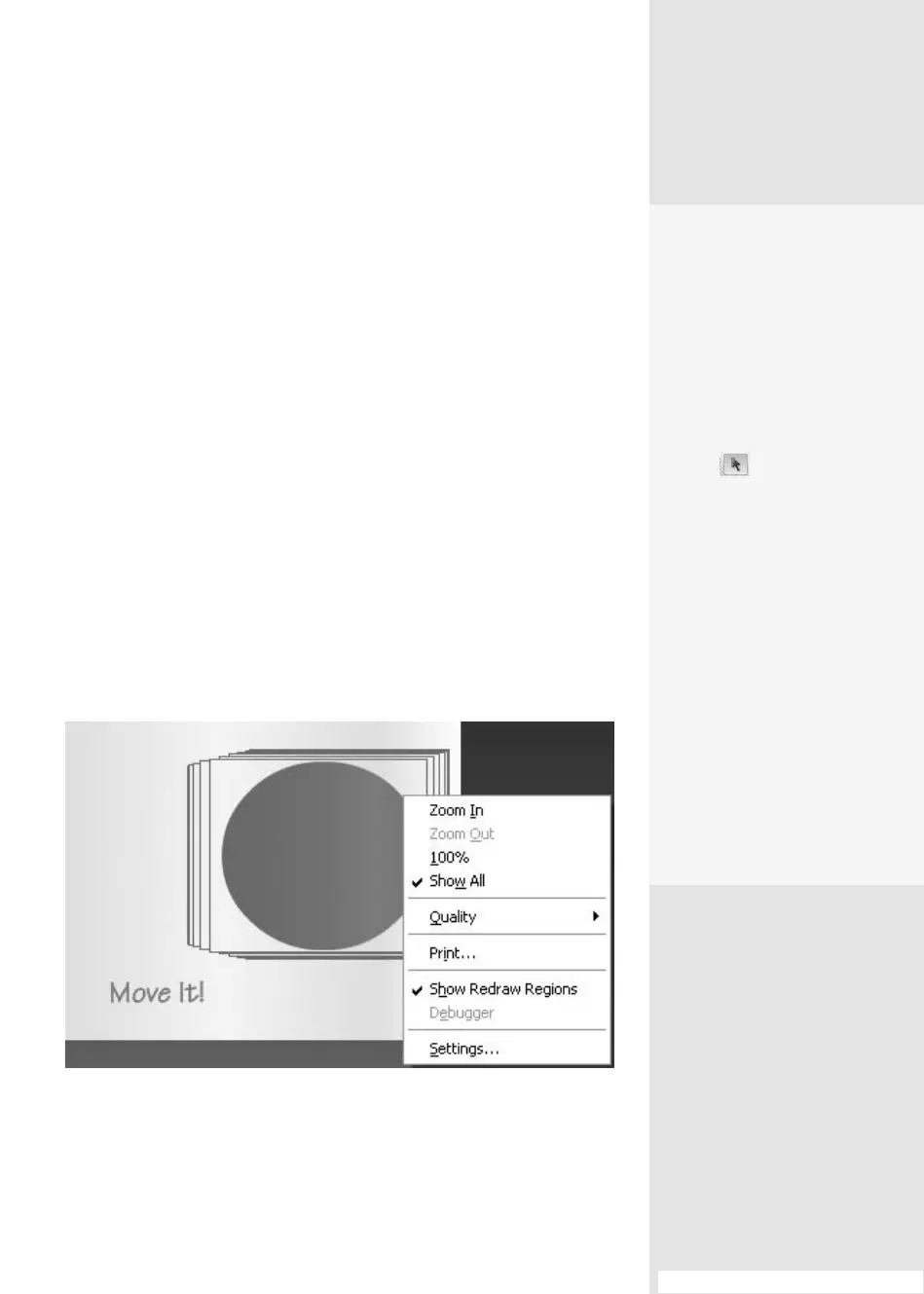
Select the “Pass context menu click to Flash movie” check box to
replace the default Acrobat shortcut menu with the SWF le’s short-
cut menu (Figure 96a).
•
Insert ActionScript variables for the le in the Flash Vars eld.
Figure 96a Use the SWF file’s shortcut menu items rather than the default Acrobat
context menu items, such as the Show Redraw Regions command.
Fix It!
Whether you add a Flash or
other movie file in Acrobat or
in an Office document prior
to conversion to PDF, you
can make changes to your
settings in the same way.
Follow these steps:
1.
Click the Select Object
tool on the
Advanced Editing
toolbar, and right-click
(Control-click) the movie
to open the shortcut
menu.
2.
Choose Properties
to reopen the Edit
Movie dialog. You’ll
find the same settings
and options, with the
exclusion of the file
selection field at the top
of the dialog.
3.
Make the changes as
necessary, and click OK to
close the dialog.
Inserting SWF in a
PDF File
#
96
#96: Inserting SWF in a PDF File
(continued on next page)
From the Library of Daniel Dadian



 To Next Page