ptg
C H A P T E R T H I R T E E N Using Flash Video and 3D Media
262
8. Click OK to close the dialog and insert the video on the page (Fig-
ure 95b).
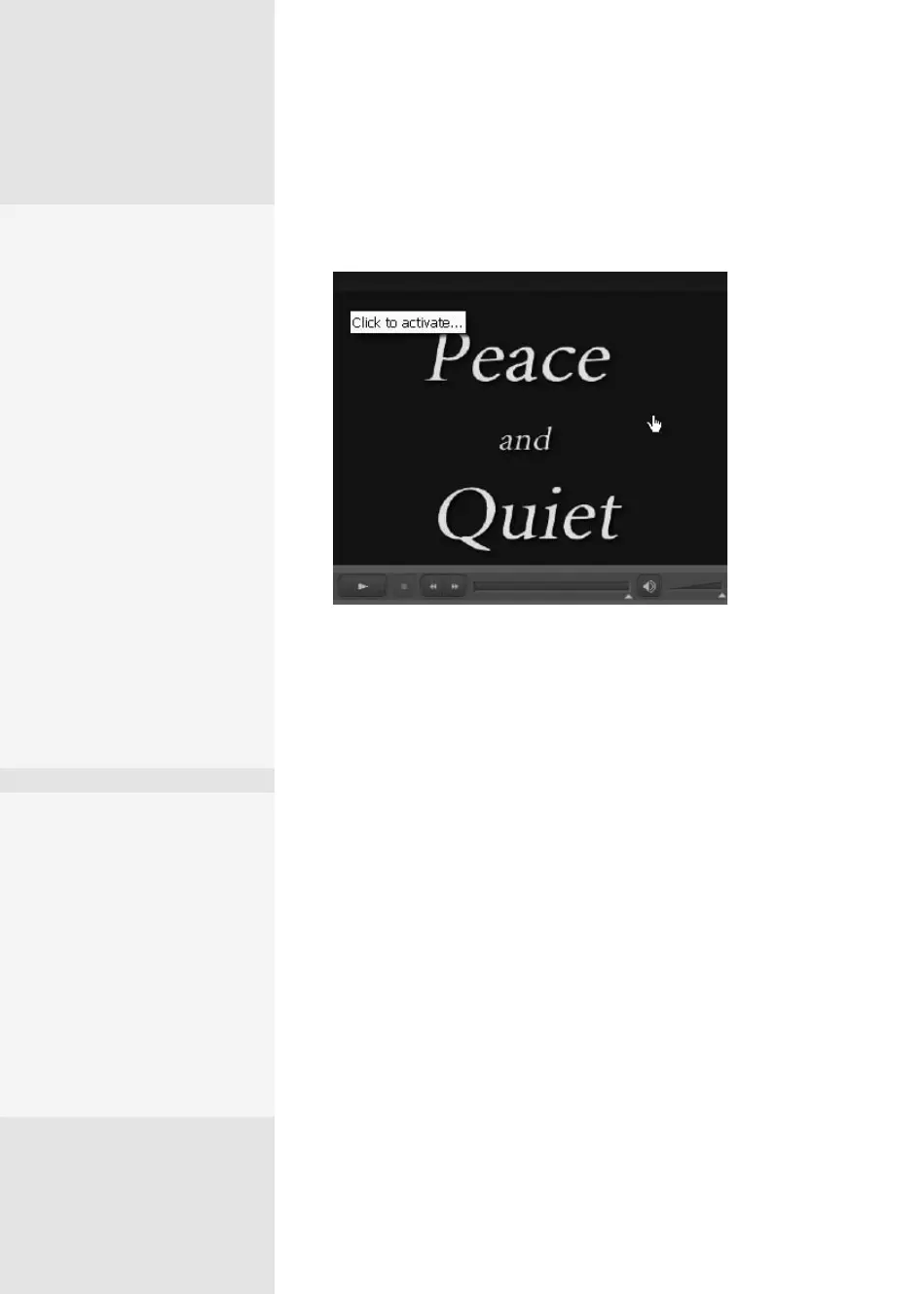
Figure 95b The inserted Flash movie shows a poster image, and
includes a full set of playback controls in a color that coordinates
with the movie’s content (shown as an overlay on the figure).
9. If you want to make adjustments, click the movie with the Select
Object tool to activate the frame; drag the movie to reposition it on
the page, or drag a handle to resize the movie’s play area.
Note
The adjustments apply to SWF, FLV, other movies, and sound les.
Make Your Point
A chapter point is a marker
added to a video that defines
a frame where you can
launch an action. In a travel
video, for example, you
could use a chapter point
to add a link to online res-
ervation, information, and
tourism sites; or even launch
a form to solicit feedback.
Drag the slider under the
video preview to the frame
where you want to add the
chapter point. Click the
Chapter Points plus sign
to add the notation. Then,
select the notation and click
Actions. For more on actions,
check out Chapter 15,
“Controlling Action and
Interaction.”
Floating Along
You can have a multimedia
file inserted in your PDF
file float in a window. The
window can be positioned
in any location and isn’t tied
to a particular page. You
might want to use a floating
window for holding contact
information, a movie with
links to other resources, and
so on.
From the Library of Daniel Dadian



 To Next Page