ptg
261
5. In the Launch Settings tab, choose from these options:
•
Activation Settings for starting and stopping the movie; and the
playing location—either on a xed page location or in a oating
window
•
Appearance settings for choosing a Border Width and Color
•
Poster Image—from a frame of the movie or a separate le
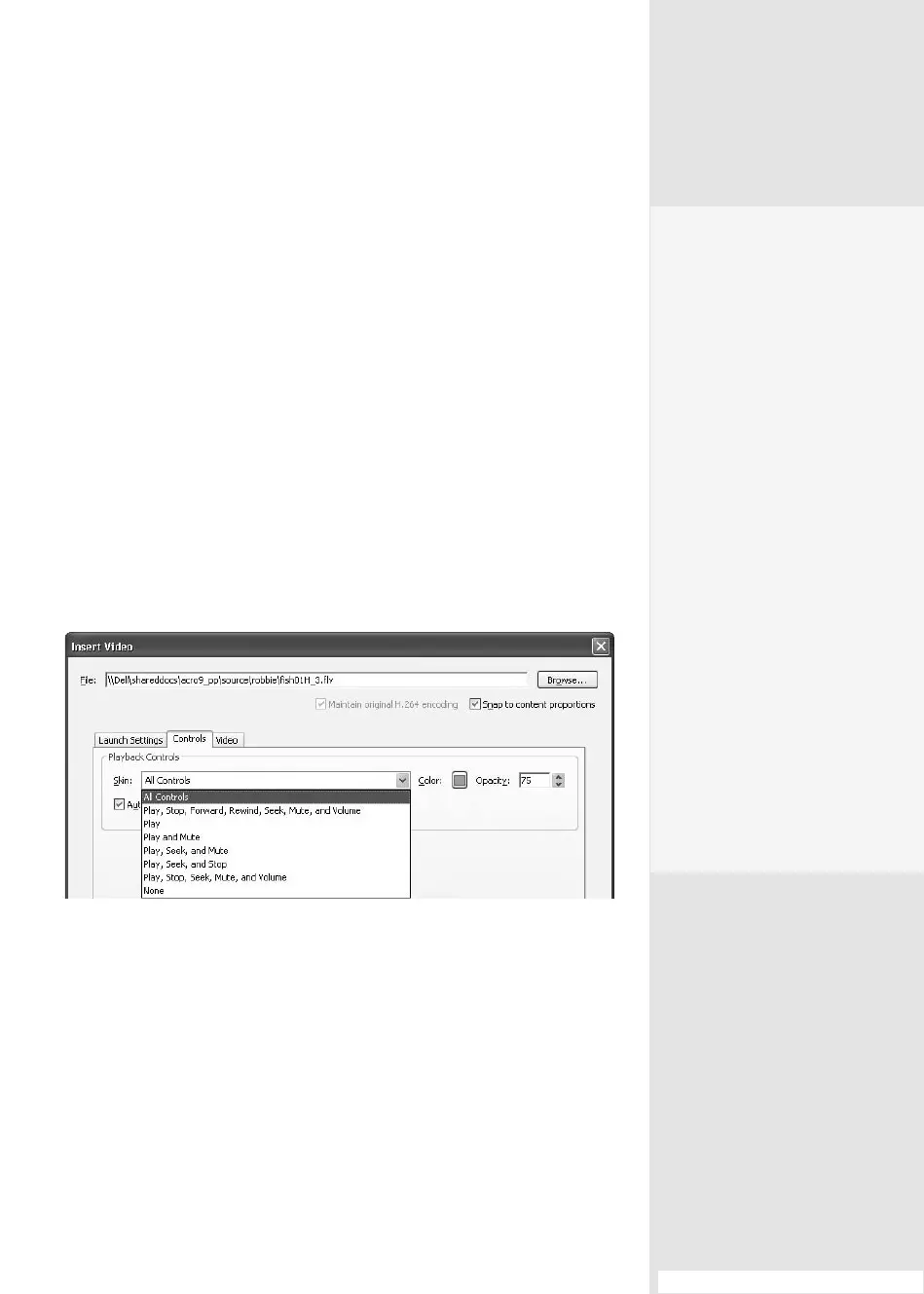
6. In the Controls tab, specify the playback controls from these options:
•
Select a Skin that provides a set of controls ranging from none to a
full set (Figure 95a).
•
Choose a color and opacity for the skin.
•
Leave the Auto-hide controls check box selected to hide the controls
when your mouse moves away from the movie’s area, or deselect
the check box to have the controls display at all times.
Figure 95a Configure the appearance and behavior of the video in the dialog.
7. In the Video tab, select a frame to use as a poster image (as mentioned
in Step 5) and trim the video’s In and Out points if desired. Also in this
tab, you can add and congure chapter points, described in the side-
bar “Make Your Point.”
#95: Inserting Flash Media in a PDF File
Multimedia
Preferences
To set general multimedia
preferences, choose Edit >
Preferences and click
Multimedia in the left
column.
From the Player Options
menu at the upper section of
the dialog, choose a player
option. The preferences do
not identify the versions
of the chosen players. For
example, the latest Flash
Player is version 9; if users
choose Flash as their player
option but have version 6
installed on their computers,
they won’t be able to see
your work unless it is play-
able on a version 6 player.
At the lower portion of the
dialog are the Accessibility
Options. If you use assis-
tive devices, enable the
appropriate options.
(continued on next page)
From the Library of Daniel Dadian



 To Next Page