ptg
93
Acrobat 9 Pro includes a suite of Print Production tools you can use to eval-
uate and prepare documents for high-end printing. Choose Advanced >
Print Production or View > Toolbars and select Show Print Production
Toolbar to display the set of tools. To access the toolbar from the shortcut
menu, right-click (Control-click) the toolbar area at the top of the program
window and choose Print Production from the toolbar listing.
Although the tools are intended for high-resolution printing, several
tools can be useful in many business-based production situations as well:
•
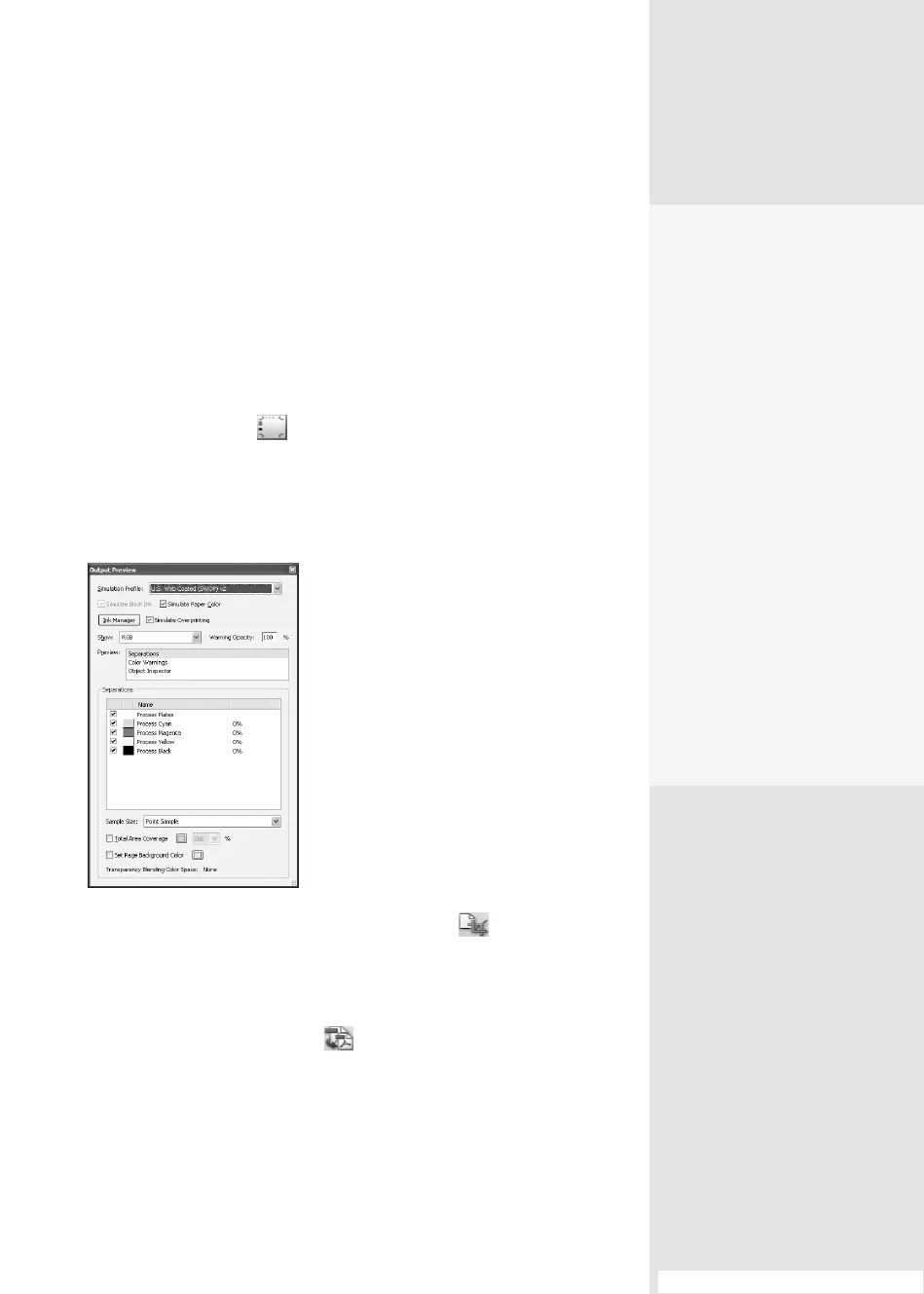
Click Output Preview to open the Output Preview dialog. From
the Simulation Prole menu, choose options to show you how your
document would look using dierent types of paper, dierent moni-
tors, dierent color proles, and so on (Figure 36a). Read more in the
sidebar “Soft Proong.”
Figure 36a The Output Preview gives
you a good idea of how a document looks
printed on different types of paper.
•
To open the Crop Pages dialog, click the Crop tool . Use the settings
to crop o unwanted areas of the page or to increase the size of the
page. Read more about the Crop tool in #51, “Cropping and Rotating
Pages.”
•
Click the PDF Optimizer tool to open the PDF Optimizer dia-
log, which lets you choose settings to compress or remove content
and decrease the size of les. The PDF Optimizer is discussed in #33,
“Optimizing a PDF Document.”
Choosing Settings for Basic
and Production Printing
#
36
Soft Proofing
Use the Output Preview
dialog features to simulate
different document condi-
tions. In Acrobat, you don’t
have to print a hard copy to
preview the colors. Instead,
soft proofing shows you
how a document will look
in print. Select the Simu-
late Black Ink check box to
preview how the document
would look printed in black
ink. Select Simulate Paper
Color to preview the color
of your document printed
on white paper. Select Set
Page Background Color
and choose a color from
the color palette to see
how your document looks
against a colored paper
background.
#36: Choosing Settings for Basic and Production Printing
(continued on next page)
From the Library of Daniel Dadian



 To Next Page