ptg
C H A P T E R T E N Commenting in a PDF Document
190
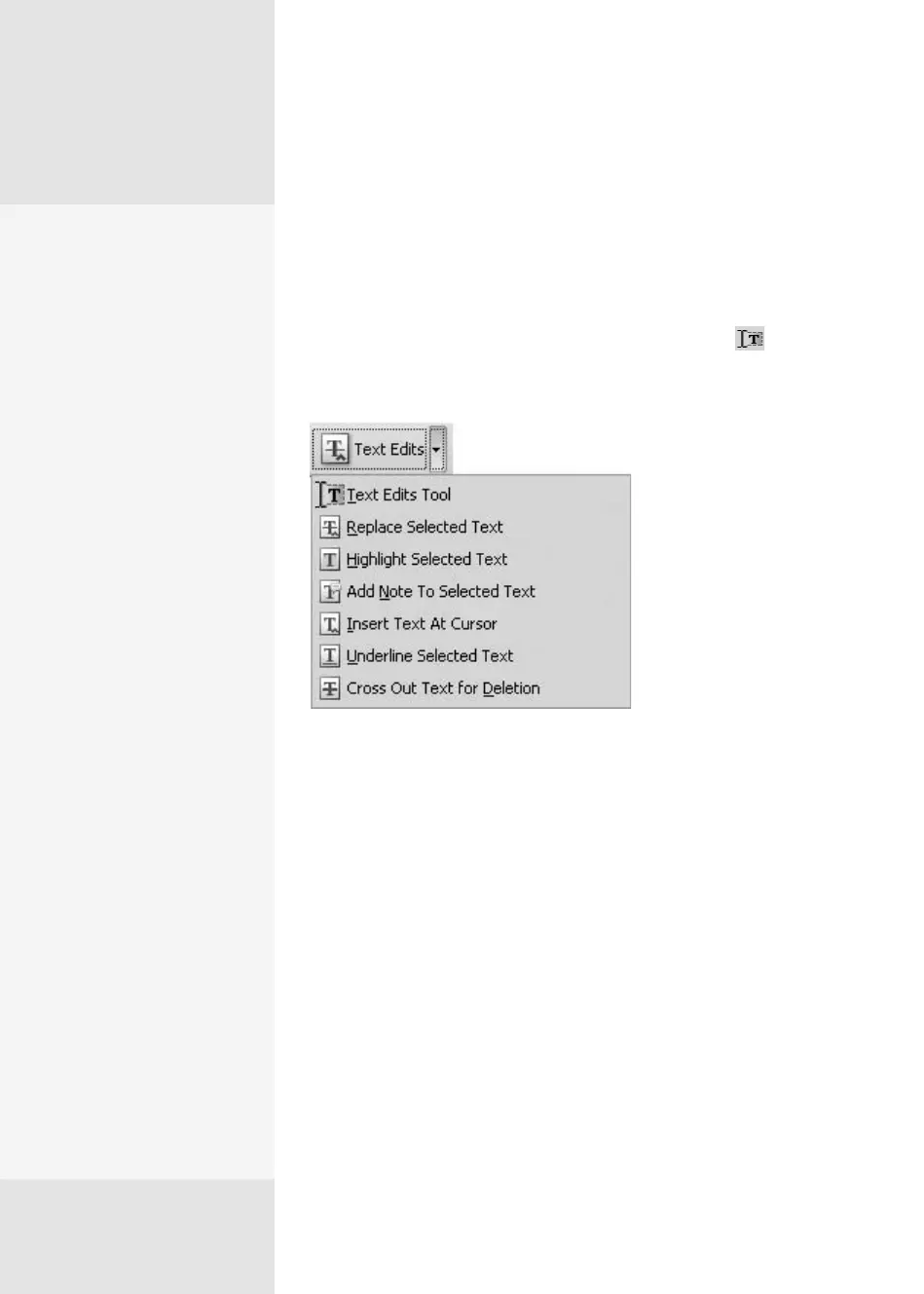
You use the Text Edits tools to edit a PDF document the same way you
would with a printed page and a red pencil, but more eciently. You’ll
nd the tools on the Comment & Markup toolbar. Click the Text Edits
arrow to open the pop-up menu listing the tools (Figure 72a). If you have
selected text on the page, the tools are all active, as shown in the gure.
If you haven’t selected any text, click the Text Edits tool and drag to
select text on the page. Use this option if you need to insert, delete, or
replace text.
Figure 72a Use the Text Edits tools to mark content
for editing just like using a red pencil on a
printed page.
Here’s how you work with the Text Select tool and keyboard, bypassing
the commands in the pop-up menu:
•
To insert text, click in the text of the document and type. In the docu-
ment, you see an insertion caret icon, and the text appears in a pop-up
comment box.
•
To delete text, select the text to delete using the tool and press
Delete or Backspace on your keyboard. The text is crossed out in the
document.
Working with Text
Edit Comments
#
72
Care to Make
a Comment?
The set of Text Edits com-
menting tools is shown in
Figure 72a. Here’s how and
when to use them:
•
Text Edits tool. Select
the text on the page or
indicate the insertion
point.
•
Replace Selected
Text tool. Replace the
selected text with text
you type; the text is dis-
played in a pop-up com-
ment box.
•
Highlight Selected
Text tool. Highlight the
selected text.
•
Add Note to Selected
Text tool. Type notes
about the selected text
in the pop-up comment
box that appears (see an
example in Figure 72a).
•
Insert Text At Cursor
tool. Type to insert new
text at the cursor location
on the page.
•
Underline Selected
Text tool. Underline the
selected text.
•
Cross Out Text
for Deletion tool.
Add a strikethrough
to the selected text;
no replacement text
appears.
From the Library of Daniel Dadian



 To Next Page