ptg
148
To touch up a word or line of text, simply use the TouchUp Text tool in
Acrobat. Here’s how:
1. Right-click (Control-click) the toolbar well and choose Advanced Editing
to open the Advanced Editing toolbar.
2. Select the TouchUp Text tool from the Advanced Editing toolbar
and click the tool within the text you want to edit. The paragraph is
surrounded by a bounding box.
3. Drag the I-beam pointer to select all or part of the paragraph, or
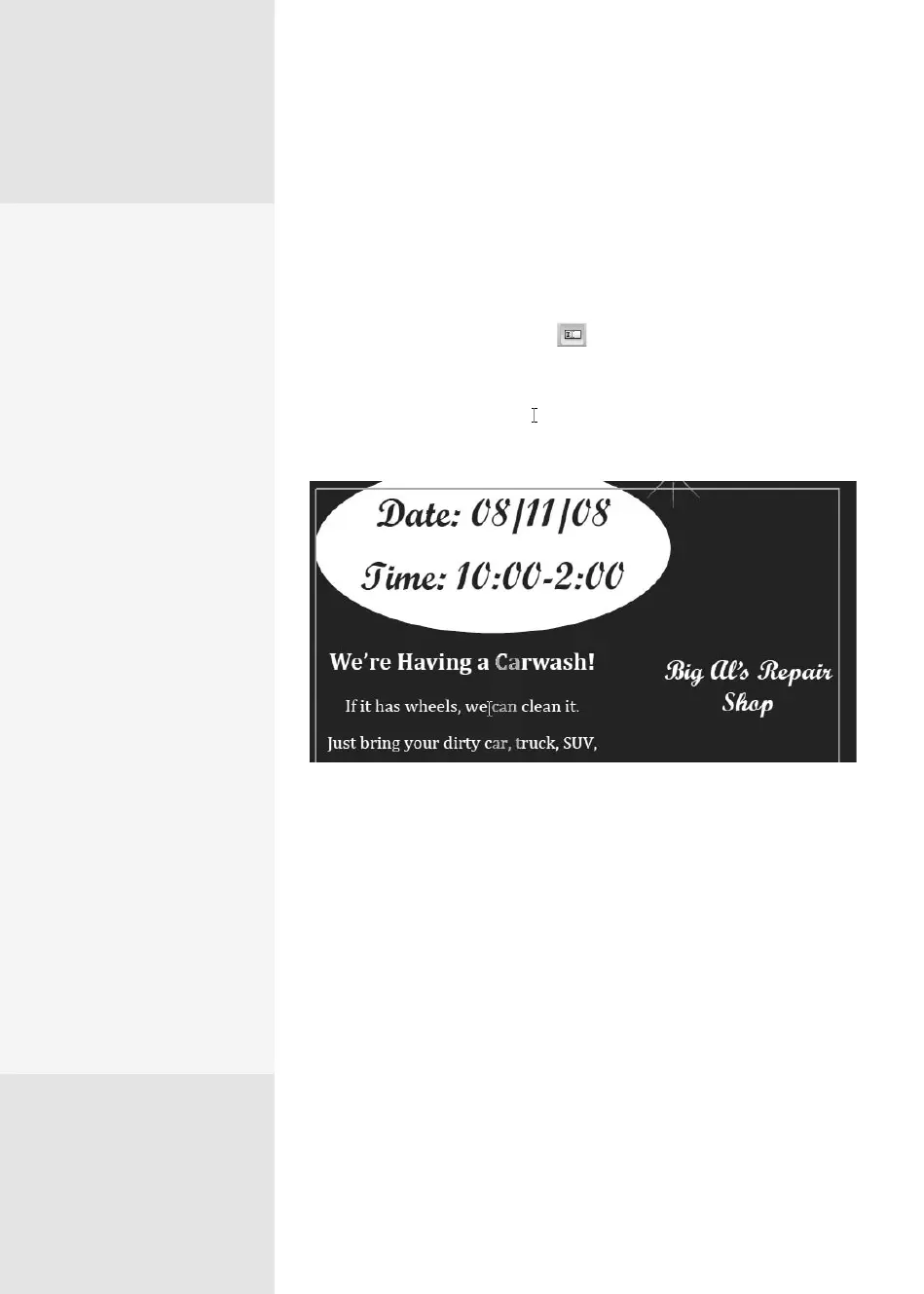
position the I-beam within the text you want to edit (Figure 57a).
Figure 57a Use the TouchUp Text tool to make simple changes to the content of a
page or to add new text.
4. Type the replacement text or add new text at the position of the I-beam
pointer. Click outside the highlighted area to deselect the text.
You can modify properties of new text as well as text already in the
document, including the following:
•
Font and font size
•
Fill and stroke options
•
Font embedding and subsetting
•
Spacing between words and characters
•
Baseline adjustments
Editing Text and
Modifying Attributes
#
57
C H A P T E R E I G H T Touching Up and Modifying a PDF Document
Tips for Tranquil
Text Tweaking
Keep these ideas in mind
when touching up text:
•
If you need to select an
entire paragraph, use
the shortcut keys Ctrl+A
(Command+A).
•
To add new text, with the
TouchUp Text tool active,
Ctrl-click (Option-click)
within the document
where you want to add
the text. The New Text
Font dialog opens with
the default options: Arial
text and horizontal writ-
ing mode. Select the font
and writing mode (hori-
zontal or vertical), and
click OK. The default text
“New Text” displays on
the page. Select it, and
then type the new text.
Click outside the new
line of text to finish the
process.
•
Only fonts with a verti-
cal writing mode will
write vertically. An error
message means you’ve
selected a horizontal-
only font.
(continued on next page)
From the Library of Daniel Dadian



 To Next Page