ptg
149
1. With the TouchUp Text tool, rst click the row of text or select the
words or characters you want to edit.
2. Right-click (Control-click) the text to open the shortcut menu and
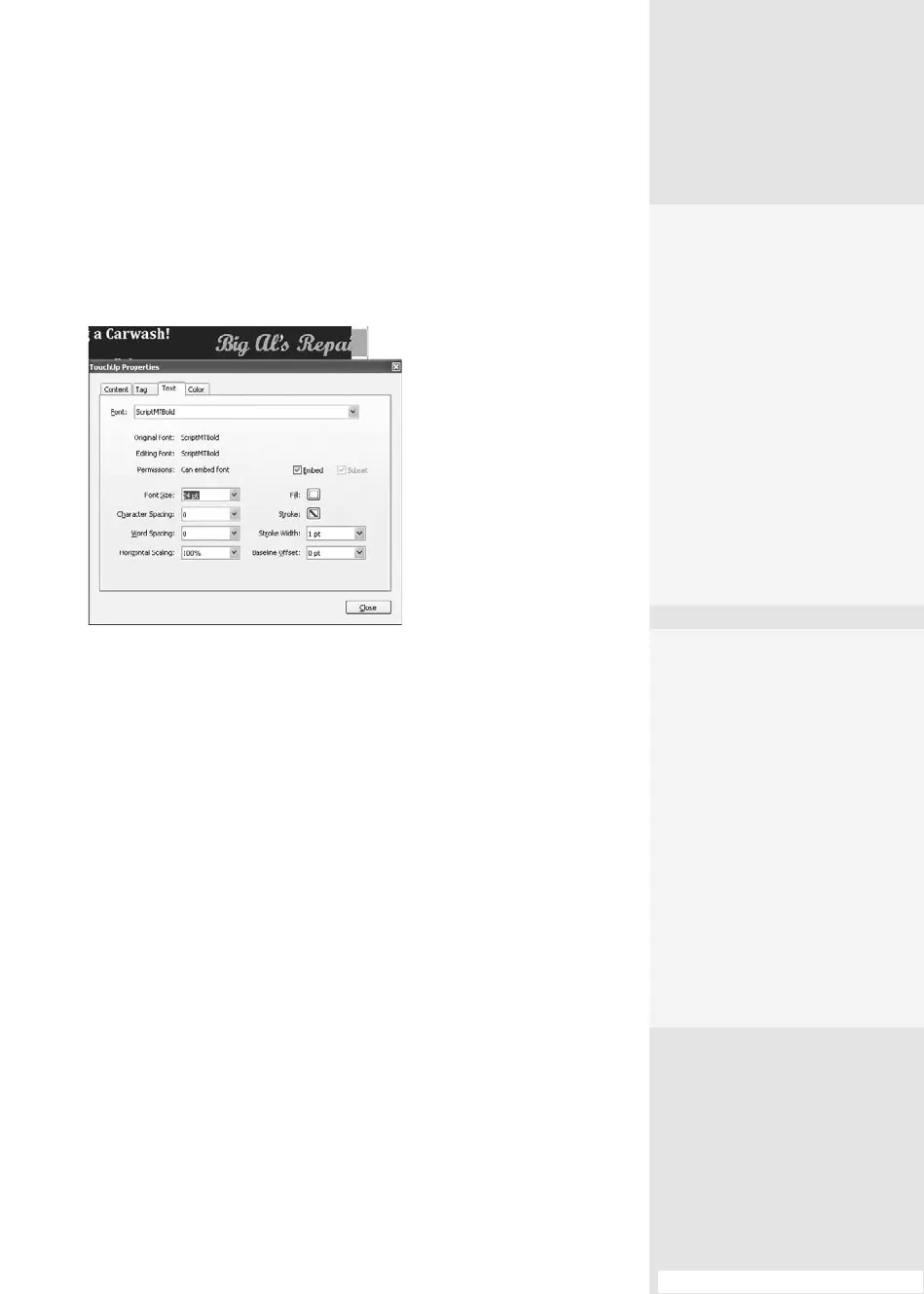
choose Properties. The TouchUp Properties dialog opens (Figure 57b).
Figure 57b Adjust the characteristics of text in a
document by modifying its properties.
3. Choose a font from the Font pop-up menu. Adjust other text attributes
as desired and as the font’s attributes allow, shown in the gure. As you
make adjustments, the changes are automatically previewed in the
selected text. Click Close to apply the settings.
#57: Editing Text and Modifying Attributes
•
If the text isn’t behaving
as text, maybe it isn’t.
Scanned text that hasn’t
been captured behaves
like an image: see #61,
“Extracting Active Text
from an Image.”
•
If you add text and it
won’t wrap to the next
line, choose Edit > Pref-
erences > TouchUp
(Acrobat > Preferences >
TouchUp) and select the
Enable Text Word Wrap-
ping check box.
Gimme a Break!
In addition to adding text,
you can add line breaks.
Click the location on the text
block where you want it to
break, and then right-click
(Control-click) to open the
shortcut menu. Click Insert >
Line Break. Then press Enter
(Return) to wrap the text to
the next line. You can use
the same method to insert
other items, including soft
hyphens, nonbreaking
spaces, and em dashes.
From the Library of Daniel Dadian



 To Next Page