ptg
C H A P T E R T H R E E Creating PDF Files in Distiller and Acrobat
50
Before the release of Acrobat 8, the only way to start a blank PDF docu-
ment was to use a workaround, such as saving a blank document as a PDF
page, or adding a blank page to an existing le before converting to PDF.
At long last you can start a new PDF le from within Acrobat.
Unlike with the other le creation types, you don’t nd the command
in the Create PDF task button menu. Instead, follow these steps to start
a new PDF le:
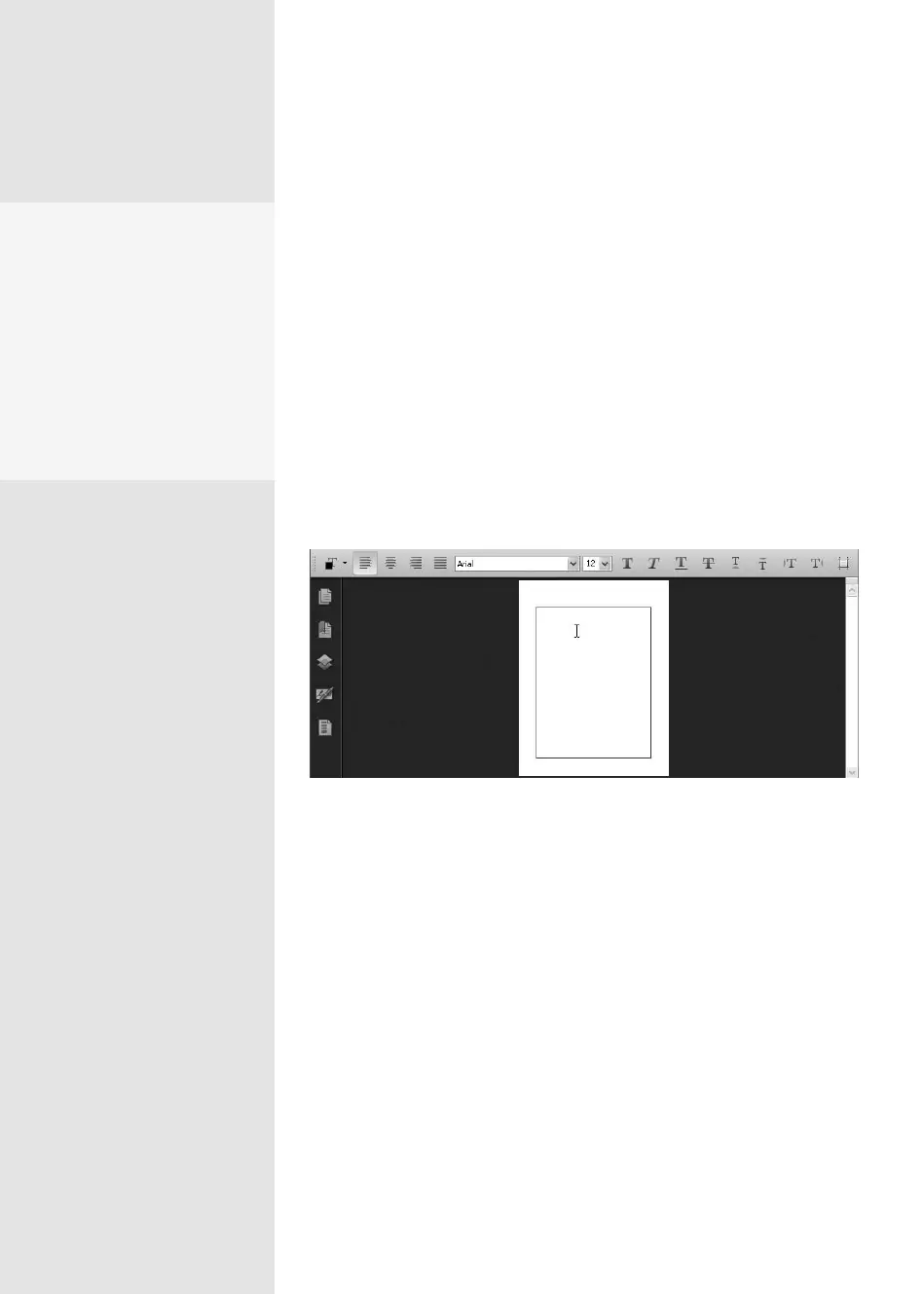
1. Choose File > Create PDF > From Blank Page. The New Document
Editor is initialized, loads a blank page in the Document pane, and
opens a new toolbar (Figure 19a).
•
Notice that guidelines identify the margins and a blinking cursor
displays at the upper left of the page.
Figure 19a A blank page and the New Document toolbar display for you to enter
content into the PDF.
2. Type the content you wish to add to the page. Groups of tools on the
toolbar oer conguration settings, including the text color, alignment,
font, and font size, and styles such as bold, italic, and superscript.
Starting a PDF File
from a Blank Page
#
19
Use What You Like
You aren’t restricted to
using text typed on the new
document page. With the
exception of the locking
feature and its own toolbar,
the PDF file is like any other
to which you can add images,
media, form fields, actions,
and so on.
From the Library of Daniel Dadian



 To Next Page