ptg
C H A P T E R T H R E E Creating PDF Files in Distiller and Acrobat
52
Converting from
the Inside
Not all files can be converted
to a PDF from within Acrobat.
The formats you can use
include the following:
AutoDesk AutoCAD,
AutoDesk Inventor, BMP, GIF,
HTML, Adobe InDesign, JDF
Job Definition, JPEG 2000,
Microsoft Access, Microsoft
Word, Microsoft Excel,
Microsoft PowerPoint, RTF
(Rich Text Format), Microsoft
Project, Microsoft Publisher,
Microsoft Visio, PCX, PNG,
PostScript, EPS, Text, and TIFF.
Don’t bother with opening programs, converting various types of les to PDF,
and then laboriously combining the content in Acrobat. Instead, in Acrobat
9 bring all the content together, and let the program do the conversions and
create the single combined PDF document for you. It’s a true time-saver!
Creating a combined le works in both Acrobat 9 Standard and Pro versions;
however, Standard can’t convert Visio, Project, or AutoCAD les.
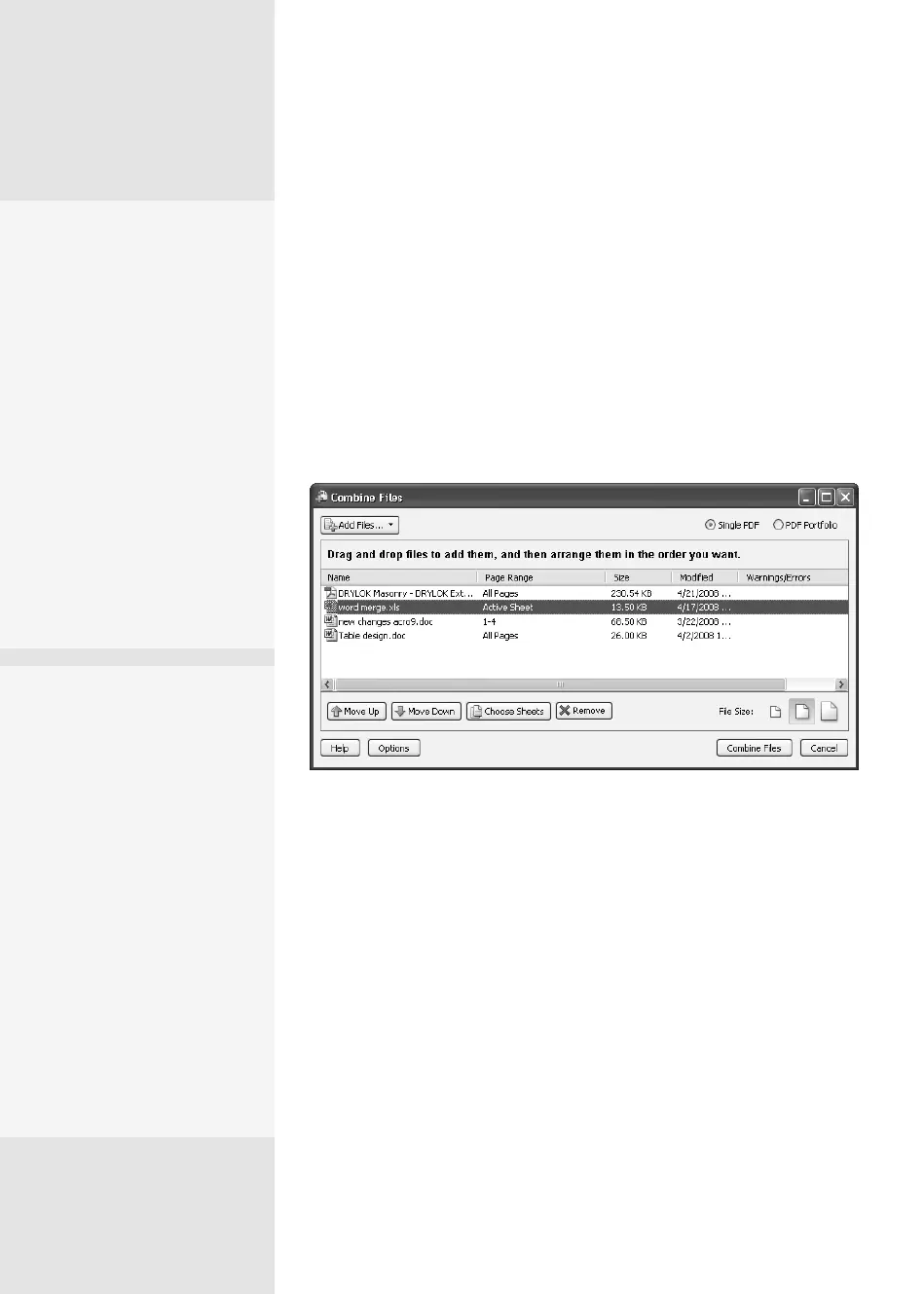
1. Click the Create PDF task button to display the menu options. Then
click Merge Files into a Single PDF to open the Combine Files dialog
(Figure 20a). Notice that the Single PDF option is selected at the top
right of the dialog.
Figure 20a Specify the files to use for combining in the dialog.
Note
A combined PDF file is different from a PDF Portfolio—read about
creating and using portfolios in Chapter 4, “Producing a PDF Portfolio.”
2. Click Add Files to open a drop-down list and choose an option to locate
your content. Use these features to get the les you want in the order
you want:
•
Click Add Files to display the Add Files dialog and locate the rst le
you want to add to the wizard (you can select multiple les from the
same folder), and then click Add.
•
Click Add Folders. Locate and select the folder you want to include
in the Browse for Folders dialog, and click OK.
Merging Multiple Files into
a Single PDF Document
#
20
State Your Options
There are several options
that Acrobat can apply
automatically to the PDF you
create in the Combine Files
wizard. These include the
following:
•
Adding tags for
accessibility and reflow
•
Adding bookmarks
•
Continuing the process
whether or not errors
occur
•
Converting all the files to
PDF
All choices except for adding
tags are selected by default.
From the Library of Daniel Dadian



 To Next Page