ptg
255
If you distribute your form from Acrobat, data from your returned forms
is compiled in a PDF portfolio, created as part of the distribution process
(read about distribution in #92, “Distributing Forms”). As the data starts to
ow in, use the PDF Portfolio feature to sort or lter the returns, edit data
in-line, and add more data as additional returns are received.
To open your returns le, you can do the following:
•
Choose Track Forms from the Forms task button’s menu.
•
Choose File > Open to locate and select the PDF returns le.
•
Click View Responses on the Tracker (shown in Figure 93).
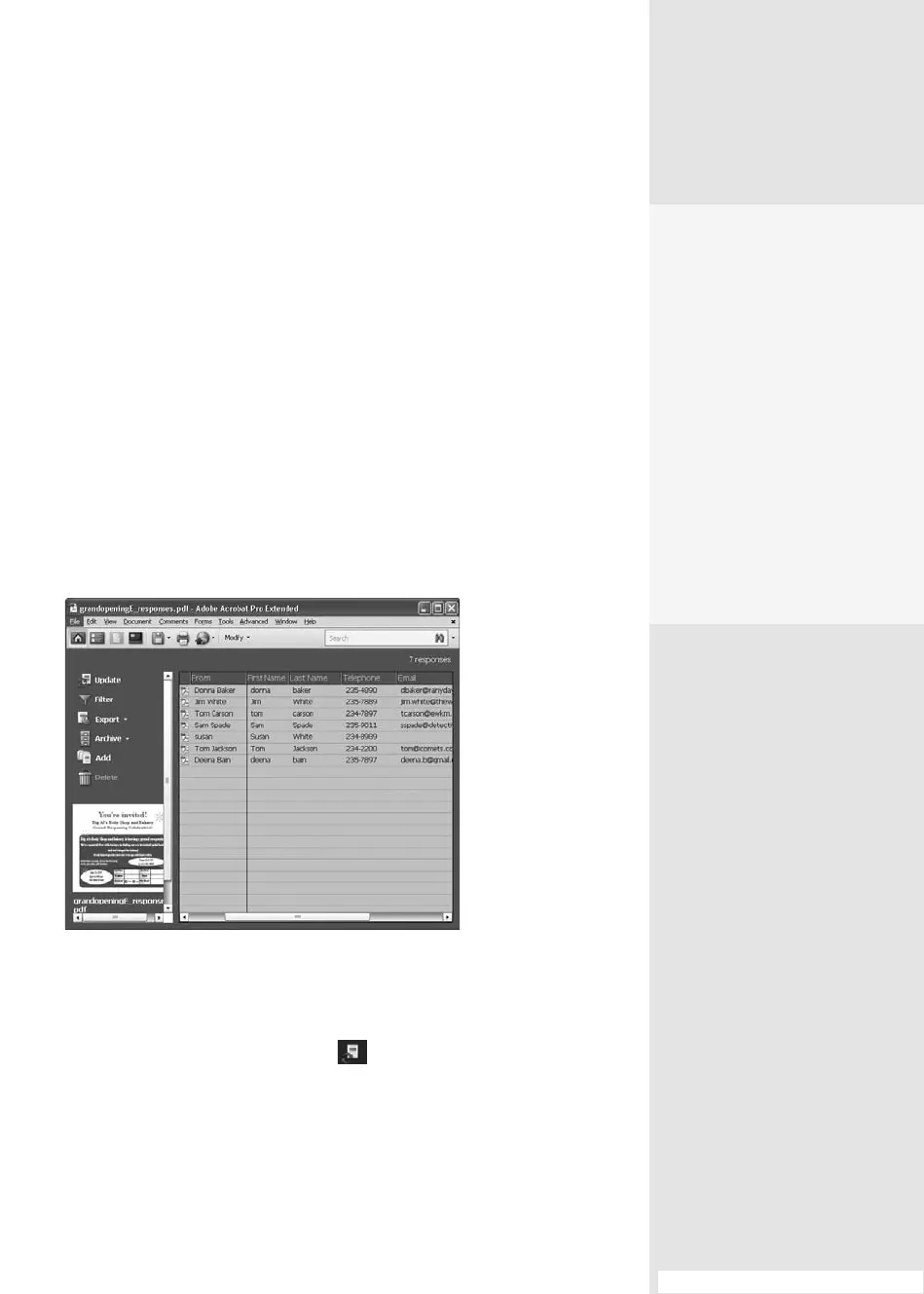
The responses PDF Portfolio opens with a welcome page, explaining the
tasks you can complete in the le. Click Get Started to close the Welcome
window, and open the PDF portfolio, shown in Home mode view as a table
listing the elds from your form and returned responses (
Figure 94a).
Figure 94a The returns are listed in the PDF portfolio.
You can do several maintenance and management tasks with your
form returns:
Update returns. Click Update to have Acrobat look for new
responses online and include them in the portfolio returns, or show a
message saying there are no new responses.
#94: Handling Form Returns
Handling Form Returns
#
94
Who Needs an
Archive?
You might want to use an
archive file if you use the same
form on an ongoing basis,
such as for customer expe-
rience forms. Create a new
response file, filter the results
(based on a date range, for
example), and send them to
the Archive folder for safe-
keeping. That way, your port-
folio shows only the latest
returns, and makes it easier to
find a particular response or
range of responses.
From the Library of Daniel Dadian



 To Next Page