ptg
C H A P T E R T W E L V E Creating and Handling Forms
256
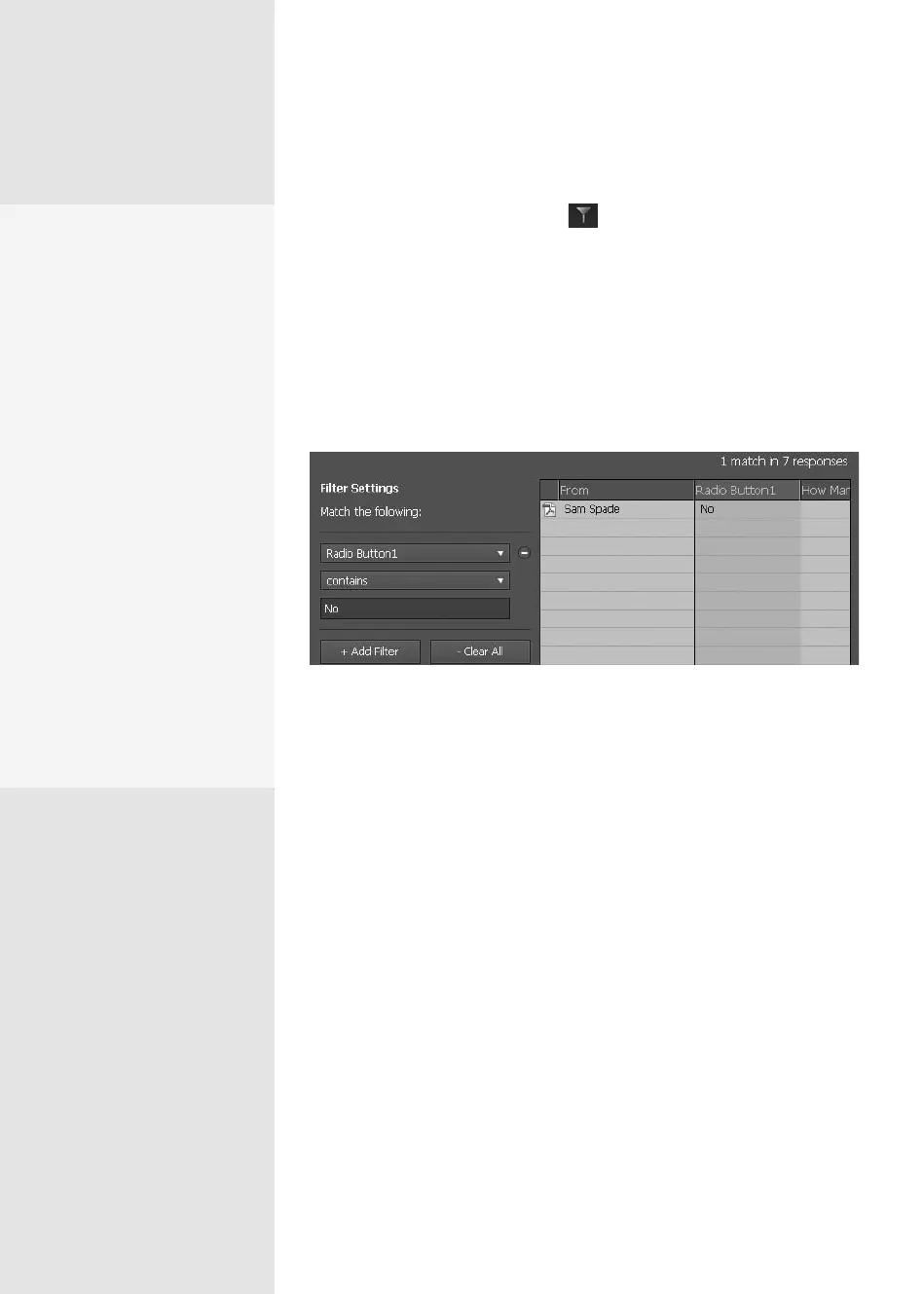
Filter the returns. Click Filter
to show a list of your form’s eld
names. Click the eld name you want to use for ltering, such as Radio
Button1 (used in the example form for the recipients to state whether
they were attending an event). Choose a condition from a pop-up menu,
such as contains (in the example), does not contain, is blank, and so on.
Finally, type the condition in the eld, such as No. The returns are ltered
and your results displayed, as shown in the example in Figure 94b. When
you’re done, click Clear All to remove the lter; click Done to return to the
full Home mode view.
Figure 94b Filter the returns based on your own criteria.
Archive responses. Click Archive to move responses into an archive
le for storage. You can select rows in the responses and choose Archive
selected from the Archive pop-up menu, or archive all your responses
(read more in the sidebar “Who Needs an Archive?”).
Add additional returns. Click Add
to open the Add Returned Forms
dialog, where you can manually locate and select les to add to the PDF
portfolio’s list of returns. Once you’ve located and selected the returns,
click OK to close the dialog and include the new returns.
Export results. Click Export to export the results in a CSV (comma-
separated value) format for use in a spreadsheet. You can select rows in
the responses and choose Export selected from the Export pop-up menu,
or export all your responses. The Select Folder to Save File dialog opens.
Locate and select the folder, then choose the export format, either XML
or CSV. Click Save to export the data and close the dialog. The le is now
available to use in a spreadsheet or database (Figure 94c).
Adding E-mail
Form Returns
Sometimes a recipient of
your form may attach the
form to an e-mail to return to
you. You can easily add those
returns to your other returns
in your PDF Portfolio using
program commands. Follow
these steps:
1.
Choose Forms > Compile
Returned Forms to open
a dialog. Click Browse
to locate and select the
response file.
2.
Click Add File.
3.
Repeat as necessary until
you have selected all the
returns.
4.
Click OK to close the dia
-
log, and add the return
data to your PDF portfolio.
From the Library of Daniel Dadian



 To Next Page