ptg
265
Prior to Acrobat 9, movies were embedded in dierent movie le types,
such as MOV and AVI formats. In Acrobat 9, movies are generally stored as
a FLV movie, since Acrobat 9 and Adobe Reader 9 include an integrated
Flash Player.
Follow these steps to add a movie to a PDF le:
1. Click the Video tool on the Multimedia toolbar, and double-click
on the page to open the Insert Video dialog.
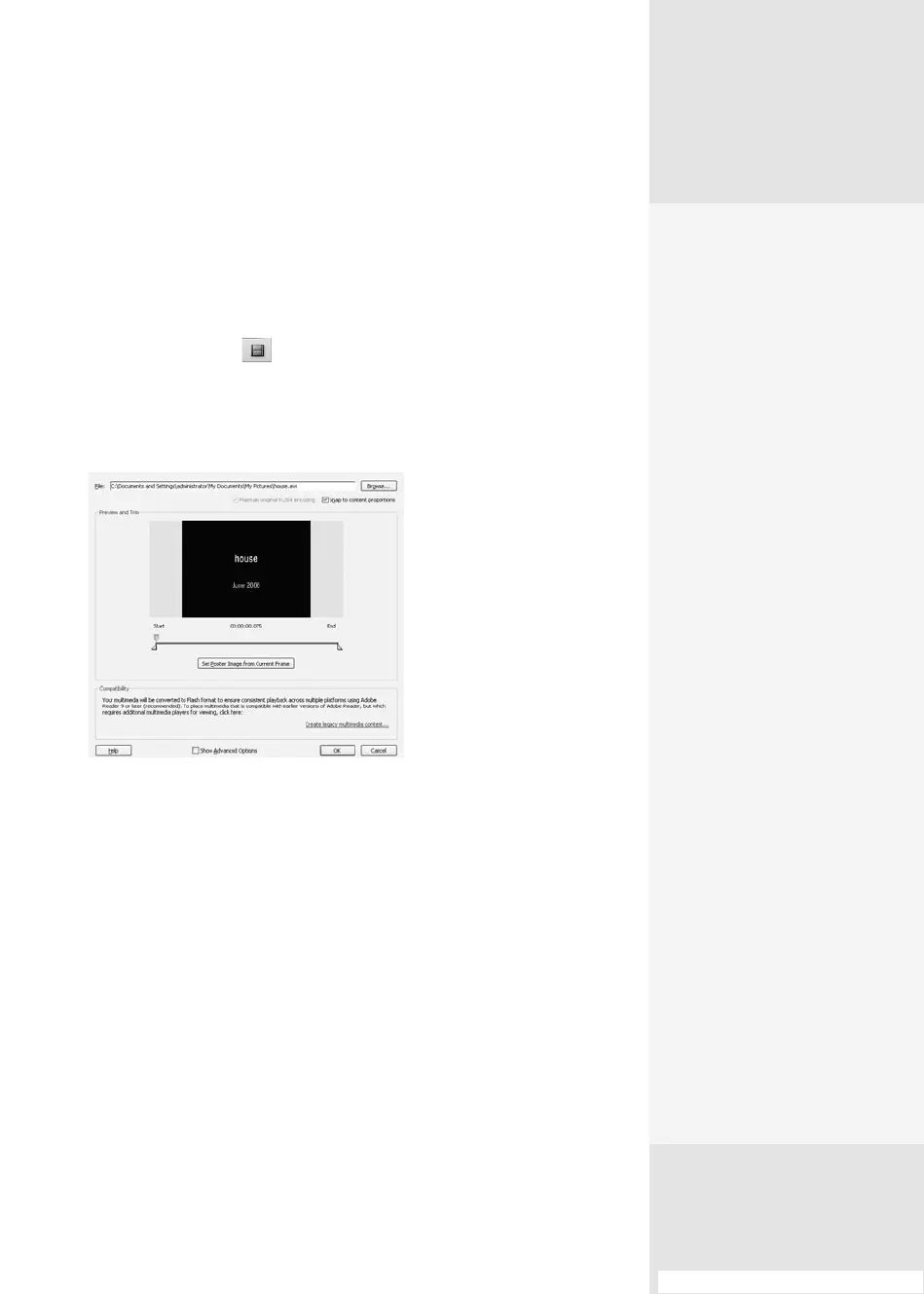
2. Click Choose to locate and select the movie le. A preview is loaded
into the dialog (Figure 97a).
Figure 97a Select a movie
file to convert to FLV and
embed in your document.
3. Drag the endpoints on the slider below the preview to establish a trim
length. Display the frame you want to use as a poster for the movie,
and click Set Poster Image from Current Frame.
4. Click the Show Advanced Options check box to display a set of
four tabs in the dialog and make your choices from the Launch
Settings, Controls, and Video options, described in the previous two
techniques.
Inserting a Movie also includes a Quality tab, where you can specify
the video and audio quality, as well as resizing options.
5. Click OK to close the dialog. The movie is converted to FLV format and
embedded in the document.
Using Multiple Movie
Versions
Follow these steps to add
multiple movie renditions to
your document:
1.
Double-click the movie
with the Video tool to
open the Multimedia
Properties dialog,
displaying the Settings
tab.
2.
You’ll see the Annotation
Title, a name assigned by
Acrobat to identify the
object; for accessibility
purposes, type a descrip-
tion for an alternate text
tag.
3.
Select an action from the
List Renditions for Event
pop-up menu, or leave
the default Mouse Up
action.
4.
Click Add Rendition, and
then select a location:
•
Using a File to locate
and select another
movie version
•
Using a URL, and then
typing the URL in the
resulting field
•
By Copying An
Existing Rendition, to
select the rendition
you want to copy
#97: Inserting Movies and Legacy Versions
Inserting Movies
and Legacy Versions
#
97
Sound Off
Adding a sound file to the movie is a similar process to adding movies or Flash.
Choose the Sound tool from the Multimedia toolbar and click the document
where you want to place the file. For the most part, you leave the sound file invis-
ible, unless you want to use a poster to identify a sound button. The Add Sound
dialog opens and offers the same options as those for the Add Movie dialog, with
the exception of the “Snap to content proportions” setting, which doesn’t apply to a
sound file. Choose your settings; then click OK to close the dialog.
(continued on next page)
From the Library of Daniel Dadian



 To Next Page