ptg
C H A P T E R T W E L V E Creating and Handling Forms
244
Adding and testing form elds is only the rst part of the process. By its
very nature, a form is an organized structure—elds for accumulating data
are placed on the form along with their identifying labels; the elds and
labels are often arranged on the page in some sort of grid-like pattern. Our
approach to forms is generally systematic as well—we usually start lling a
form at the top left, and keep going until we nish at the bottom right.
To achieve these worthy goals, Acrobat 9 oers tools and features
designed to enhance the visual, organizational, and functional aspects
of a form.
Note
You can select elds to work with on the document page or in the Fields
pane, which is often easier to do. However, the shortcut menu items dif-
fer depending whether you right-click (Control-click) the selection in the
Fields pane or on the page.
Visual aspects. Large numbers of the same type of eld in similar
arrangements are common on forms. Acrobat oers a method for spacing
and sizing the elds on your form. Select the elds you want to work with
on the form or in the Fields pane, and right-click (Control-click) on the
document to open the shortcut menu. Select Align, Distribute, or Center
and then an option from the submenu.
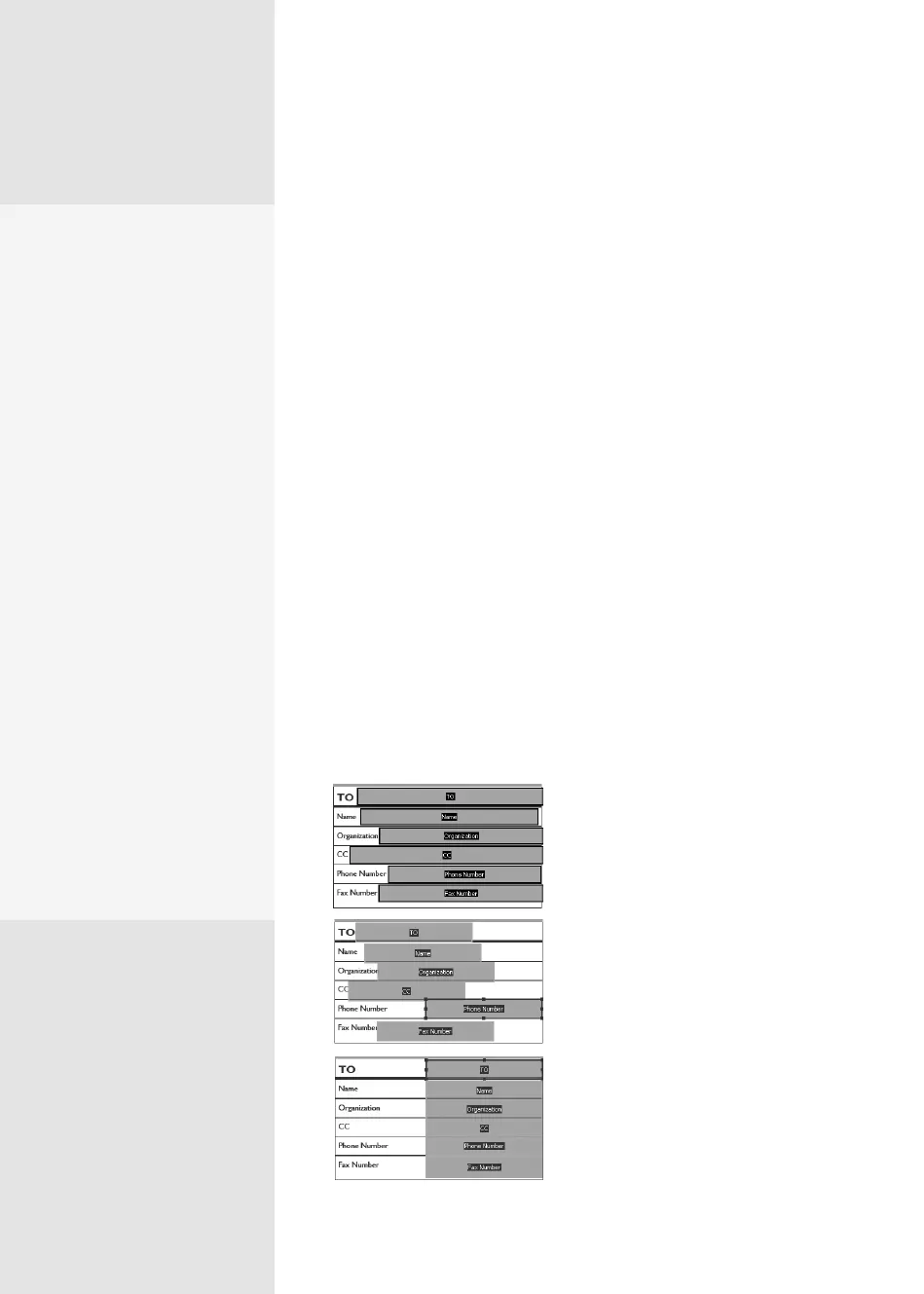
For sizing a group of elds, choose Set Fields to Same Size and then
choose Height and/or Width choices from the submenu (Figure 90a).
Figure 90a The layout of the fields needs
improvement (top), after resizing (center),
and finally after aligning and distributing
(bottom).
Organizing and
Ordering a Form
#
90
Tweaking the Fields
You can select a group of
fields and then use com-
mands from the shortcut
menu to organize their lay-
out. For aligning, distribut-
ing, and sizing fields, move
your pointer over the field
that shows the correct con-
figuration before opening
the shortcut menu (like the
Phone Number field in Fig-
ure 90a), and then do the
following:
•
Use Align options to
line up selected objects
according to a certain
feature, such as the top
or bottom.
•
Use Distribute options
to space objects evenly
either horizontally or
vertically
.
•
Use Center options to
move the selected fields
to the center of the page
horizontally and/or
vertically.
From the Library of Daniel Dadian



 To Next Page