ptg
283
In Acrobat 9 you can work with layered documents created in several pro-
grams, including InDesign, Visio, and AutoCAD. Acrobat doesn’t support
layers created in Photoshop.
Manipulate layers in Acrobat for dierent purposes, such as hiding
layer content in dierent languages, or showing corporate information
on a printing layer.
The Layers icon displays in the Navigation pane when you open a doc-
ument containing layers. Click the Layers icon in the Navigation pane to
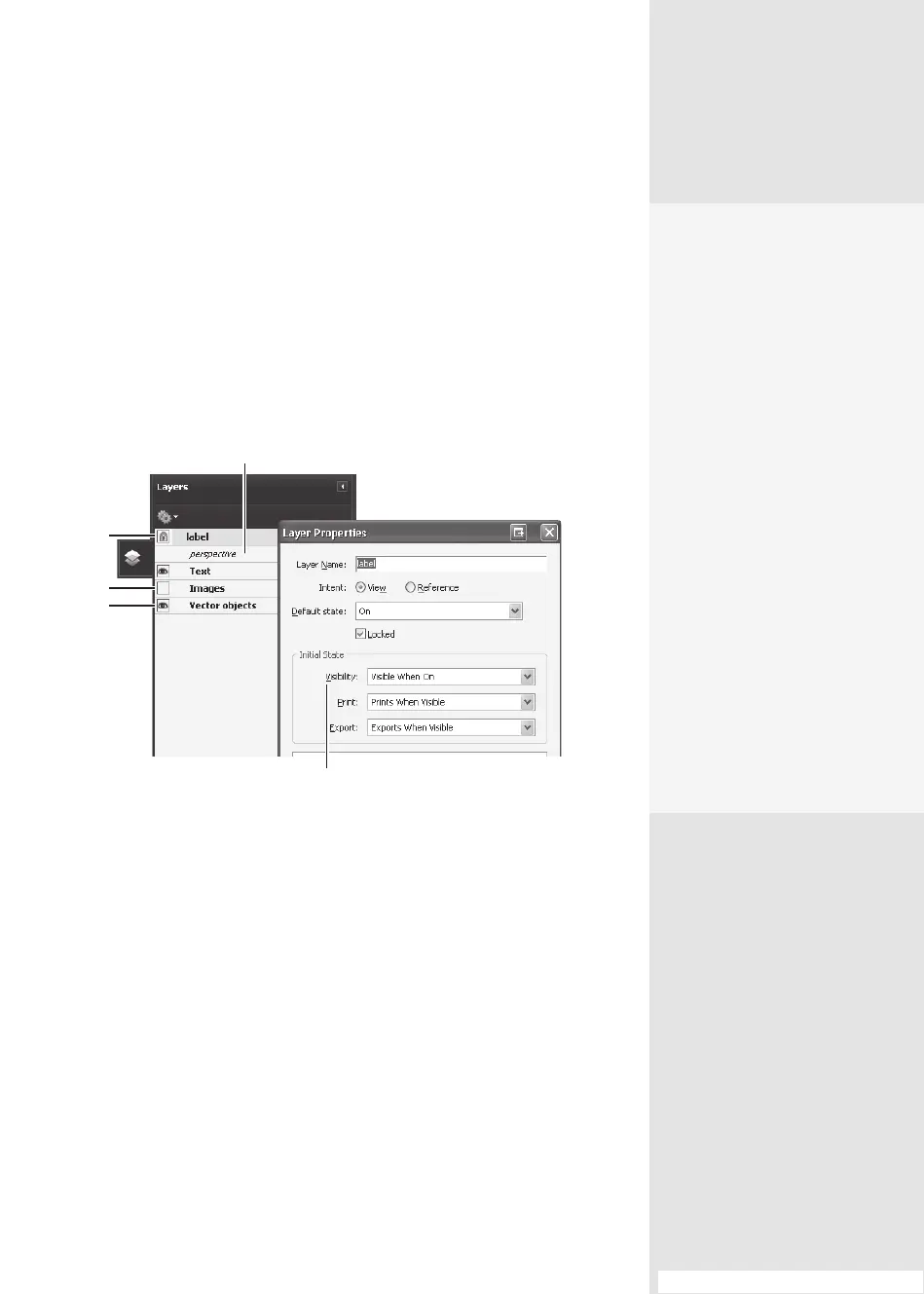
open the Layers pane (Figure 104a).
Reference layer
Locked
State shown when file opens
Hidden
Visible
Figure 104a View layers and access their properties in this pane.
The Layers pane shows dierent types of layers and statuses:
•
Toggle a layer’s visibility on and o by clicking the eye icon—when the
eye is visible, the layer is visible.
•
Lock a layer in the source document before conversion to PDF or in the
Layer Properties dialog if security settings permit.
•
A reference layer is indicated in the Layers pane in italics. The reference
layer works like a background in that it is always visible and can’t be
modied. The reference layer is specied in the source program, or in
the Layer Properties.
Working with a
Layered Document
#
104
#104: Working with a Layered Document
Taking Action
with Layers
Acrobat does not allow you
to author layers that change
visibility according to the
zoom level. However, you
can highlight a portion of a
layer that is especially impor-
tant by creating a bookmark
that magnifies or hides the
layer using page actions.
You can also add links that
let users click a visible or
invisible link to navigate
to or zoom in on a layer.
Read about using links and
bookmarks in Chapter 15,
“Controlling Action and
Interaction; ” check out #110,
“Bookmarking Drawings,
Maps, or Layers,” for more
information on bookmark-
ing drawings, maps, and
their layers.
(continued on next page)
From the Library of Daniel Dadian



 To Next Page