ptg
285
In Acrobat 9, you can add new layers from another document, or split
your current PDF le into layers. Add new layers to an existing PDF le
using layers from another PDF le, or an image in BMP, GIF, JPEG, JPEG
2000, PCX, PNG, or TIF format.
Open your target PDF le and follow these steps to add a new layer:
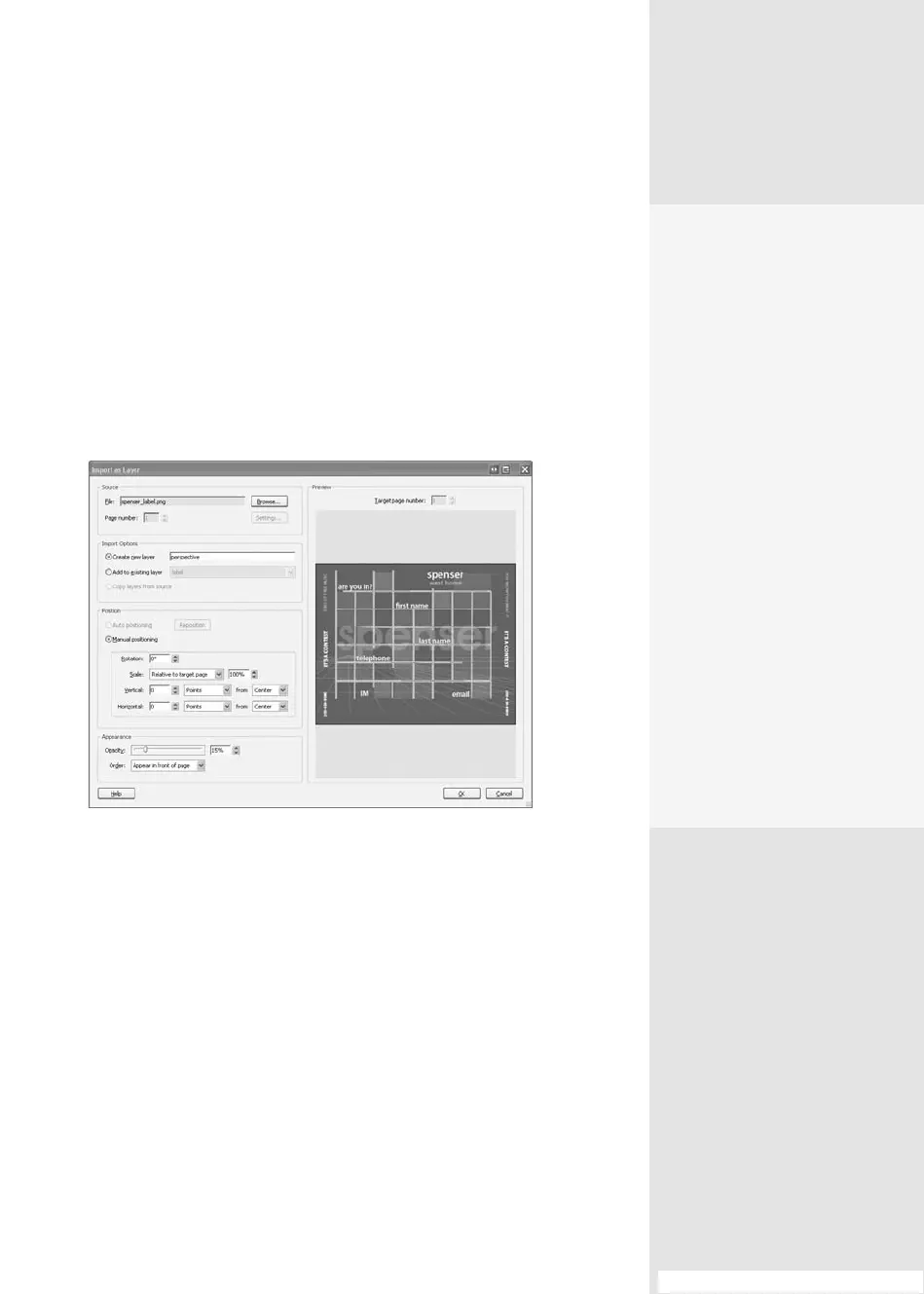
1. Choose Import As Layer from the Layers pane’s Options menu to open
the Import as Layer dialog (Figure 105a). Click Browse to select the
le you want to add, and click OK. The le is listed in the Source area
of the dialog.
Figure 105a Specify the file and its appearance before adding the new
layer to your document.
Tip
If the source document has multiple pages, indicate the page to import; if
your target le contains multiple pages, specify the Target page number
in the Preview area of the dialog.
2. Choose an import option; read about the options in the sidebar “Add-
ing On the Layers.”
3. Adjust the Position and Appearance settings as needed. In the exam-
ple, the imported content is scaled to t the page, and its opacity is
decreased.
#105: Adding New Layers
Adding New Layers
#
105
Adding On the Layers
Acrobat offers several
ways to import content for
layering from the Import as
Layer dialog. Here are your
options:
•
“Create new layer” adds
a single layer from the
source document.
•
“Add to existing layer”
adds the content of the
new layer to a selected
layer in your document.
If you have existing layer
groups, you can select
one from the pop-up
menu.
•
“Copy layers from source”
imports the layers from
the source document—
you won’t be able to
choose this option unless
the selected source
document contains layers.
(continued on next page)
Different Types of Layers
What you see in the Layers pane depends on how the original document was
constructed and converted. In some cases, a document is converted with
preserved layers. In other cases, the document layers may be flattened or
locked. In a flattened document, you see a single layer as in a regular PDF
document. A locked document, on the other hand, displays the layers
individually, but they can’t be edited in any way.
From the Library of Daniel Dadian



 To Next Page