ptg
C H A P T E R F O U R T E E N Using Drawings, Maps, and Layers
286
4. When you are pleased with the appearance shown in the preview,
click OK.
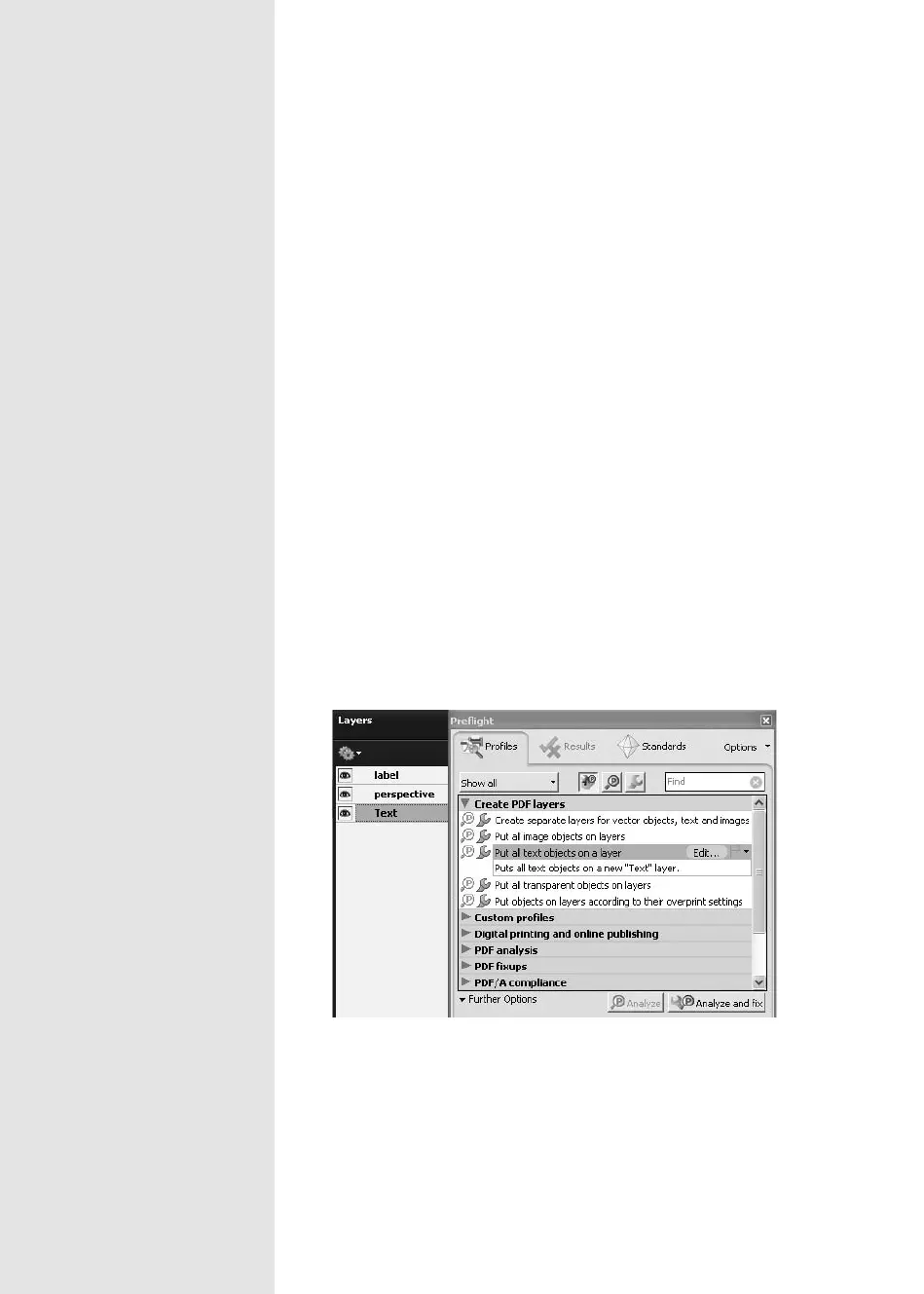
But what if you have a single-layered InDesign PDF le and your cli-
ent wants to see the layout without text? Or graphics? In Acrobat 9 Pro,
you can use one of the new layer manipulation Preight proles and
show clients what they want to see. You can read more about Preight in
Chapter 6, “Complying with PDF and Accessibility Standards.”
Follow these steps:
1. Choose Advanced > Preight to open the Preight dialog.
2. Click the Create PDF Layers heading to display the list of proles, and
click to select the prole. The PDF layer options are based on your
document’s contents.
3. Click Analyze and x to process the document. Close the Preight dialog.
4. Save, close, and reopen your le to see the new layer structure
(in Figure 105b the open Preight dialog is shown along with the Layers
pane). The new layer is named according to the Preight prole you
selected, and appears in the Layers pane.
Figure 105b Add new layers to your document using Preflight profiles.
From the Library of Daniel Dadian



 To Next Page