ptg
305
#113: Adding Bookmarks in Acrobat
Acrobat lets you add new bookmarks to a document using dierent
methods. The option you choose depends on the number needed. It’s
easy to add two bookmarks manually, but not so simple to add 200.
Choose one of these methods:
•
Add blank bookmarks to the Bookmarks pane and ll them in
manually.
•
Select text from the document to create your bookmarks.
•
Base bookmarks on the document’s structure.
Click the Bookmarks icon to display the Bookmarks pane.
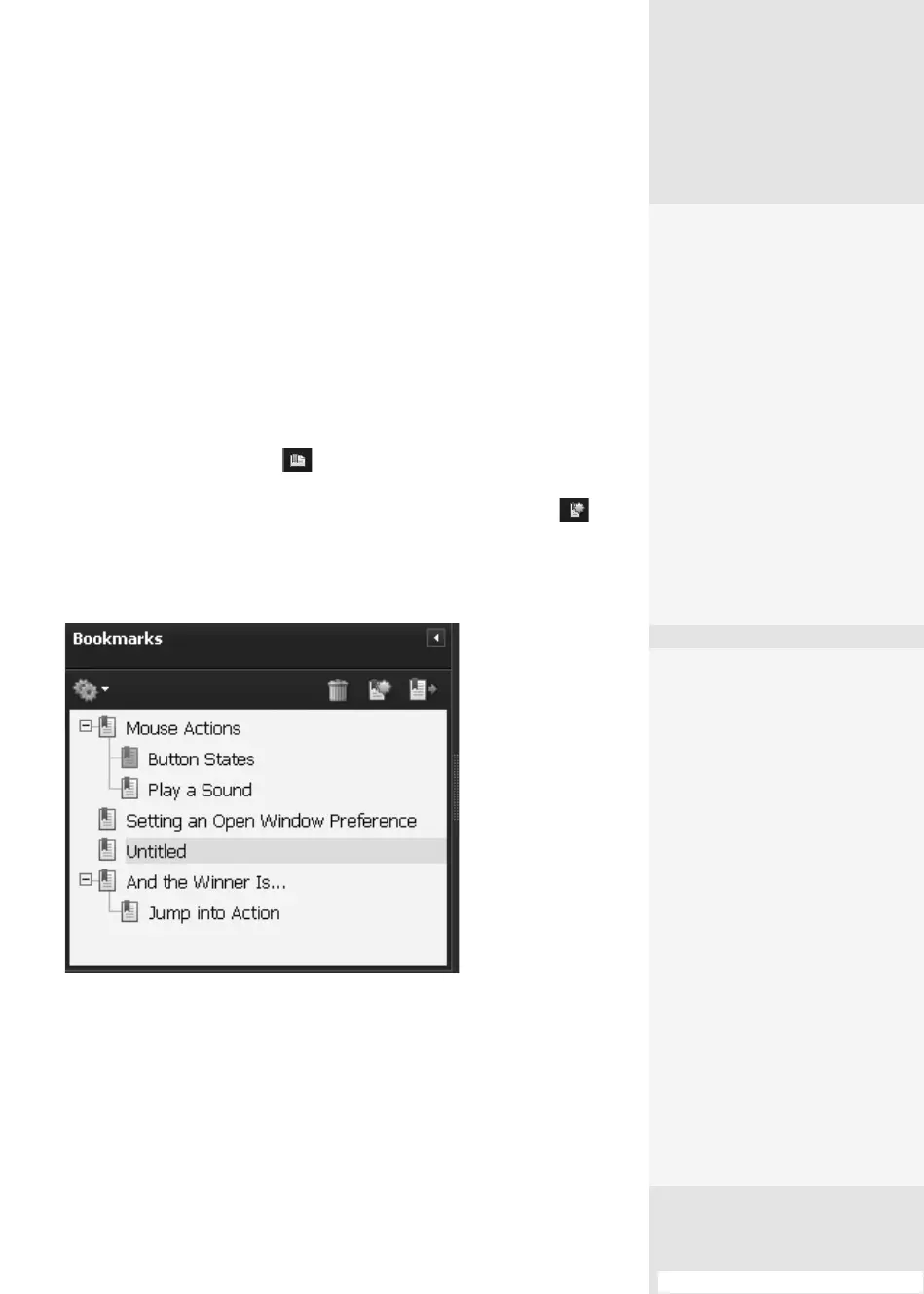
To add a blank bookmark, click the existing bookmark in the list above
where you want to add a new bookmark. Click New bookmark on
the Bookmarks pane toolbar to add a blank bookmark to the Bookmarks
pane (Figure 113a). Type the text for the bookmark to replace the default
“Untitled” label.
Figure 113a Add new bookmarks using default text or text
copied from the document.
Tip
You can add a new bookmark by using the Ctrl+B (Command+B) shortcut
keys when the Bookmarks pane is active.
Adding Bookmarks
in Acrobat
#
113
Defining Your
Workflow
Some people like to complete
their work in one area—that
is, they want to add the
list of bookmarks in the
Bookmarks pane and then
add the actual text—whereas
others prefer to complete
one bookmark at a time and
make their way through the
document from start to finish.
For either method, you need
to start with the document
and the Bookmarks pane
open in Acrobat.
Bookmarking
an Image
You don’t have to stick with
boring old text to define a
bookmark location—you
can use an image as a book-
mark location instead. Click
the Select tool on the Select
& Zoom toolbar. Then, click
an image or draw a marquee
around a portion of an image
on your document. Right-
click (Control-click) the image
and choose Add Bookmark. A
new bookmark named Unti-
tled appears at the bottom of
the list (or below a selected
bookmark). The “Untitled”
label is active; click to delete
the label and type a name for
the bookmark.
From the Library of Daniel Dadian



 To Next Page