ptg
C H A P T E R F I F T E E N Controlling Action and Interaction
306
Save some time typing by using the document’s text. Click the Select
tool on the Select & Zoom toolbar and then click and drag with the
tool to select the text that you want to use for the bookmark label. Next
click New bookmark on the Bookmarks pane toolbar to add a bookmark
using the selected text.
If you are working with a tagged document, use its structure to create
your bookmarks. From the Options menu in the Bookmarks pane, choose
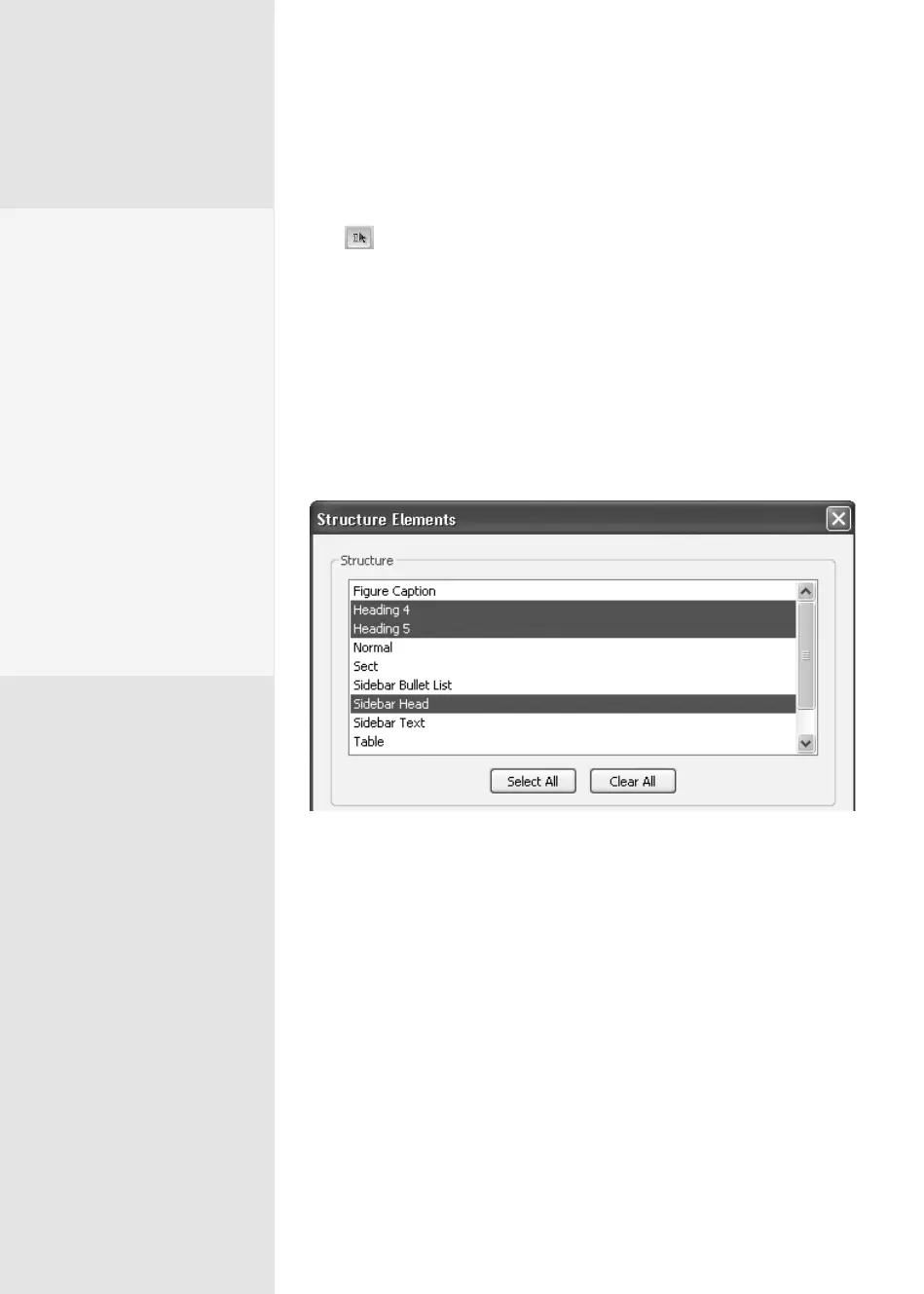
New Bookmarks from Structure. The Structure Elements dialog opens
(Figure 113b). Select the elements you want to convert to bookmarks:
Shift-click to select a range; Control-click to select noncontiguous ele-
ments. Click OK to close the dialog and make your bookmarks.
Figure 113b Use a tagged document’s structure to create a set of bookmarks quickly.
Click a bookmark in the Bookmarks pane to test its action. The part
of the document shown in the Document pane is the destination, which
may or may not be what you want to see. To set the proper destination,
follow these steps:
1. Select the bookmark in the Bookmarks pane.
2. Place the document and set the magnication as you’d like to see it
when the bookmark is used.
3. Right-click (Control-click) the bookmark to display the shortcut menu
and select Set Destination. In the resulting conrmation dialog, click
Yes to set the destination and dismiss the dialog.
Add Some Pizzazz
to Your Bookmarks
Boring bookmarks work, of
course, but wouldn’t it be
nice if you could customize
them, perhaps to match your
corporate colors? You can.
Ctrl-click (Control-click) the
bookmarks you want to mod-
ify, and choose Properties
from the Options menu to
open the Bookmark Proper-
ties dialog. Choose a font face
from the Style pop-up menu,
and a Color from the color
picker. Click OK to close the
dialog and your bookmarks
have a whole new look.
From the Library of Daniel Dadian



 To Next Page