ptg
C H A P T E R S I X Complying with PDF and Accessibility Standards
106
Along with testing a le for compliance with dierent standards or ana-
lyzing the content of a le, you can x problems that prevent a le from
meeting your PDF le goals. Click either “Select single checks” or
“Select single xups” on the Preight dialog’s toolbar, and follow the
steps listed in #39, “Testing and Fixing a Document with Preight.”
You don’t have to use one of the presupplied proles for making
repairs. Instead, create one from scratch like this example xup, following
these steps:
1. Click one of the Prole buttons in the Preight dialog, then click the
Options menu. The choices in the menu depend on whether you’ve
clicked Select proles, “Select single checks,” or “Select single xups.“
Read about which option to use in the sidebar “Which to Choose?”
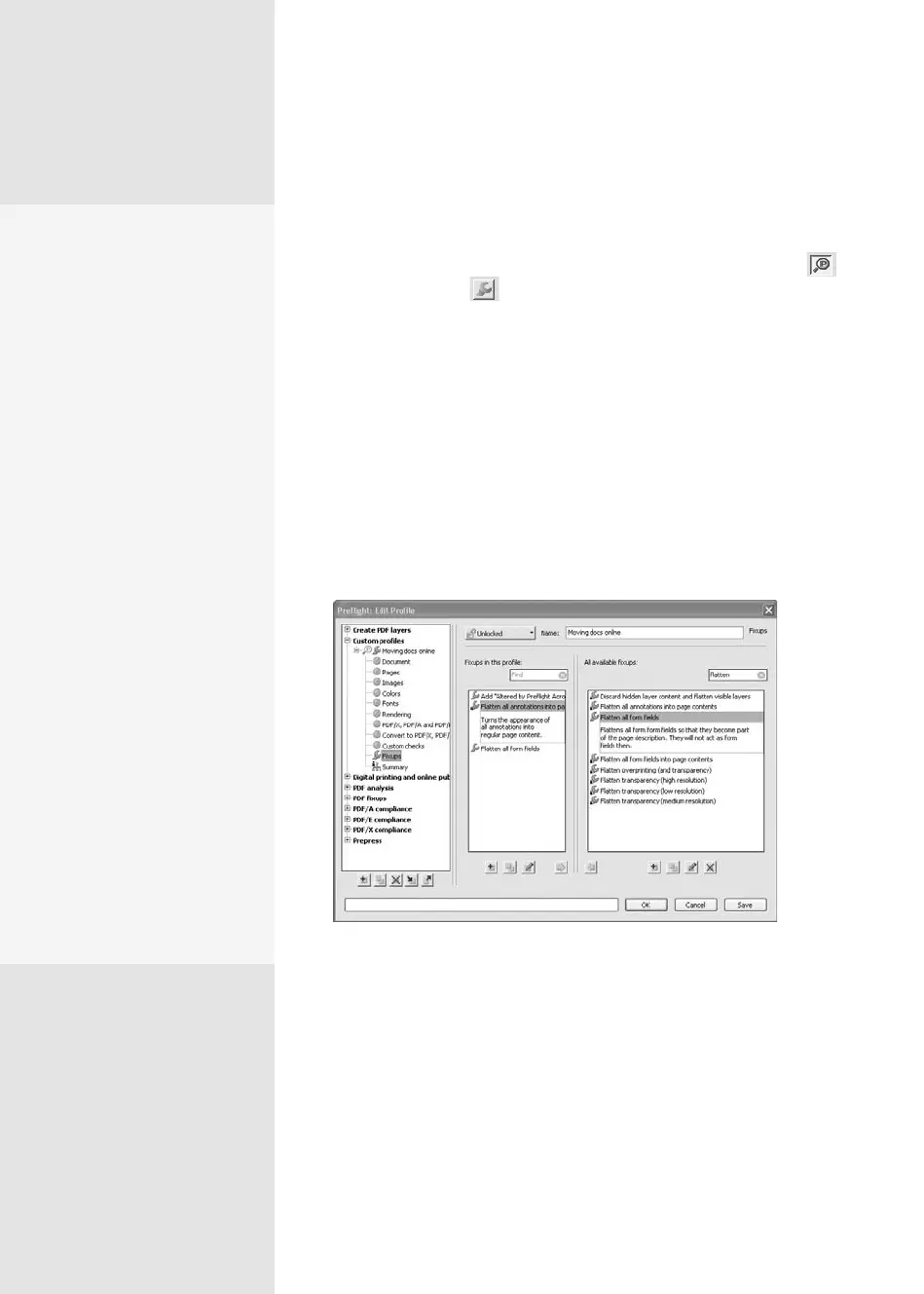
2. Choose Create New Preight Prole to open the Preight: Edit Prole
dialog (Figure 41).
Figure 41
Tip
If the prole is locked, select Unlock from the Locked pop-up menu at the
upper left of the dialog to allow you to make changes.
3. Type a name for your new prole; the default is New Prole 1. The
example is named Moving docs online.
The Same—
but Different
The Edit Profile, Edit Check,
and Edit Fix processes offer
various dialogs and options
to work with:
•
When you edit a profile,
you can unlock exist-
ing profiles, and add and
remove existing elements.
The simplest (and safest)
approach is to select an
existing profile, duplicate
it, and rename it.
•
When you select a check
or a fixup in the main
Preflight dialog and click
Edit, look for a lock icon
at the bottom left of the
Preflight: Create Check
or Preflight: Create Fixup
dialog. If you see a lock,
you can’t modify its prop-
erties. Click Usage to open
a dialog listing the exist-
ing profiles that use the
check or fix. Instead, use
the steps outlined in this
technique to create a new
one without restrictions.
Fixing Print and File
Issues Automatically
#
41
From the Library of Daniel Dadian



 To Next Page