ptg
C H A P T E R F O U R Producing a PDF Portfolio
68
The Portfolio interface uses an SWF template, called the Navigator.
Use the Navigator feature to enhance the portfolio’s appearance and
functionality.
You can customize the appearance of a portfolio by conguring the
layout and color. Start a portfolio as described in the previous technique,
and select and add the les or folders you want to use.
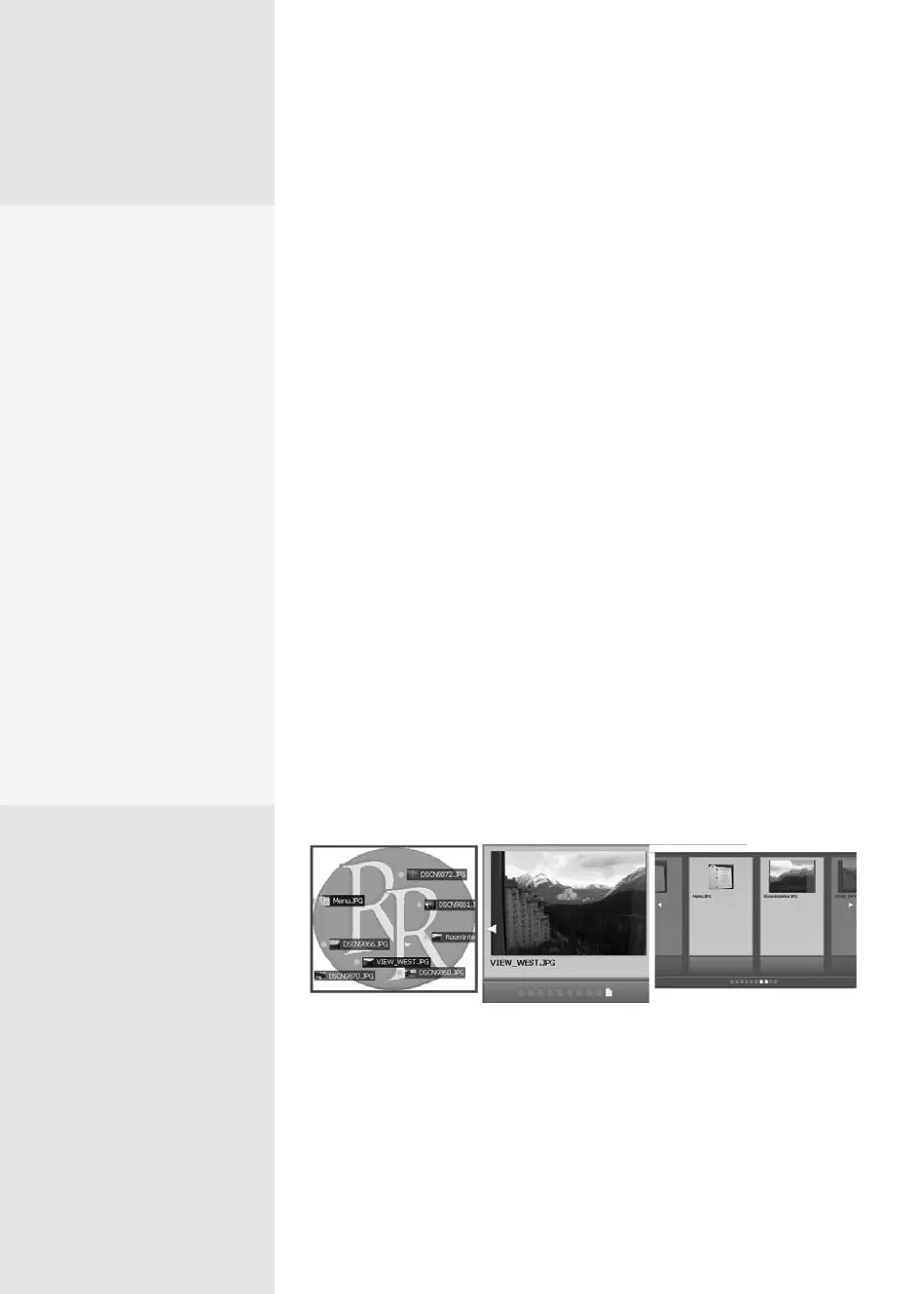
Choose a layout. Select one of these options:
•
Basic Grid is the default view (shown in Figure 25) that arranges con-
tent based on a thumbnail grid.
•
The On an Image option displays your portfolio content with an image
as the background. Click the thumbnails placed on the background
image to display their contents. For details on building this layout, see
the sidebar “Pick a Picture.”
•
Revolve presents the content as a sequence where one le comes into
focus at a time, great for displaying images or other highly visual con-
tent. You can include a description on the pages; click page icons to
navigate.
•
Sliding Row presents the content on a horizontal slider with the cen-
tral three les in focus, ideal for displaying visual sequences of images
and content that needs descriptions. Click page icons below the slider
to navigate.
As you see in Figure 26a, the layouts are signicantly dierent.
Figure 26a Pick a layout that suits your content, such as the image background (left),
Revolve layout (center), or Sliding Row (right) layout.
Pick a Picture
One of the layout choices
offers an image background.
Once your portfolio is
started, follow these steps to
use an image:
1.
Select On an Image from
the Choose a Layout
pane. The files selected
for the portfolio move to
the bottom of the pre-
view area as thumbnails.
2.
Click Pick an Image to
locate and select the
background image,
which can be a JPEG, GIF,
or PNG file.
3.
Once the image loads
into the portfolio, drag
the thumbnails from the
preview to any location
you’d like on the back-
ground image.
Customizing the
Appearance
#
26
A Picture’s Worth a Thousand Words
If you plan carefully, the image background can greatly enhance your portfolio.
For example:
•
Show scenery as the image background in a portfolio describing convention
and tourist venues in that scenic location.
•
If you use a suite of business materials, coordinate the portfolio with your
other pieces by using an image of the background used for PowerPoint
presentations
.
•
For educational pieces, use an image of the subject of study—say, a
windmill—and place files corresponding to discussions on the blades, the
grindstones, and so on, at the appropriate locations on the image.
From the Library of Daniel Dadian



 To Next Page