ptg
69
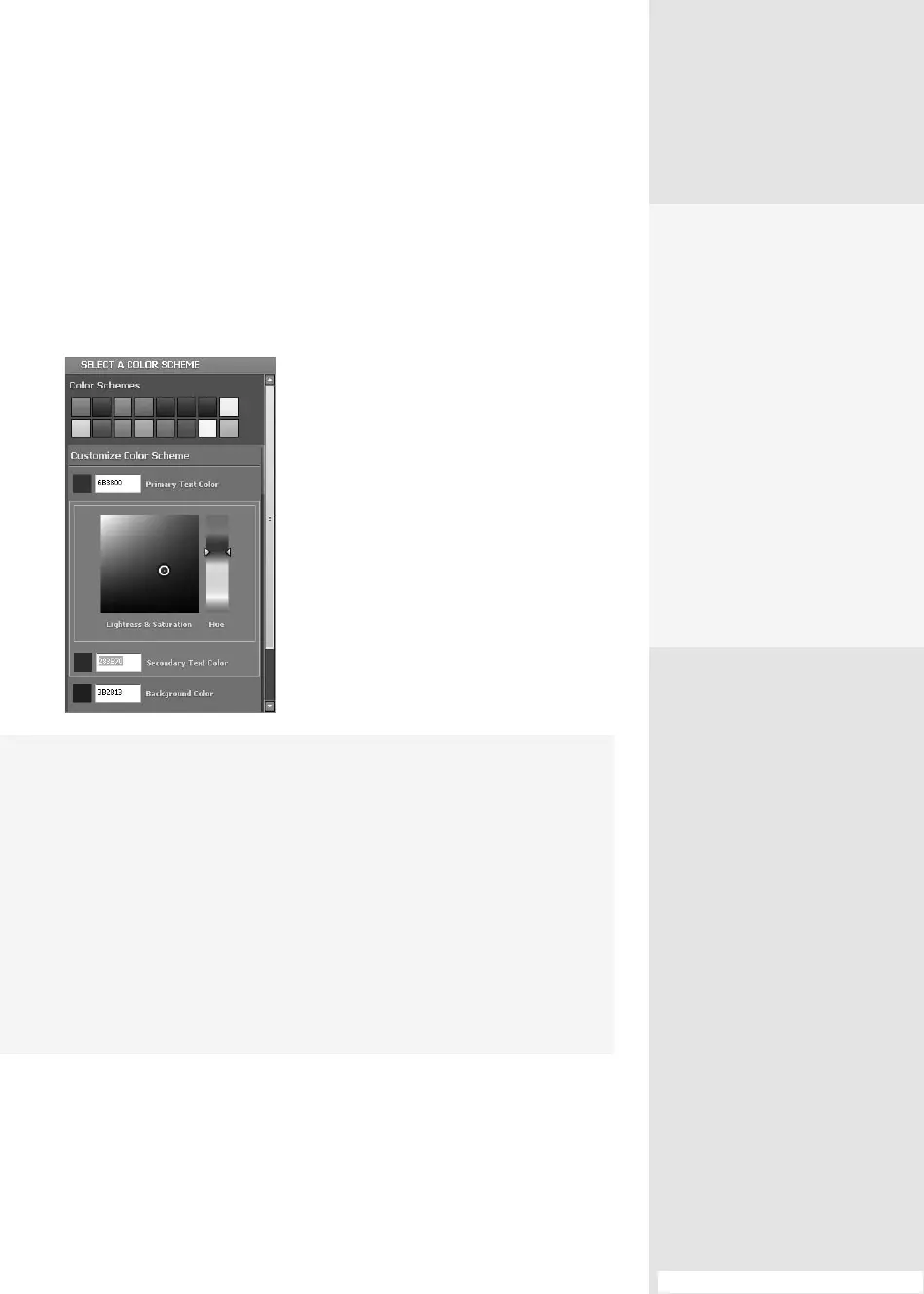
Select a color scheme. Click the Select a Color Scheme bar to display
the default color schemes. Click Customize Color Scheme to open a list of
the colors used in a scheme. Click an item (such as Background Color or
Primary Text Color) to open a color picker that lets you choose a custom
color (Figure 26b).
Figure 26b Choose an alternate color
scheme or customize the colors used for
editing and in the finished portfolio.
#26: Customizing the Appearance
A Picture’s Worth a Thousand Words
If you plan carefully, the image background can greatly enhance your portfolio.
For example:
•
Show scenery as the image background in a portfolio describing convention
and tourist venues in that scenic location.
•
If you use a suite of business materials, coordinate the portfolio with your
other pieces by using an image of the background used for PowerPoint
presentations
.
•
For educational pieces, use an image of the subject of study—say, a
windmill—and place files corresponding to discussions on the blades, the
grindstones, and so on, at the appropriate locations on the image.
Bring Your
Colors Along
You can customize the
portfolio colors to use your
corporate or team colors.
Unfortunately, Acrobat 9
doesn’t offer a method to
import color swatches from
other programs, such as
Photoshop or Illustrator.
However, you can make a
list of the Hex values for the
colors you want to use in
the portfolio, and then type
them into the appropriate
display elements’ fields in the
Custom Color Scheme list.
From the Library of Daniel Dadian



 To Next Page