ptg
325
Signing a Document
#
121
One way to apply a digital ID to a PDF document conrming the le as a
legally correct document is to certify it. This arms the contents as cor-
rect and species the types of changes allowed to the document. For
example, a form may be certied and allow the user to ll in the elds;
however, if the user tries to delete or replace pages, the document will no
longer be certied at the document level.
Here’s what you do for a visible signature (read the sidebar “Here a
Click, There a Click” for details on dialogs not included in the following
technique):
1. Click the Sign Task button to open its menu and choose either Certify
with Visible Signature or Certify Without Visible Signature to activate
the Digital Signature tool.
2. Draw a rectangle on the document with the tool. When you release the
mouse, the signature icon displays where you drew the rectangle, and
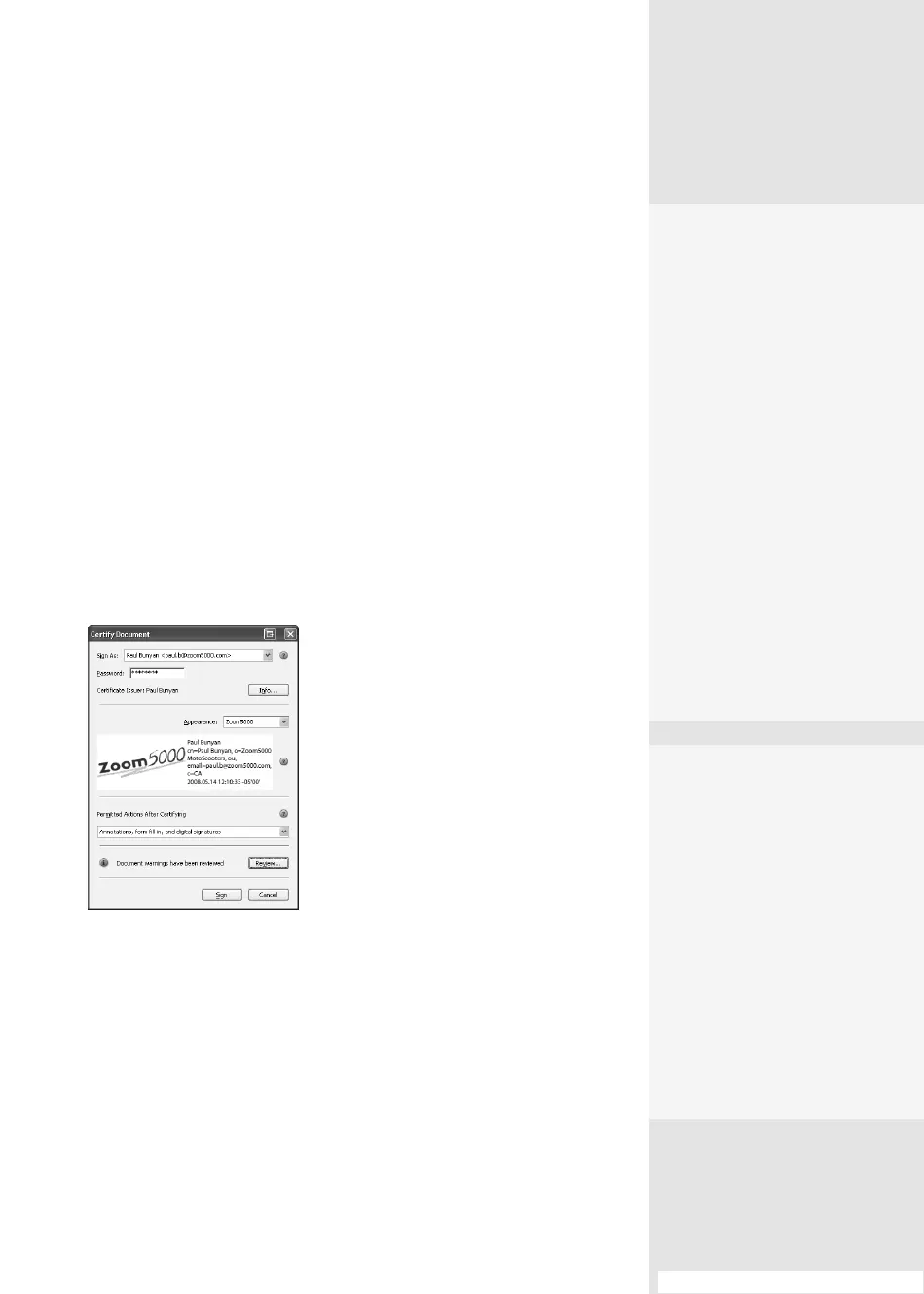
the Certify Document dialog opens (Figure 121a).
3. In the Certify Document dialog, decide how the signature will appear
and work by choosing options from the pop-up menus:
•
Select the Digital ID and type in the password for the signature.
•
Choose one of your signature appearances from the Appearance pop-
up menu. If you don’t have the right appearance, design a new one.
Policy Servers
There are three types of policy servers you can use with Acrobat. All are avail-
able by choosing Advanced > Security Settings to open the Security Settings
dialog. Settings and access to these servers are controlled by your systems
administrator:
•
Directory server. The VeriSign Internet Directory server is a system used
for third-party signatures and encryption. Rather than through an exchange
of certificates among individuals, your content is managed by the server.
•
Time Stamp server. If your network or system allows for a timestamp
server, you can use the server’s capabilities to authenticate time displayed
in your documents’ signatures.
•
Adobe Policy server. This Adobe-hosted server controls access to your
document using named users, and can track document access and versions,
set dates on documents, and apply watermarks and expiration dates.
#121: Signing a Document
Certify It or Sign It?
Decide when you need to
certify a document and when
you need to sign it. If you
create a lot of documents for
secure distribution, you may
want to certify each docu-
ment as you generate it.
Be aware of the restrictions
added to a document when
you certify it. If you intend any
of your recipients to make
changes, such as additions or
deletions, sign it and specify
a reason, such as “I am the
author” rather than certifying
it. For specifying modifica-
tion rules in a multi-signatory
workflow, however, certifying
is definitely the way to go.
Signing and Certifying
Convenience
Acrobat 9 brings some sim-
plifications to the signing
and certifying workflow that
you’re sure to appreciate. In
the Certify Document dialog,
choose New ID from the Sign
As pop-up menu. Don’t have
the right appearance for the
signature? No problem—
create a new appearance
(read how in #120, “Creating
a Digital ID Profile”). Voilà!
(continued on next page)
Figure 121a Specify how you want the
document certified using these options.
From the Library of Daniel Dadian



 To Next Page