ptg
C H A P T E R S I X T E E N Making Your Documents Secure
326
•
If the signature includes the Reason option, specify why the docu-
ment is being certied using choices from the Reason pop-up menu
(see #120, “Creating a Digital ID Prole”).
•
Specify the rights you want to grant the user from the Permitted
Actions After Certifying pop-up menu. You have three options: You
can prevent any changes from being made; allow users to ll out
forms and sign the document; or allow users to add comments, ll
out forms, and sign the document.
•
Click Review to check the document for issues that can interfere
with certication, such as a preexisting signature.
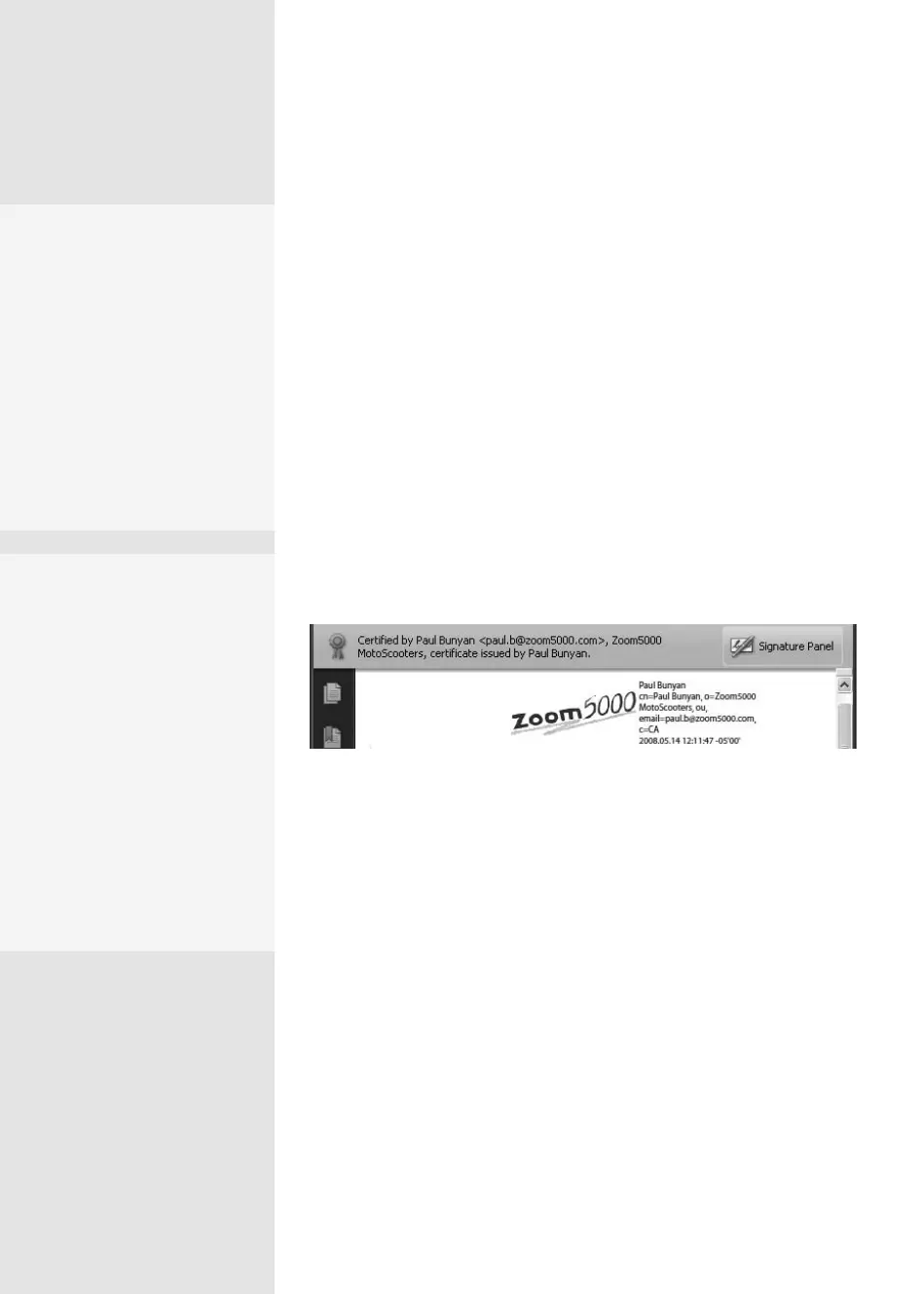
4. To certify the le, click Sign to open the Save As dialog.
5. Name the document and click Save. The document is saved, and the
Document Message Bar displays basic information about the signa-
ture (Figure 121b).
Figure 121b The finished signature is drawn on the page, and the Document Message
Bar shows information and contains a link to signature properties.
Instead of adding a single certifying signature, you can add a blank
signature eld, a specialized type of form eld used for collecting signa-
tures from others.
To add a signature eld, do the following:
1. Click the Sign Task button to open its menu and choose Sign Docu-
ment to activate the Digital Signature tool. Draw a rectangle for the
eld on your document.
2. Release the mouse to open the Sign Document dialog, which contains
the same choices for selecting a signature and appearance as the Cer-
tify Document dialog. Choose signature and appearance details.
3. Select Lock Document After Signing if you want to prevent changes
after the document is signed and saved.
Encryption or
Signature—Not Both
You can’t encrypt a document
that contains signatures. If
you want to share a docu-
ment that has been signed,
either use an unsigned copy
or remove the signatures. To
delete the signatures, select
Clear All Signature Fields
from the Options menu in the
Signatures panel.
Here a Click, There
a Click
The first time you certify
a document, you’ll pass
through two information
dialogs that explain how
certification works and how
to draw a signature field. As
each displays, read it and
select “Don’t show again”
to save mouse clicks in the
future. Henceforth, all you
do is select one of the Certify
commands, and the Digital
Signature tool is activated.
Make It Valid—and Quick
If your work includes a lot of signature validation, it can be time-consuming
to choose commands repeatedly to validate a signature or signatures in each
document you open. Instead, set a preference to have signatures validated
automatically when the document opens. Choose Edit > Preferences (Acrobat >
Preferences) and click the Security category in the list. Click the “Verify signa
-
tures when the document is opened” check box at the top of the dialog and click
OK. Next time you open a document that contains signatures, they are verified
automatically.
From the Library of Daniel Dadian



 To Next Page