ptg
83
Acrobat 8 introduced the opportunity to examine the contents of a docu-
ment and remove features such as hidden text or metadata based on the
idea that sensitive material in a PDF le may not be suitable for sharing
with your readers, or may be unnecessary for saving the le long-term.
Acrobat 9 Pro takes the Examine PDF process a step further by looking for
more types of content, displaying the results in a navigation pane, and
listing the numbers of items found.
Follow these steps to evaluate and change a document:
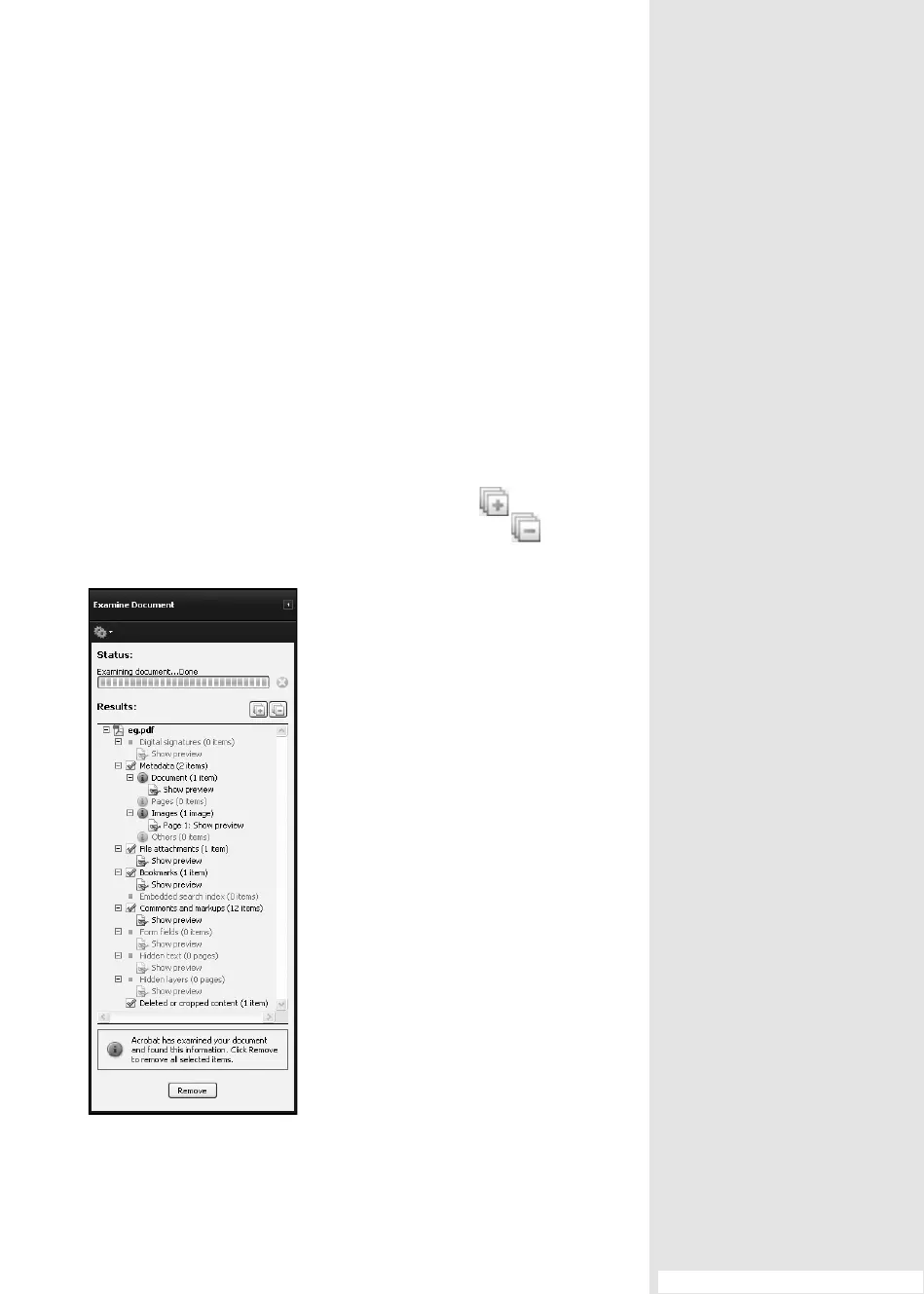
1. Choose Document > Examine Document. The le is evaluated, and
the Examine Document navigation pane opens. Items identied are
indicated by check marks; the number of each item found is shown in
brackets following the item name. Click Expand
to show the
values and preview options for the list; click Collapse
to return
the list to its default view (Figure 32a).
Figure 32a Make sure that the check
boxes are selected only for the items that
you want to remove from the document.
Using the Examine
PDF Process
#
32
#32: Using the Examine PDF Process
Font Information to the Rescue
In situations where you need to expand an original body of work but don’t
have a template, for example, you can quickly check in the generated PDF and
see the fonts in the Fonts tab of the Document Properties dialog. Click the plus
icon (+) to the left of the font name to open a list with more information. For
each font, you see the name and font type used in the original document; the
list displays the font, font type, and encoding used to display the document in
Acrobat.
(continued on next page)
From the Library of Daniel Dadian



 To Next Page