ptg
C H A P T E R F I V E Creating Output: Saving, Exporting, and Printing
84
2. Check through the features identied. If you want to see the entire list
of items that Examine Document looks for (shown in pale gray text in
Figure 32a), click Options and select Show All items. To select
items you want to remove from the document, you can do any of the
following:
•
Click Info to open a metadata dialog listing the types and val-
ues of metadata included for the le.
•
Click Preview to display the listed content. Acrobat opens navi-
gation panes, such as Comments or Bookmarks, or a Hidden Text
dialog, depending on the item you are evaluating.
•
Click to select or deselect items checked in the Examine
Document pane.
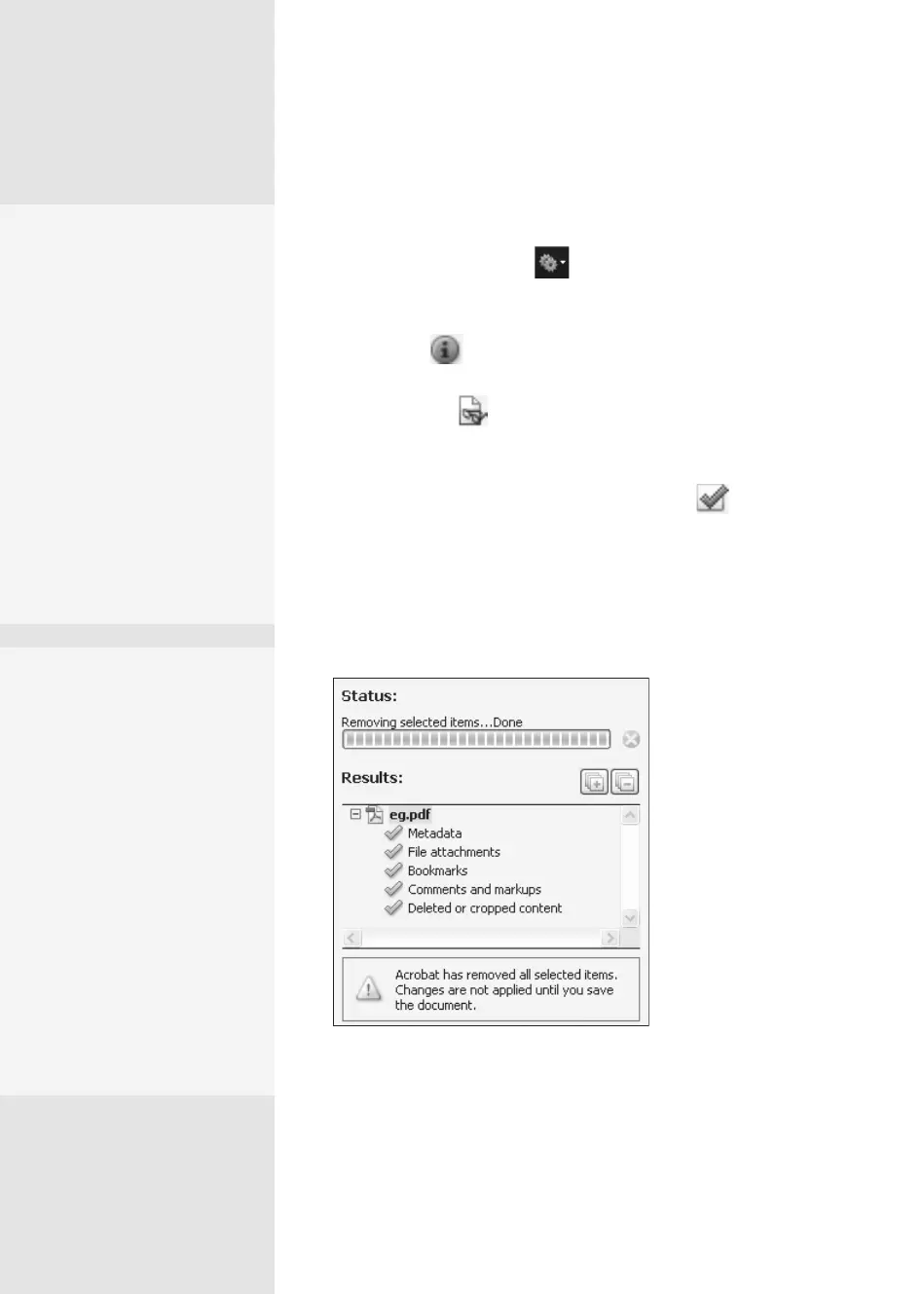
3. Click Remove to process the le, after reading and dismissing an
information dialog that explains how removing content aects your
document. After the le is processed, a list of the items removed
displays in the pane (
Figure 32b).
Figure 32b Items removed from the document are
listed in the Examine Document pane.
4. Save the document to preserve the changes; if you need to save the
original format, be sure to save the le with another name.
Watch Out When
Deleting!
Other program items are
automatically removed
when you delete content
using the Examine Docu-
ment process. Digital sig-
natures, for example, are
a type of form logic. After
the deleting process? Gone.
Document information from
other applications and plug-
ins? Ditto. Files enabled for
Adobe Reader users to allow
for review, sign, and fill-in
forms? Removed.
Auto-examinations
Some workflows include
examining each PDF for
hidden content before
sending it by e-mail or filing
it. You don’t have to test
manually or remember to do
it at all if you set a program
preference.
Choose Edit > Preferences >
Documents (Acrobat >
Preferences > Documents).
Select either (or both)
“Examine document when
closing document” or
“Examine document when
sending document by email.”
From the Library of Daniel Dadian



 To Next Page