ptg
C H A P T E R T E N Commenting in a PDF Document
186
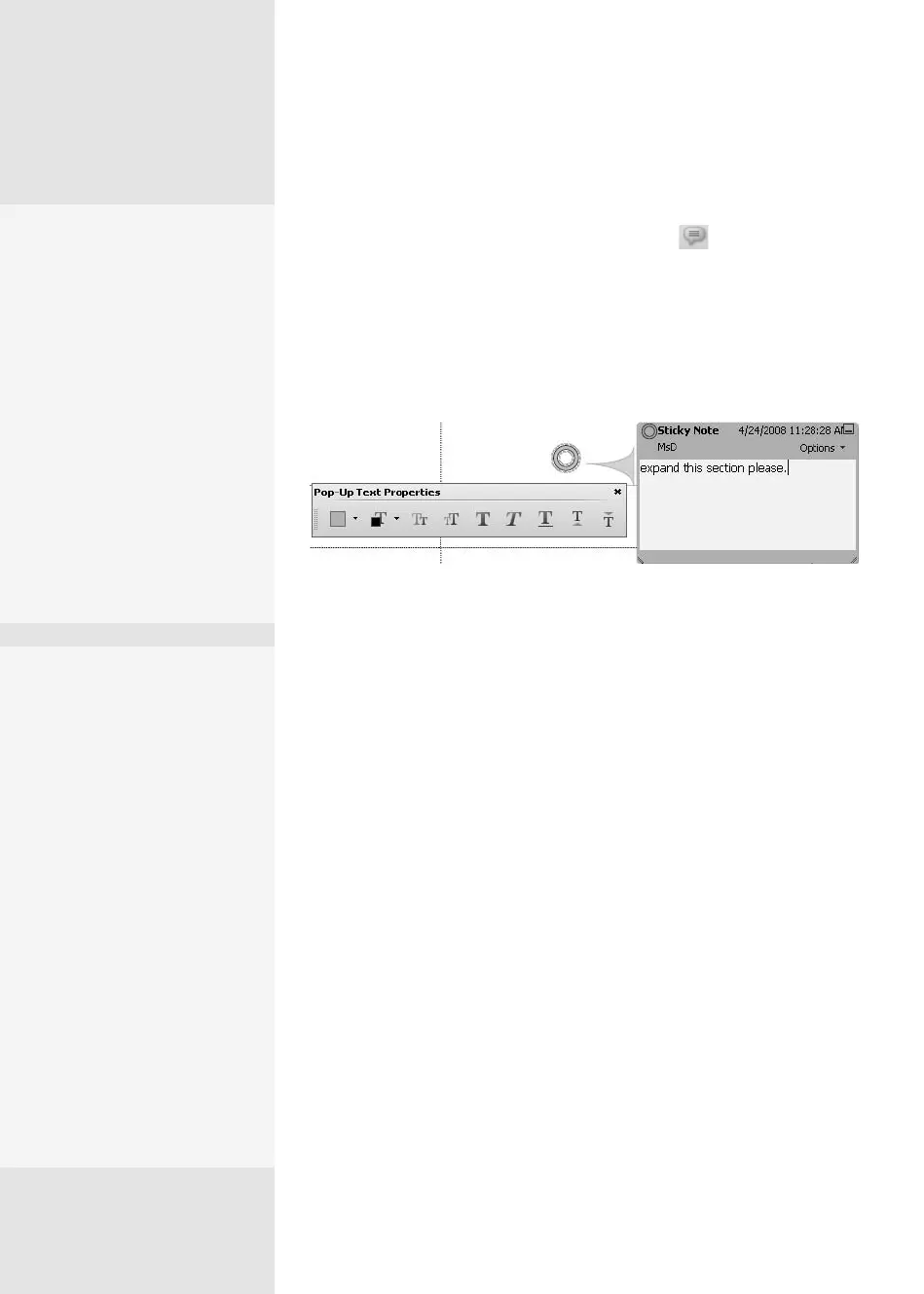
Of all the comment tools, you’ll probably use the Sticky Note comment
most frequently. First select the Sticky Note tool on the Comment &
Markup toolbar. Then click the document where you want to place the
note, or drag a marquee. A window opens showing an active pointer.
Type the text for your note; if you enter more text than ts the size of the
pop-up box, the text scrolls. When you have the Properties bar open, you
can select text in the note and customize its color, font, and so on directly
from the toolbar (Figure 70a).
Figure 70a Add sticky notes to the document to point out or describe problems on
the page.
To tidy up the page, click the upper-right corner of the pop-up win-
dow. You can still read the content of your note; just move the pointer
over the note’s icon on the page and Acrobat displays its contents in a
tooltip. Double-click a note’s icon to open the text box. If you want to
remove a note, select it on the page and press Delete on your keyboard.
To change a comment’s appearance and characteristics, click Options
in the note box to open the Note Properties dialog, or right-click (Control-
click) to open the shortcut menu and choose Properties. Make changes to
the comment, such as the following:
•
In the Appearance tab, choose an icon for the note, as well as color and
opacity.
•
In the General tab, specify a name for the commenting author and a
subject.
•
In the Review History tab, view information about the comment, such
as whether it is a native comment or has been migrated from another
le.
Adding Sticky Notes and
Highlighting Comments
#
70
The Subject at Hand
It isn’t necessary to add a
subject for comments, but it’s
a good practice to develop.
For example, you might have
two or three people review-
ing a document. If they all
use the same subject, such
as “Mar-Comm,” it’s easy to
figure out what workgroup or
department the comments
are coming from. The author
of a comment and its type
make up the Comments list; if
you add a subject, it appears
below the author’s name.
Using the Properties
Bar to Modify
Comments
To access the Properties bar,
right-click (Control-click) in
the toolbar well at the top of
the program window. The list
of toolbars appears; choose
Properties Bar.
If you’re working with a
number of comments using
various icons, colors, text, and
so on, you may find it easier to
use the Properties bar than the
comment’s Properties dialog
to modify comments’ prop-
erties. Click the note’s icon
to display the Note Properties
dialog; click within the text
to display the text options.
From the Library of Daniel Dadian



 To Next Page