ptg
195
Say you’re one of those people who simply needs to doodle on paper.
What happens if someone takes your paper away? Well, just grab a mouse
and open a PDF document, because you can draw all sorts of objects,
including the aforementioned doodle, using the Drawing tools.
Most of the tools are shown on the Comment & Markup toolbar. The
remaining tools, including two Polygon drawing tools and a Pencil Eraser
tool, are available from the shortcut menu that opens when you right-
click (Control-click) the bars at the left edge of the Comment & Markup
toolbar.
Drawing markups are forms of comments. To use a tool, click to select
it on the toolbar, and then draw points, click and drag, or scribble with the
Pencil or Pencil Eraser tools. For shapes such as a polygon or cloud, click
the starting point to close the shape. When you complete the drawing,
you can double-click it to open a note and type information about your
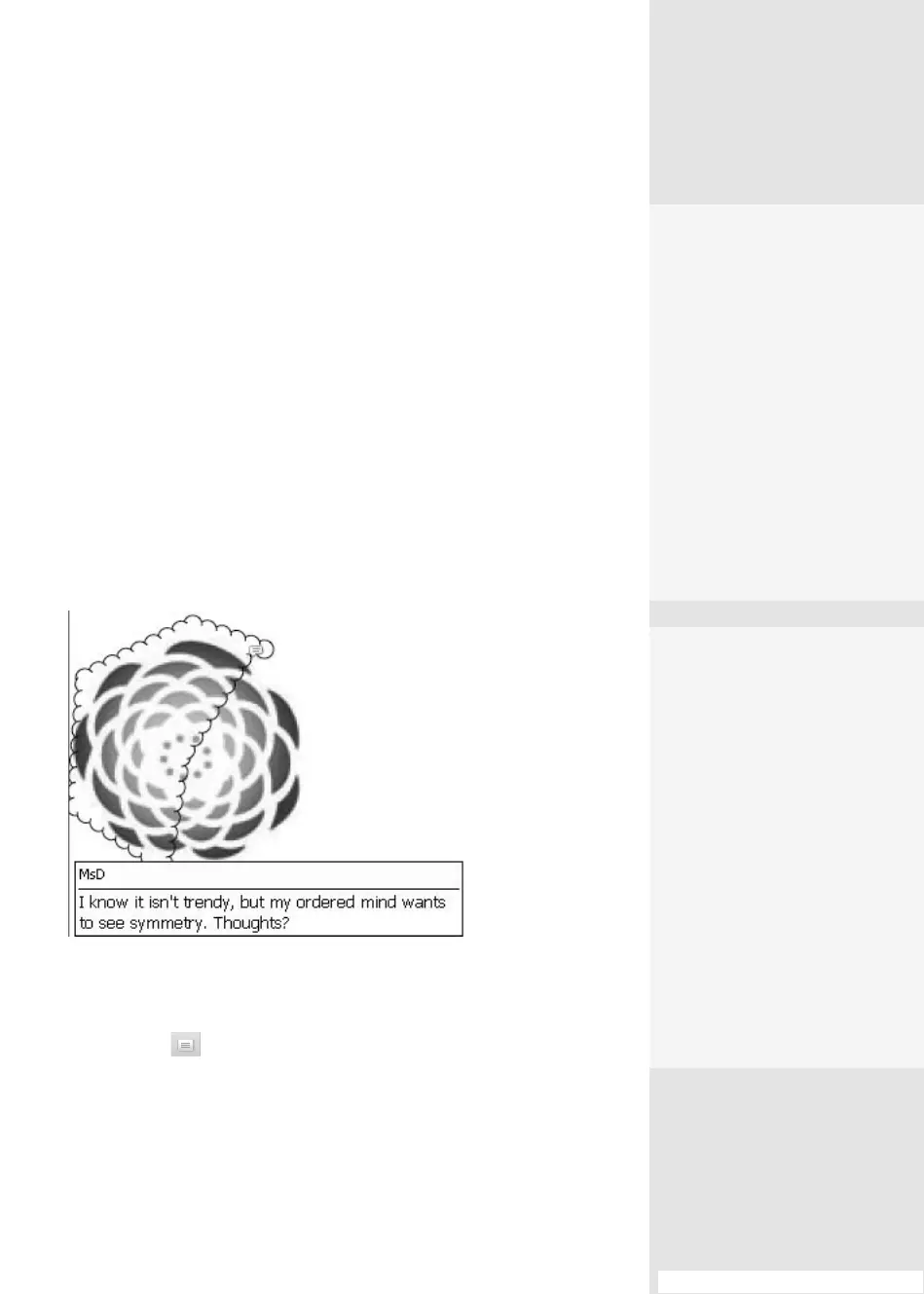
doodle (Figure 74a).
Figure 74a Add information about the doodle in a note.
If you want to show some text in the document in a text box, use the
Text Box tool . Find the tool in the toolbox, click it, and then drag a
marquee on the page. A yellow text box the size of the marquee is added
to the document; click the box and type your message.
Adding Comments
to Your Doodles
Need to explain why you
deleted a specific paragraph
in a document, or just want
to leave a note to verify that
your changes are correct?
Acrobat makes it easy. Once
you’ve added a markup with
any of the drawing tools,
simply double-click the
shape to open a note box,
and then type your com-
ment, like the example in
Figure 76a.
#74: Drawing and Marking Up Shapes in Acrobat
Drawing and Marking
Up Shapes in Acrobat
#
74
Circle It
If you are the type of
person who uses drawing
comments to scribble on a
document, there’s an option
for you. Choose Edit >
Preferences > Commenting
(Acrobat > Preferences >
Commenting) and check
the option “Copy encircled
text into Drawing comment
pop-ups.” This way, as you
scribble you can add text
from the document to the
comment’s text pop-up
without having to select
another tool.
Use a Custom Stamp When . . .
Here are some circumstances where it makes sense to take a few minutes to
build a custom stamp:
•
You write the same comment repeatedly. You may be a department head
who needs a date and time stamp as well as a department information
stamp. Build a stamp that asks for the information; you can now use a
dynamic date/time stamp, and your new custom stamp.
•
Your work includes different roles. You may be both a designer and a
supervisor. You can build separate stamps defining your role in different
situations.
•
Your work includes the same role and different moods. Use your imagina-
tion and create a suite of expressive stamps. A smiley face can be worth a
thousand words—and so can a bolt of lightning.
From the Library of Daniel Dadian



 To Next Page