ptg
C H A P T E R E I G H T Touching Up and Modifying a PDF Document
154
If you want to reuse some page content that contains both text and
graphics, don’t bother to copy and paste each element. Instead, use the
snazzy Snapshot tool.
1. Add the tool to the Select & Zoom toolbar by right-clicking (Control-
clicking) the toolbar well, choosing More Tools, and then selecting the
Snapshot tool from the More Tools dialog. Or, if you are snapping a shot as
a onetime activity, choose Tools > Select & Zoom > Snapshot Tool
.
2. Select the content from the page:
•
Click anywhere on the document to capture the visible content in
the Document pane.
•
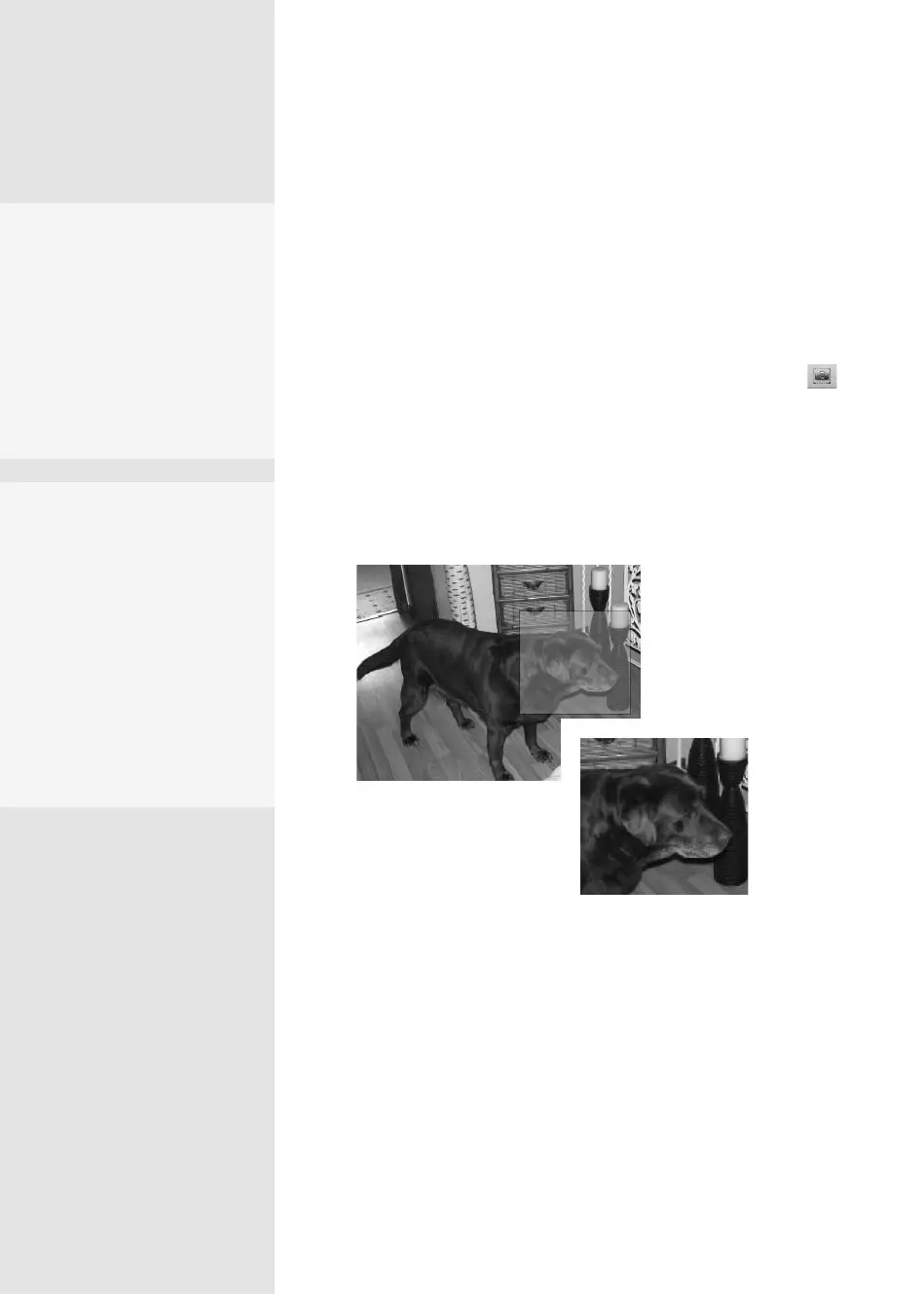
Drag a marquee around a portion of the page, or around a portion
of an image on the page (Figure 59b).
Figure 59b Specify a portion of a page’s content (left) to capture
as a clipboard image (right).
3. You see a ash as the image’s colors are inverted within the marquee
and the content is captured. The selected area is highlighted until you
deselect the tool or select another tool. An information dialog appears
telling you that the content has been copied to the clipboard. Click OK.
4. Paste the clipboard content wherever you need it, or use it to create
a new PDF document; refer to #22, “Creating a PDF from a Scan in
Acrobat,” to see how that’s done.
Information Overload
Many commands show you
information dialogs—
something you don’t really
need to see more than once.
Fortunately, the dialogs
include a check box that you
can click to hide the mes-
sage. Go ahead. Click it.
Drag-and-Drop Shot
You don’t have to mess
around with copying
and pasting when you’re
moving images. Open the
recipient document next
to the document with the
image and arrange the
documents on the screen.
Then, select the image in the
PDF document and drag it to
the other document.
From the Library of Daniel Dadian



 To Next Page