ptg
C H A P T E R S E V E N Transforming Document Pages
136
3. Order the les in the list as you wish—select a le and click Move Up
or Move Down. When your list is in order, click OK to close this dialog.
The Add Header and Footer dialog opens.
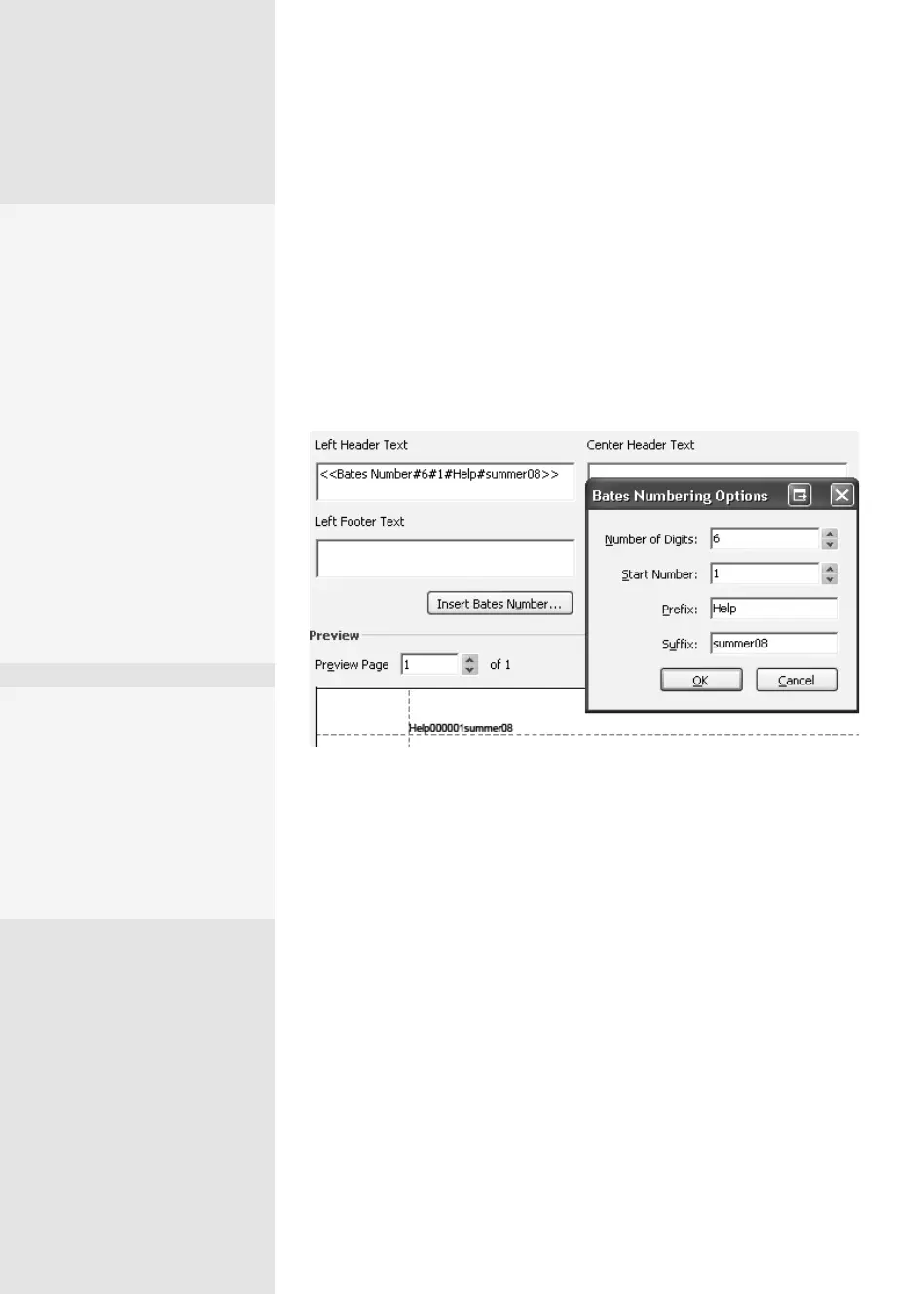
4. Click Insert Bates Number to open the Bates Numbering Options
dialog (
Figure 52c) and choose options according to your require-
ments. Read about the dierent choices in the sidebar “Numbering
Strategies.”
Figure 52c Bates number settings are shown as a formula in the Header area, and in
the Preview.
5. Click OK to close the dialog and generate the numbers. In the Add Header
and Footer dialog, the number is shown in its default position in the left
of the header. In the Left Header Text eld, the automatic numbering
formula is written as <<Bates Number#6#1#Help#summer08>>.
6. Check the Preview area; the header is written as Help000001summer08.
7. Click OK to process the les; the Add Headers and Footers dialog
closes automatically. Click OK to close the conrmation dialog
when the numbering is complete.
Numbering Strategies
The Bates Numbering Options
dialog offers several ways to
customize the numbering for
your project, including:
•
Number of Digits.
The minimum allowed
number of digits is 6.
•
Start Number. Define
the number you wish to
begin with.
•
Prex and Sux.
Add names if required—
the example file uses
“Help” in the Prefix field
and “summer08” in the
Suffix field.
No PDF? No Problem
When you assemble the files
for your Bates numbering
project, it doesn’t matter
whether the files are PDFs—
include them in the list, and
Acrobat will convert them to
PDF as part of the process.
From the Library of Daniel Dadian



 To Next Page