ptg
227
•
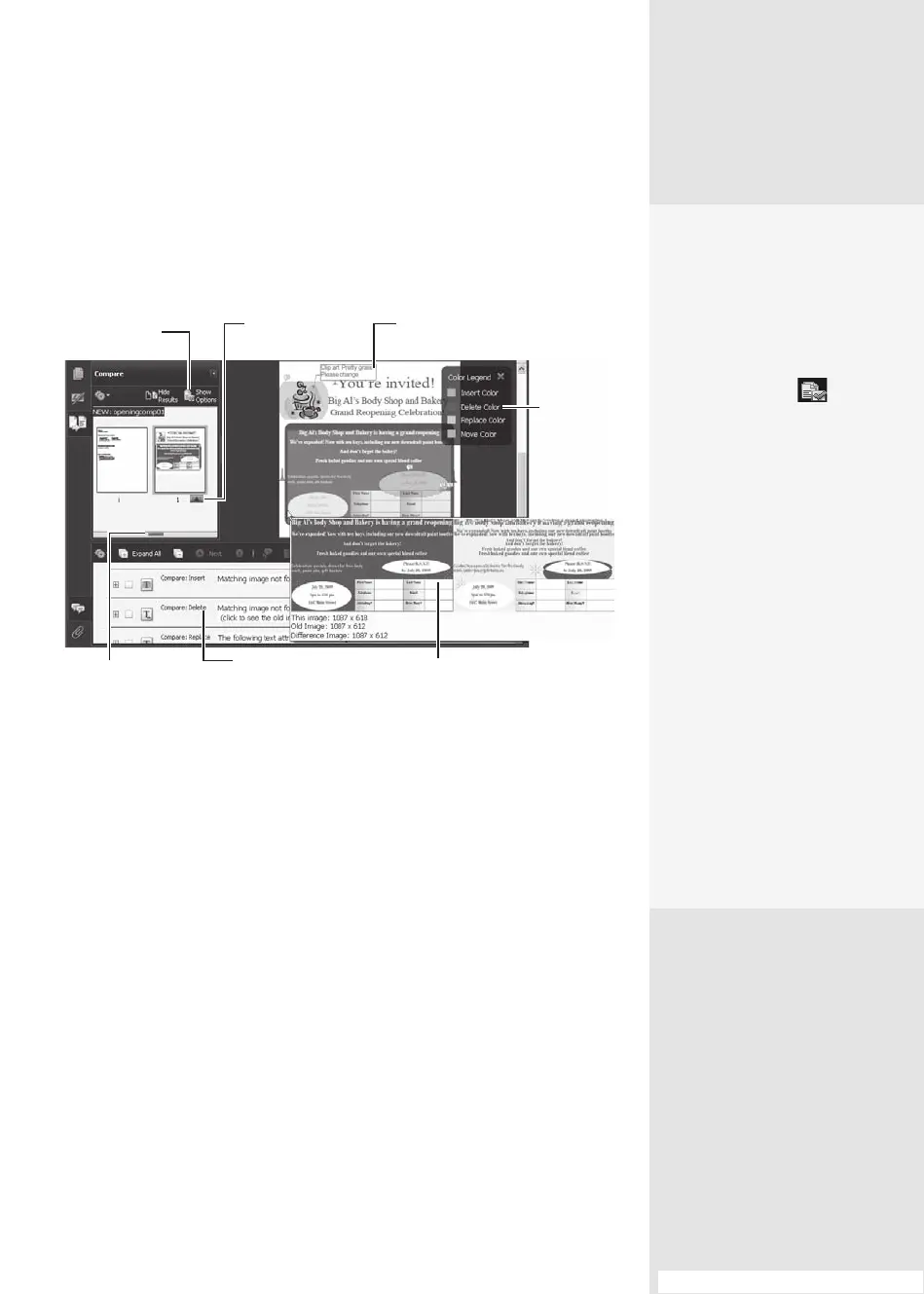
Drag the splitter bar at the bottom of the Compare pane up to show
thumbnails of the old document’s pages. Click a thumbnail to open
the page in a new window.
Click to display in
the Document pane
Add your
own comments
Click an item to
see a comparison
Each change is
listed as a comment
Drag to show pages
in the old document
Identifies
types of
changes
by color
Click to toggle
settings for color
and evaluated items
Figure 84b Evaluate and examine changes in the compared files.
Save the le for future reference.
Apples and Oranges
The new Compare tools in
Acrobat 9 offer a lot of cus-
tomization. If you want to
personalize the layout, here
are some things to try:
Click Show Options in
the Compare pane to toggle
the choices. In the options,
you can do the following:
•
Specify what types of
changes to show, such as
text, images, formatting,
and backgrounds.
•
Pick a color scheme to
use for displaying the
report.
•
Drag an Opacity slider
to set how transparent/
opaque the overlying
comments are displayed.
Once you’ve made your
choices, click Hide Options
to toggle the options closed.
Your choices can be viewed
in the Compare pane’s
Options menu.
#84: Comparing Documents
From the Library of Daniel Dadian



 To Next Page