ptg
99
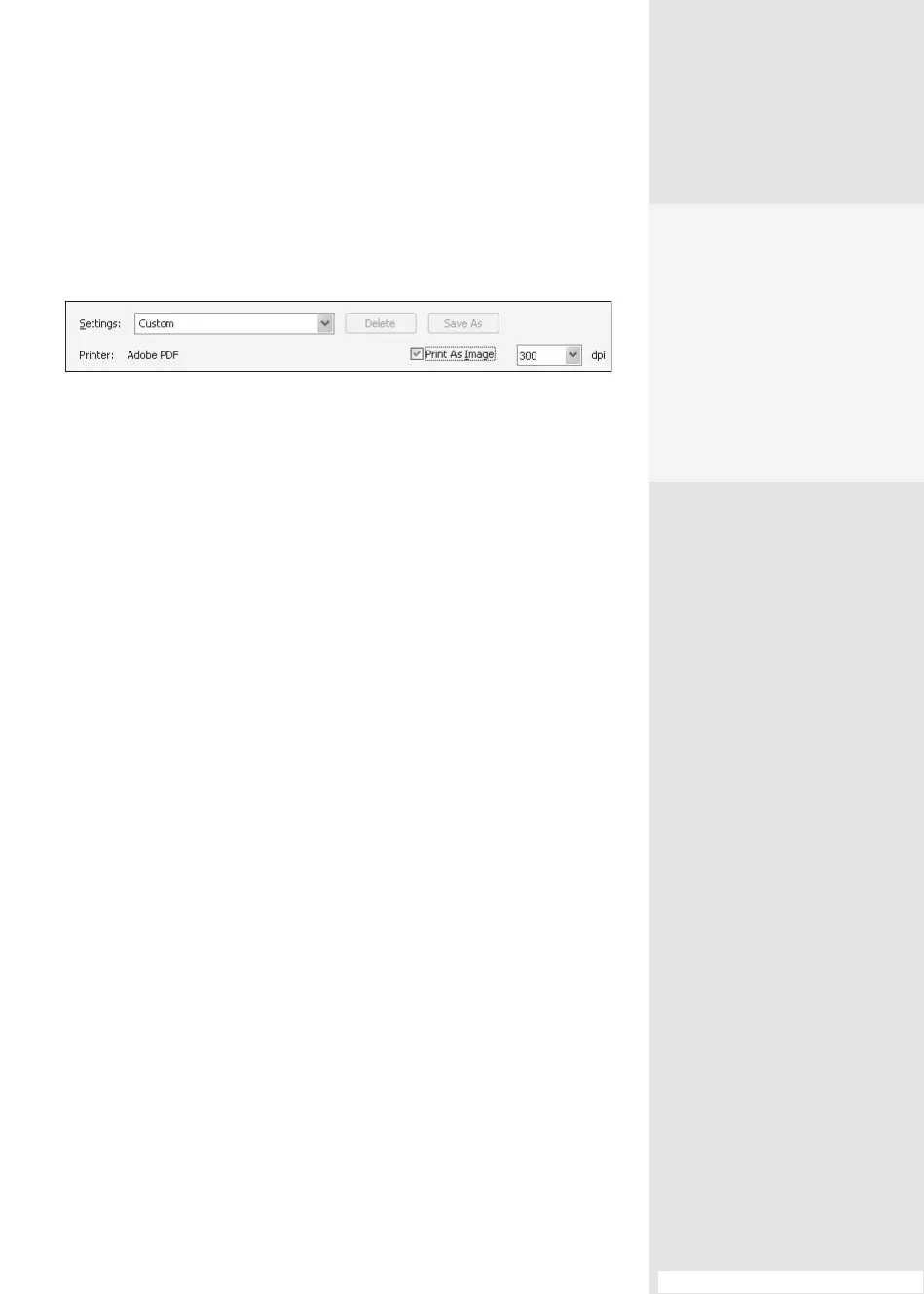
As Image check box (Figure 38). The Settings option switches from
Acrobat Default to Custom as a result. Click OK to close the dialog, and
then click OK to try printing again.
Figure 38 Print the document as an image file using the Advanced Print Setup dialog.
•
In a layered document, merge or atten the layers in the PDF le to
determine if a layer is causing the printing issue. To preserve your origi-
nal, save the document with another name after attening layers.
•
If you are using a PostScript printer, set the printer to display printing
errors. Check that the PostScript Printer Description (PPD) le is up to
date, and that you are using the PPD le recommended by the printer
manufacturer.
•
If the document you are trying to print has color separations, print
a composite of the document to see if a color plate is causing the
problem.
#38: Print Troubleshooting 101
Help!
If you run into printing prob-
lems, click Printing Tips at
the bottom left of the Print
dialog to open Adobe’s print
troubleshooting site—an
excellent and comprehen-
sive knowledge base that
is sure to offer some insight
into your issue.
From the Library of Daniel Dadian



 To Next Page