ptg
115
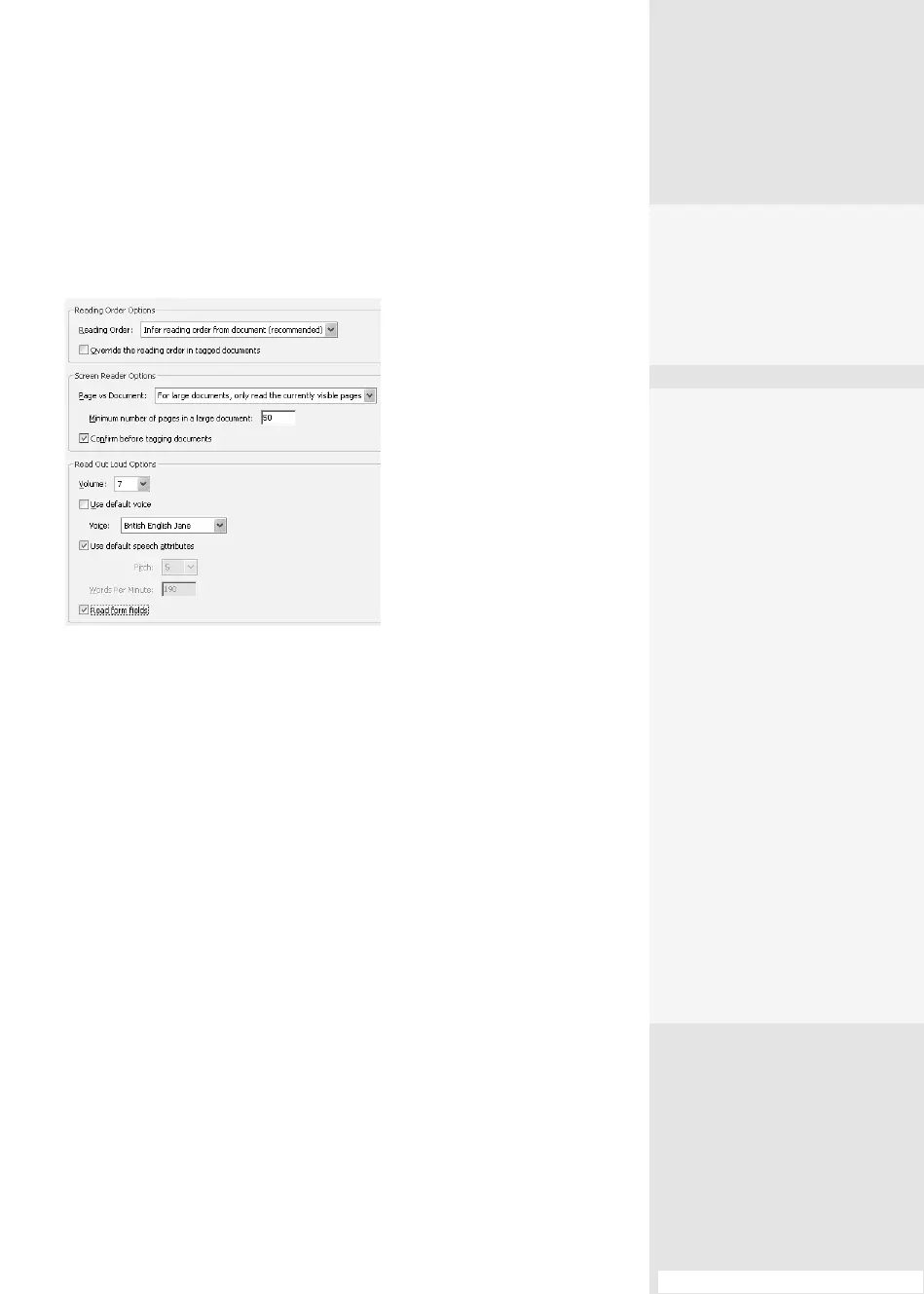
You can customize a few reading features in the Preferences dialog
(Figure 45). Read about the customizations in the sidebar “Read It Your
Way.”
Figure 45 Customize the way Acrobat reads to
you in the Preferences dialog.
Keystrokes. Acrobat oers full keystroke access to navigation
and program items. Unlike other Adobe programs, like Photoshop and
InDesign, Acrobat doesn’t have you dene keystrokes yourself. Choose
Help > Adobe Acrobat 9 Pro Extended Help to open the Adobe Help
Viewer. Scroll down to the Keyboard shortcuts listing in the left frame of
the window—you’ll nd lists of shortcuts for work areas, getting around
the program, and using tools. (For a short list of keystrokes used to acti-
vate features like Read Aloud, check out Table 49.1 in #49, “Enhancing PDF
Accessibility”).
#45: Navigating a Document
Wrapping with Reflow
Readers using assistive
devices or very small screens
like those on personal dig-
ital assistants (PDAs) often
experience a problem called
reow. When you zoom in
closely to a page, what hap-
pens? You see a few words
and maybe an image. Not
only do you have to scroll
back and forth to see the
entire line, but also it’s diffi-
cult or impossible to under-
stand where you are in the
document at any given time.
Choose View > Zoom >
Reflow to automatically
wrap content on the page,
regardless of the level of
magnification. Keep in mind
that reflow is not a perma-
nent format: Whenever you
reset the magnification,
reflow is turned off.
•
Select the “Read form
fields” check box to have
text fields, check boxes,
and radio buttons in fill-
able forms read aloud.
From the Library of Daniel Dadian


 To Next Page
 Loading...