ptg
129
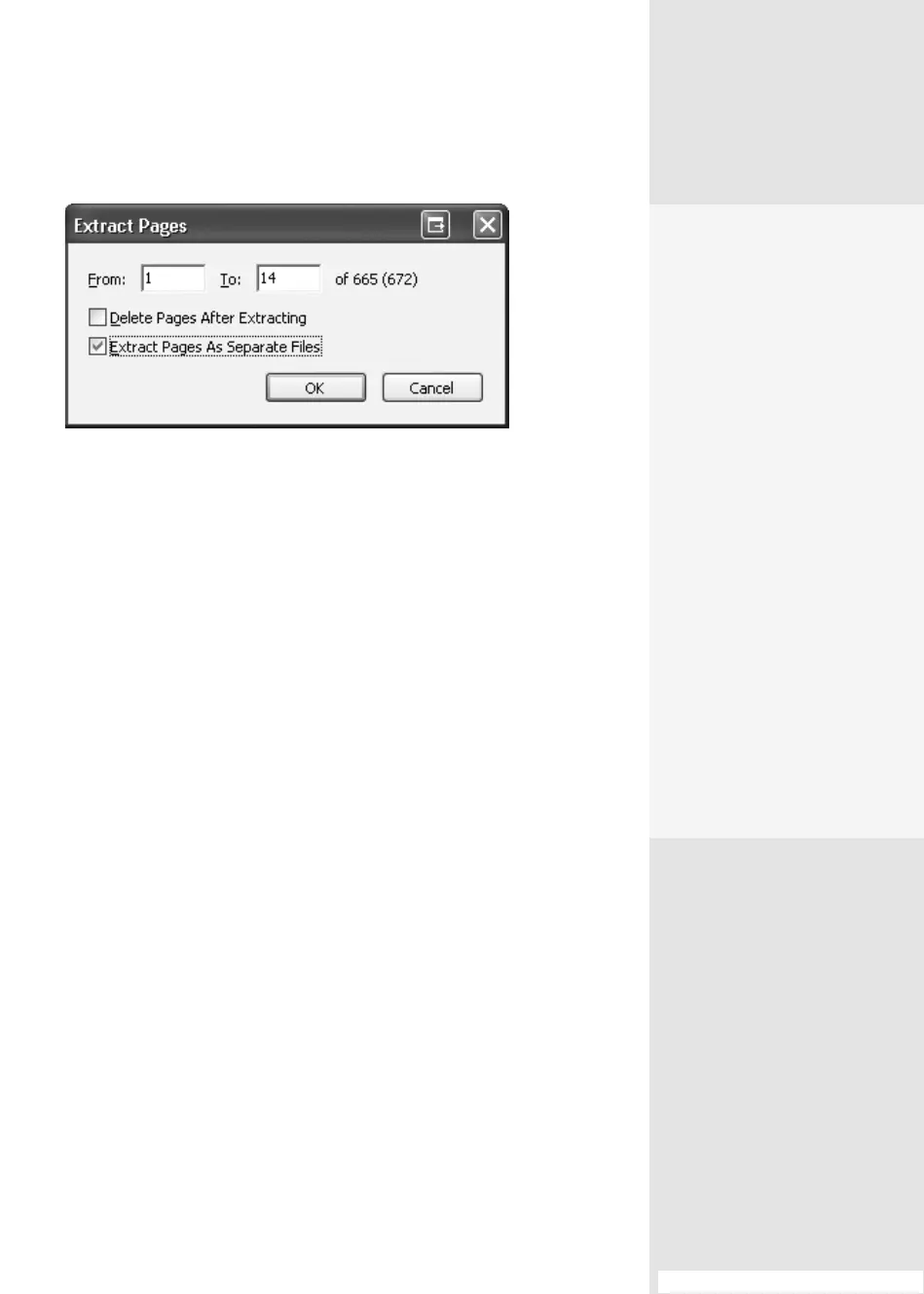
Figure 50b Choose an option for pages extracted from your document.
thumbnail(s) and choose Options > Extract Pages to display the Extract
Pages dialog (Figure 50b). Make your choice:
•
Click Delete Pages After Extracting to separate the content from the
original. Click OK to close the dialog; the content is processed and
opens in Acrobat as a separate document using the prex “Pages from”
in the lename.
•
Click Extract Pages As Separate Files if you want to create individual
PDF documents from each page you select in the dialog. Click OK to
close the dialog; select a storage location for the extracted content
in the subsequent Browse for Folder dialog, and click OK. The pages
are extracted and saved with the page number—for example,
MyBigFile 22—appended to the lename.
•
Deselect both check boxes if you want to keep the original intact, and
extract the pages into a single document.
Replace Pages: Suppose you have a PDF document that needs some
editing that is much simpler to do in the source program. However, you’ve
added several links and some comments that will be lost if you simply
delete the pages—so what do you do? Easy: Simply replace the pages
instead. The new content slides into place in your document, leaving all
the work you’ve done in Acrobat intact.
In your source program, open the le and make the changes. When
you re-convert the le to PDF, you can convert just the pages to replace
(nd out how in the sidebar “Pick What You Want” in #10, “Using PDFMaker
in Microsoft Word”).
Do the Splits
Here’s a cool tip to use if you
have several documents
that you’d like to split more
evenly, such as by file size or
number of pages. You don’t
have to open a document in
Acrobat to split it, nor do you
have to split one document.
Begin by choosing
Document > Split Document
to open the Split Documents
dialog. Click Apply to Multiple
to open a secondary Split Doc-
uments dialog, where you’ll list
the files to split. Choose either
Add Files or Add Folders from
the Add Files pop-up menu.
Select the files or folders you
want to work with to include
them in the dialog’s list. Click
OK to close the dialog. The
regular Split Document dialog
opens—continue with the
steps listed in the technique.
#50: Changing Pages and Their Contents
From the Library of Daniel Dadian



 To Next Page