ptg
C H A P T E R N I N E Building Content with Adobe Presenter
174
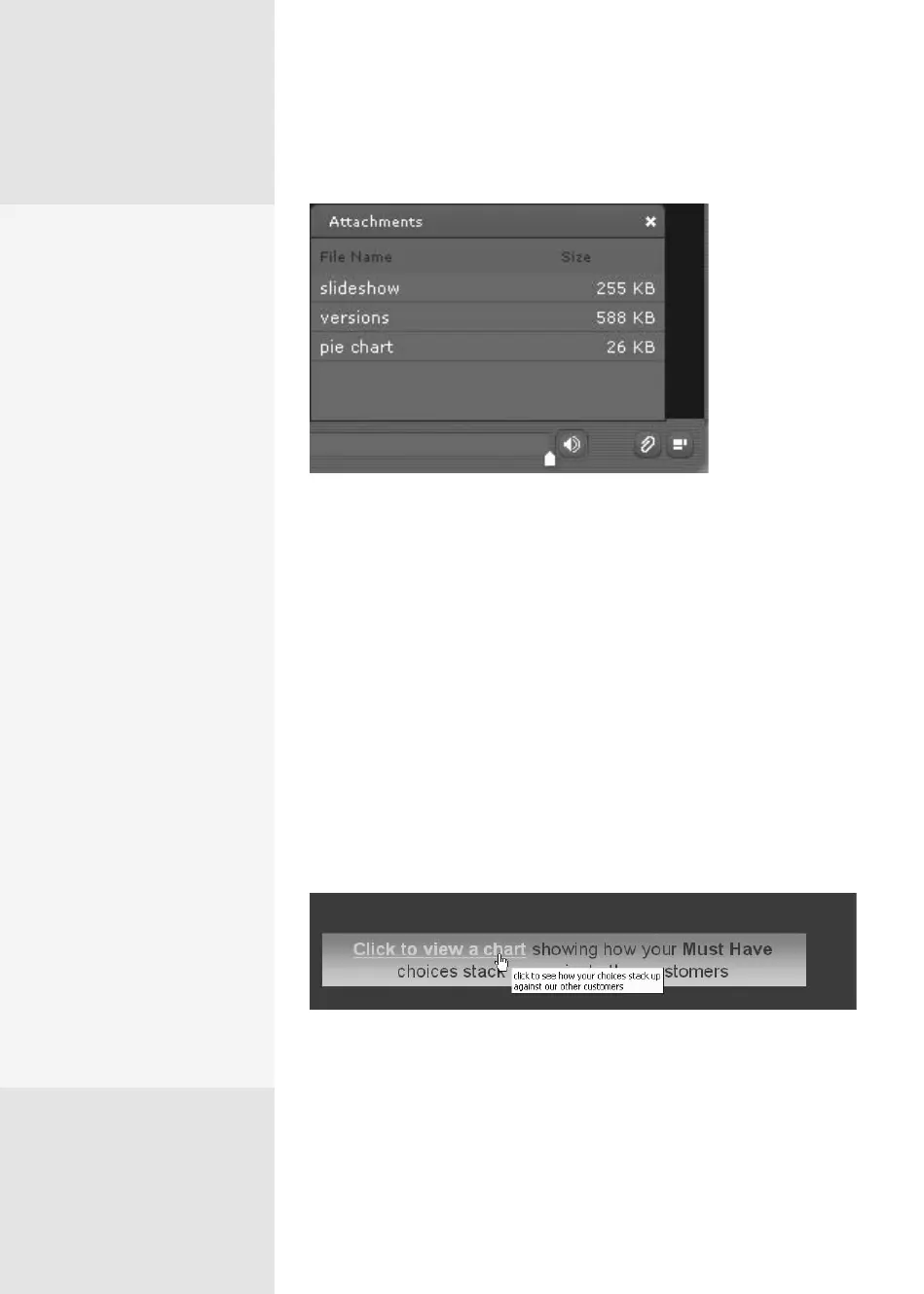
Figure 66b View the list of attached content from the playbar.
Rather than attaching les, you can add links to online resources or
Connect Pro Server storage locations. Adobe Presenter treats hyperlinks
attached to text on slides as a type of attachment. For example, you could
create a link from text on a slide to a spreadsheet, following these steps:
1. Display the slide where you want to add the link, and select the link text.
2. Right-click and choose Hyperlink from the shortcut menu to open the
Insert Hyperlink dialog.
3. Specify the settings for the hyperlink, including the le location, a
tooltip, and so on. Click OK to close the dialog and return to the slide.
4. The text now shows a hyperlink, as well as a tooltip, if you specied
one in the dialog (Figure 66c). Clicking the link opens the hyperlinked
document in another window.
Figure 66c Insert a hyperlink to content stored elsewhere on your system or server.
In case of link issues, be sure to read the sidebar “Testing, Testing, 1-2-3.”
Linking by Hand
Links from a presentation
to files need to be config-
ured by hand due to the way
PowerPoint manages links. It
takes a few minutes, but it’s
worth it. Follow these steps:
1.
Open the folder where
you have stored the PPT
or PPTX file, and create
and name a subfolder. The
name doesn’t matter—I
usually call it “Links” (for
obvious reasons!).
2.
Move or copy the files
you intend to link into
the Links folder.
3.
In PowerPoint, create the
links to the files from the
presentation slides.
4.
Publish the presentation
on your computer.
5.
Locate and open the
published project folder;
copy your Links subfolder
into the Data\ Resources
subfolder.
Does that seem like too
much work? You can use
attachments instead of links.
Attached files are included
as part of the project’s
resources when you publish
the project.
Don’t Let IE Give You the Presentation Runaround
Internet Explorer may not allow attachments to presentations to display prop-
erly when you publish them locally—that is, to a zip file or a CD-formatted file,
for two reasons:
•
Security settings in Internet Explorer prevent an Internet page from access-
ing and running files on a local system. While this feature is terrific for pro-
tecting your system, it adds a touch of aggravation to your development
process.
•
An Adobe Presenter publication runs locally in your Flash Player, and Inter-
net Explorer deems file downloads via Flash Player as unsafe. Another touch
of aggravation.
What to do? Here are some options. The best choice depends on how you need
to use the content:
•
Create PDF output (the simplest solution—read about it in #69).
•
Store the attached files on a Web server or network drive and make hyperlinks
in PowerPoint rather than via Adobe Presenter.
•
Publish the presentation to an online LMS storage repository, like Connect
Pro Server.
From the Library of Daniel Dadian



 To Next Page