ptg
CHAPTER ONE Getting Started, Staying Organized
8
•
If your workflow involves preparing files for archival purposes, choose
Only for PDF/A mode from the “View documents in PDF/A mode” pop-
up menu. Your files are automatically evaluated and tested.
•
If your workflow involves sensitive material such as legal documents,
choose the Examine Document options to evaluate the content of a
file for hidden and other sensitive material before closing or before
e-mailing documents.
Click Page Display in the options listed in the left pane of the Prefer-
ences dialog. You can set some page preferences to get up to working
speed faster:
•
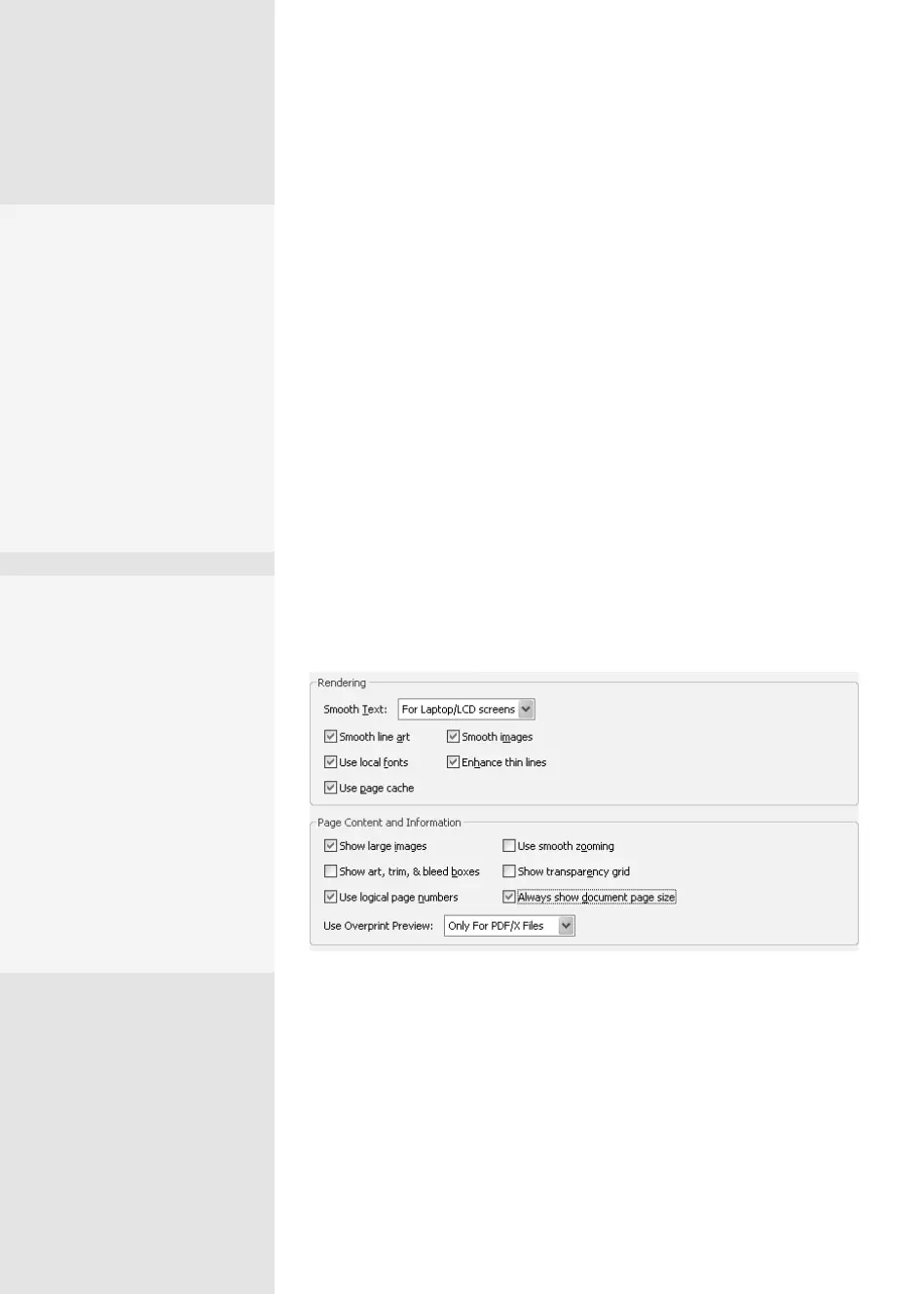
Leave the “Use page cache” check box selected (Figure 4b). The page
cache is a buffer area. If you cache the pages, as you display one page
the next page in a document is read and placed in a buffer area until
you are ready to view it. Pages load faster, and the faster load time
is particularly noticeable if you are working with image-intensive or
interactive documents.
Figure 4b Speed up page display by choosing settings that draw content and
display pages faster.
•
Deselect the “Show large images” option if your computer has a slow
redraw speed. On older computers, images take a lot of time to draw
on the screen. Each time you move the image means more time wait-
ing for the image to redraw again.
Set Your Autosave
Set an autosave time in the
“Automatically save docu-
ment changes to tempo-
rary file” field. By default,
Acrobat saves document
changes every five minutes.
If you are working on a large
document, the autosave can
take some time away from
your work; you may want
to increase the duration
between autosaves.
How Smooth Is
Smooth?
Experiment with the Render-
ing options in the Page Dis-
play preferences for different
displays. Click the Smooth
Text pull-down arrow and
specify either Laptop/LCD
or Monitor. If you work
with both a desktop and
a laptop, for example, you
may find smoothing options
necessary for clear viewing
on one monitor that you
won’t need on another.
From the Library of Daniel Dadian



 To Next Page